FFmpeg: how to loop a video for a 24/7 YouTube live stream
FFmpeg -stream_loop: How to Loop a Video for a 24/7 YouTube Live Stream
You’ve got one good video. A lo-fi mix. A product demo reel. A slow pan of rain on a window. Last Sunday’s church service. And you want it on YouTube around the clock, looping forever, looking like a real broadcast.
Most of those channels run on FFmpeg, and one flag does the looping: -stream_loop. This guide walks through what it does, the encode commands for H.264, H.265, and AV1, how to push the loop to YouTube Live, and the reasons an ffmpeg -stream_loop setup tends to fall over after a day or two. At the end, a cloud route that skips the babysitting.
What does ffmpeg -stream_loop do?
ffmpeg -stream_loop is an input option that replays a media file a set number of times before the stream ends. Pass it -1 and the file loops endlessly, which is how one pre-recorded video runs as a continuous live stream to YouTube, Twitch, or any RTMP endpoint.
The flag goes before your input file, because it’s an input option, not an output one. That placement catches people out. The value controls how many extra times the file repeats:
-stream_loop 0
Play once. This is the default.
-stream_loop 3
Play the file 4 times total (the original plus 3 loops).
-stream_loop -1
Repeat infinite number of times for 24/7 stream
So the basic command looks like this:
ffmpeg -stream_loop -1 -re -i input.mp4 ... # full commands below-re reads the file at its native frame rate instead of as fast as the CPU can manage. A live stream needs that. Without -re, FFmpeg would push a 10-minute video to YouTube in about 8 seconds and the ingest would slam the door. Real-time playback is what makes a file behave like live video.
What can you use these streams for?
Once you start looking, you spot them everywhere. Lofi Girl has been “live” for years on a loop a few hours long. At any given moment tens of thousands of people are watching the same file restart.
The same trick turns up in plenty of less famous places:
- Music and ambient channels. Lofi Girl is the famous one, but hundreds of imitators do rain, fireplaces, synthwave, jazz cafes, study beats. The genre basically runs on this trick.
- Church livestreams. Lots of them re-air the morning service as a “live” broadcast that evening, which is why you’ll see comments rolling in on a stream with nobody visibly there.
- Pre-launch teaser channels for game studios and hardware companies. The video is 90 seconds and it loops for a month before the real event. Allegedly helps the channel’s standing with the algorithm.
- Anything called a “live demo” on a SaaS landing page is, almost without exception, a walkthrough on infinite repeat.
Different reasons, same plumbing. A YouTube live stream loop that doesn’t need anyone holding it up.
How to install FFmpeg (with AV1 and H.265 support)
The FFmpeg in your package manager is often built without `av1 and h265 support. The builds outlined ship both.
Mac OS
If you don’t already have Homebrew installed, install it first by pasting this into Terminal:
/bin/bash -c "$(curl -fsSL https://raw.githubusercontent.com/Homebrew/install/HEAD/install.sh)"Then install FFmpeg from the homebrew-ffmpeg tap, which comes with AV1, HEVC, and H.264 by default:
brew tap homebrew-ffmpeg/ffmpeg
brew install homebrew-ffmpeg/ffmpeg/ffmpeg
Linux-based
Script below detects your architecture and installs a current static build from BtbN:
case "$(uname -m)" in
  x86_64) ARCH=linux64 ;;
  aarch64|arm64) ARCH=linuxarm64 ;;
  *) echo "Unsupported architecture: $(uname -m)"; exit 1 ;;
esac
wget "https://github.com/BtbN/FFmpeg-Builds/releases/download/latest/ffmpeg-master-latest-${ARCH}-gpl.tar.xz"
tar -xf "ffmpeg-master-latest-${ARCH}-gpl.tar.xz"
sudo cp "ffmpeg-master-latest-${ARCH}-gpl/bin/ffmpeg" /usr/local/bin/
Windows
Run this in PowerShell to download the current build from BtbN and add it to your PATH:
$arch = if ($env:PROCESSOR_ARCHITECTURE -eq "ARM64") { "winarm64" } else { "win64" }
$zip = "ffmpeg-master-latest-$arch-gpl.zip"
Invoke-WebRequest "https://github.com/BtbN/FFmpeg-Builds/releases/download/latest/$zip" -OutFile $zip
Expand-Archive $zip -DestinationPath "$env:LOCALAPPDATA\ffmpeg" -Force
$ffmpegDir = Get-ChildItem "$env:LOCALAPPDATA\ffmpeg" -Directory | Select-Object -First 1
$bin = Join-Path $ffmpegDir.FullName "bin"
[Environment]::SetEnvironmentVariable("Path", "$bin;" + [Environment]::GetEnvironmentVariable("Path","User"), "User")
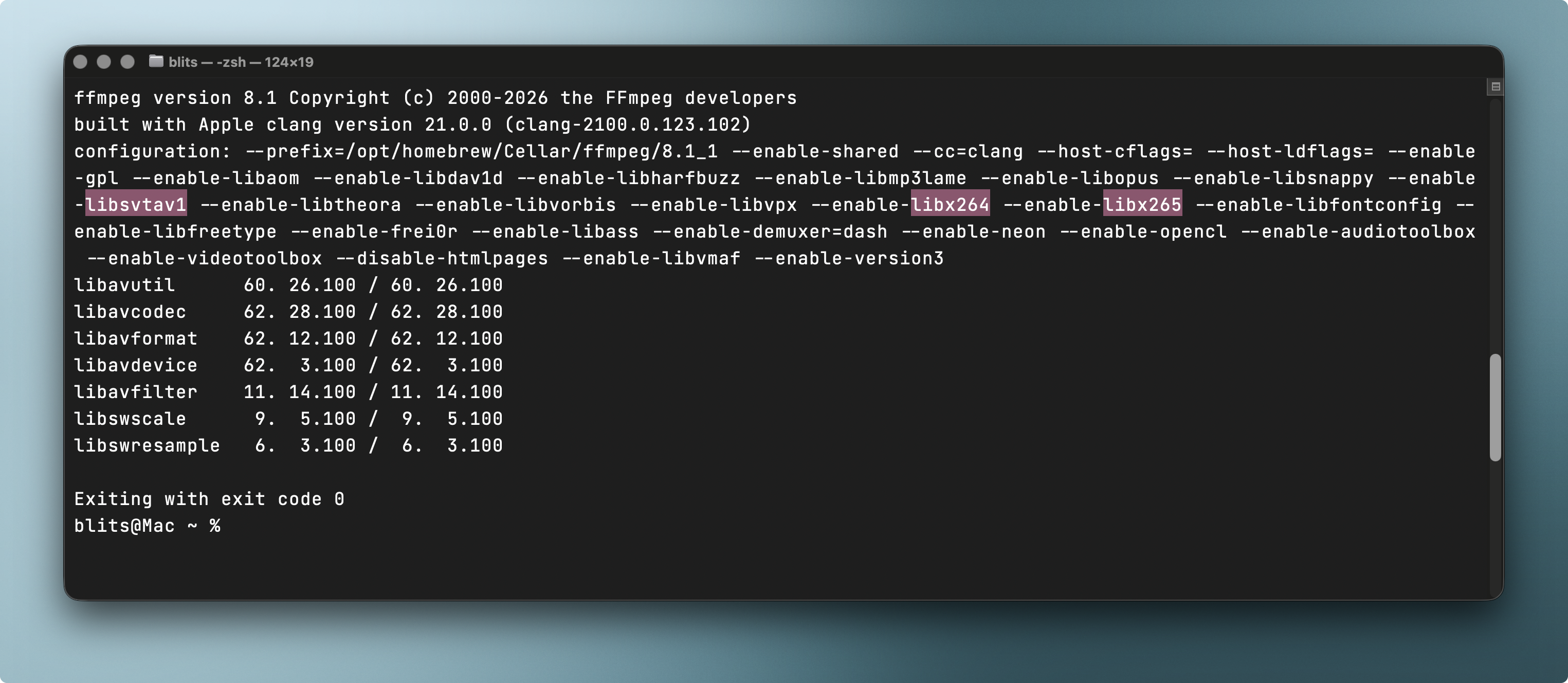
Verify the install on any platform by running ffmpeg -version. You should see version info followed by a long list of --enable- flags. Look for libx264, libx265, and libsvtav1 in that list. If they’re there, you’re good.
The two ways to loop a video as a live stream
Two ways to do this, and the difference is when the encoding happens.
The first is to encode the file properly once, then loop it forever while copy-streaming the video bytes untouched. Near-zero CPU, clean seams, a $5 VPS can hold it for weeks. The second is to skip the pre-encode and let FFmpeg loop and re-encode in real time, which pins a CPU core for the life of the stream. Faster to set up, worse on every metric that matters once it’s running.
For a 24/7 YouTube live stream, pre-encode unless your source is something you genuinely can’t process ahead of time. Re-encoding every frame of an unchanging video forever is just burning electricity. The sections below cover both.
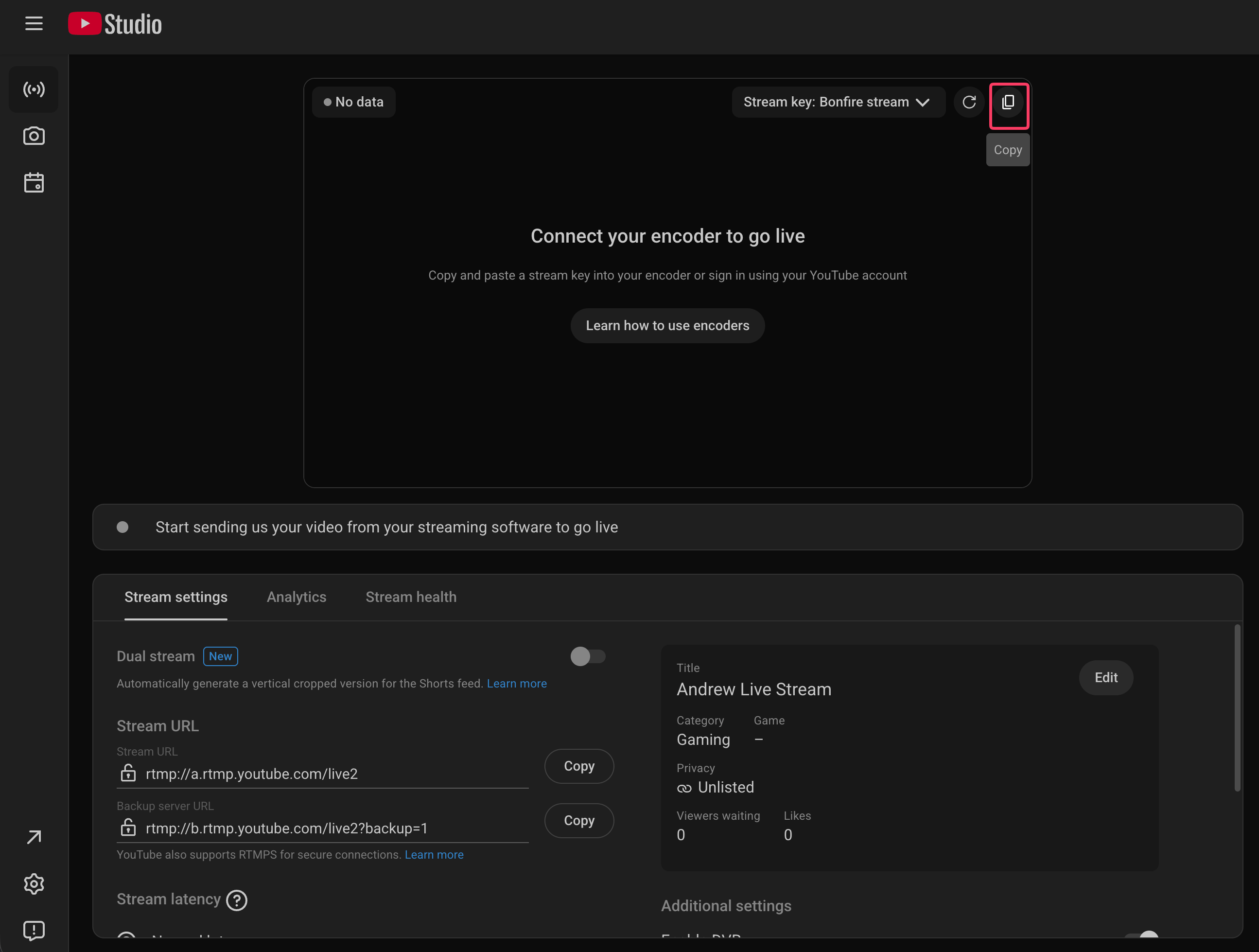
You’ll need an ingest URL and a stream key. For YouTube: Studio → Create → Go Live, copy the stream key. The base URL is rtmp://a.rtmp.youtube.com/live2 (or rtmps://a.rtmps.youtube.com/live2 for the encrypted version, same commands, just swap the URL). Every command below puts the base URL after -rtmp_live live and the key after -rtmp_playpath.
Option 1: Pre-encode the video, then stream it
Step 1: Encode the file once
Three things matter for this encode. The video needs a keyframe (a full self-contained image in the stream) at a steady interval. The picture format has to be one that streaming services accept. And the audio has to be in a format ready to stream. Set the keyframe spacing to twice your frame rate (so 60 at 30fps, 120 at 60fps), and you’ll land a keyframe every two seconds, which is what YouTube wants. The codec depends on where you’re streaming: AV1 for YouTube, H.264 for anywhere else. The next step explains why.
H.264:
ffmpeg -i source.mov \
  -c:v libx264 -preset slow -profile:v high -level 4.2 -pix_fmt yuv420p \
  -b:v 6000k -maxrate 6000k -bufsize 12000k \
  -g 60 -keyint_min 60 -sc_threshold 0 \
  -c:a aac -b:a 128k -ar 44100 \
  -movflags +faststart \
  loop_ready.mp4
H.265 / HEVC (smaller files, good for 4K):
ffmpeg -i source.mov \
  -c:v libx265 -preset slow -crf 23 -pix_fmt yuv420p \
  -x265-params "keyint=60:min-keyint=60:scenecut=0" \
  -c:a aac -b:a 128k -ar 44100 \
  -movflags +faststart \
  loop_ready_h265.mp4
At equal quality, HEVC files come out meaningfully smaller than H.264.
AV1 (most efficient):
ffmpeg -i source.mov \
  -c:v libsvtav1 -preset 6 -crf 30 -pix_fmt yuv420p \
  -svtav1-params "keyint=60" -g 60 \
  -c:a aac -b:a 128k -ar 44100 \
  loop_ready_av1.mkv
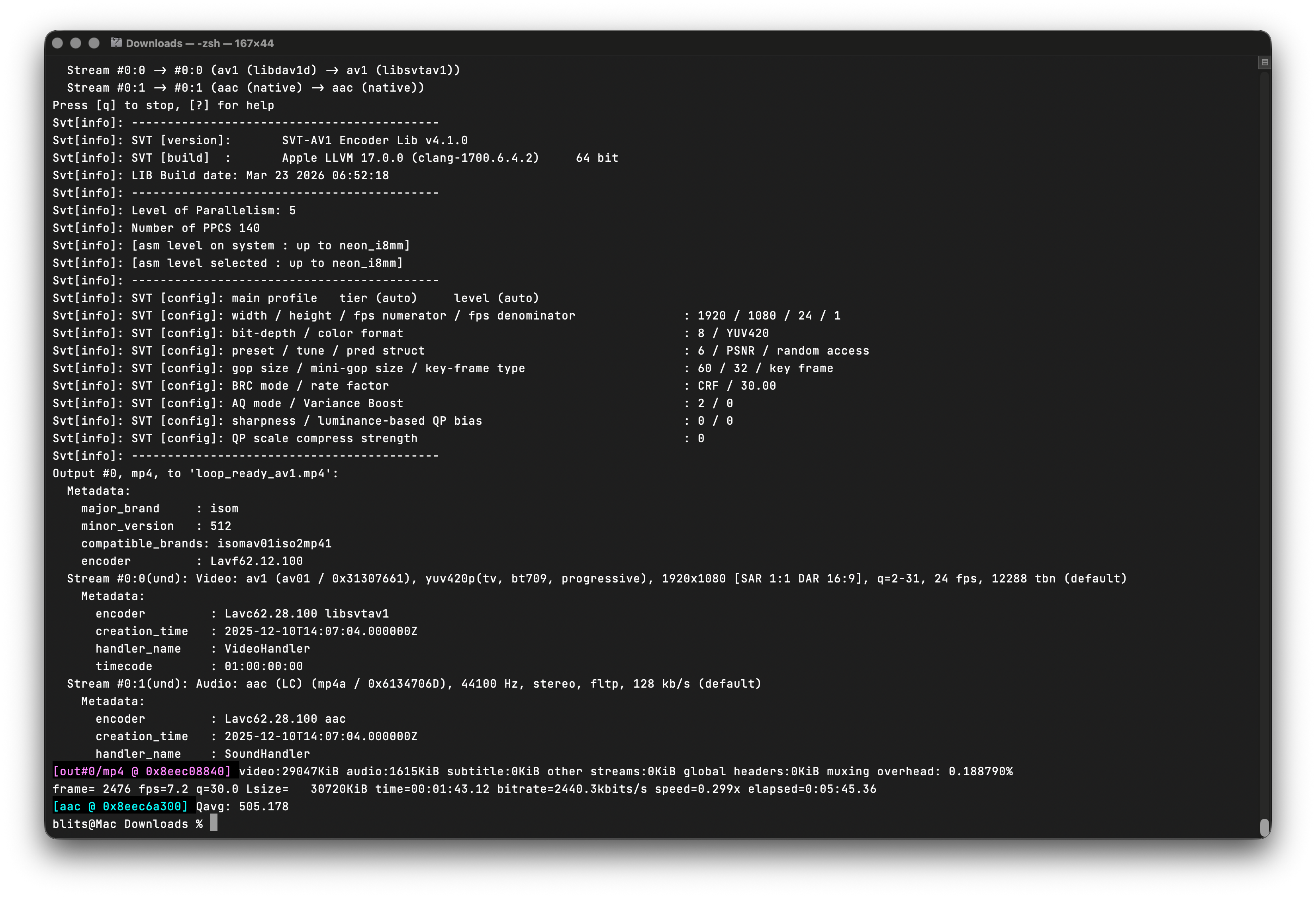
keyint=60 is the 2-second keyframe at 30fps; double it to 120 for 60fps source. Stick with SVT-AV1, libaom-av1 is painfully slow. The -preset number trades quality for speed; 6 is a fine middle.
When the encode finishes, you should have loop_ready.mp4 (or the H.265 / AV1 equivalent) sitting in your working folder. Play it once to make sure the file looks right.
Step 2: Pick codec and bitrate
YouTube’s live encoder settings accept all three codecs over RTMP/RTMPS. Pick by your situation:
AV1
Default for YouTube, best compression, lowest bandwidth
Slowest to encode (SVT-AV1 handles it in software; hardware AV1 just speeds it up)
H.265 (HEVC)
4K, and required for HDR over RTMP(S)
Heavier to encode than H.264; spottier device support
H.264
Default for other platforms (Twitch, Facebook, Kick) and anywhere compatibility matters
Larger files at a given quality
For YouTube, use AV1. They accept it natively, it saves the most bandwidth of the three, and SVT-AV1 runs the encode in software, so the “AV1 needs a special card” excuse is dead. Yes, it’s the slowest to encode of the three. But you encode once and stream the result forever, so that cost gets amortized to nothing.
Anywhere else: H.264. Twitch, Facebook, Kick, most random RTMP servers. They either explicitly require it or claim AV1/HEVC support that doesn’t actually work in practice. Don’t bet a 24/7 stream on a codec the ingest might silently reject.
H.265 is for one specific situation: HDR over RTMP, which a few platforms support. Outside of that it’s a worse H.264 (denser to encode) and a worse AV1 (less compression). Skip it.
Bitrates follow what YouTube recommends. AV1 and H.265 can hit the same picture quality near the low end of their range; H.264 needs the high end.
1080p @30fps
10 Mbps
3–8 Mbps
1080p @60fps
12 Mbps
4–10 Mbps
1440p @60fps
24 Mbps
6–30 Mbps
4K @30fps
30 Mbps
8–35 Mbps
4K @60fps
35 Mbps
10–40 Mbps
Those numbers assume a few shared settings across all three codecs. The encode should put a keyframe every 2 seconds, which the commands above already do. The output should be CBR, meaning -b:v, -maxrate and -bufsize are all set to the same number (again, already configured). Audio is AAC (or MP3) at 128 kbps and 44.1 kHz. Whatever bitrate you settle on, your upload speed should comfortably exceed it; about 1.5× makes a reasonable headroom.
Streaming somewhere other than YouTube? Those numbers are YouTube’s. Twitch caps most channels around 6000 kbps; a lot of other ingests only accept H.264. Match what you encode to where it’s going. See Streaming to other platforms for the table.
Step 3: Stream the loop
Now loop the pre-encoded file. The key detail: copy the video, but re-encode the audio.
ffmpeg -re -stream_loop -1 -i loop_ready.mp4 \
  -c:v copy -c:a aac -b:a 128k -ar 44100 \
  -f flv \
  -rtmp_playpath YOUR-STREAM-KEY \
  -rtmp_live live "rtmp://a.rtmp.youtube.com/live2"
The -c:v copy part is free, since the video is already encoded the way it needs to be. The audio is where it gets tricky. The audio format adds a tiny moment of silence at the start of each playback segment. If you simply copy the audio in a loop, those silent moments stack up at the loop point, and you’ll hear a small gap or click each time the video restarts. Re-encoding the audio live papers over that seam. It costs almost nothing (audio is cheap to process) and it’s the difference between a loop that sounds seamless and one that ticks every few minutes.
Net cost of this whole setup: trivial. Video gets copied, only the audio is re-encoded, and a cheap VPS runs it for weeks. The most reliable setup for streaming an MP4 to YouTube Live is also the simplest, which is why pre-encoding is worth the one-time effort.
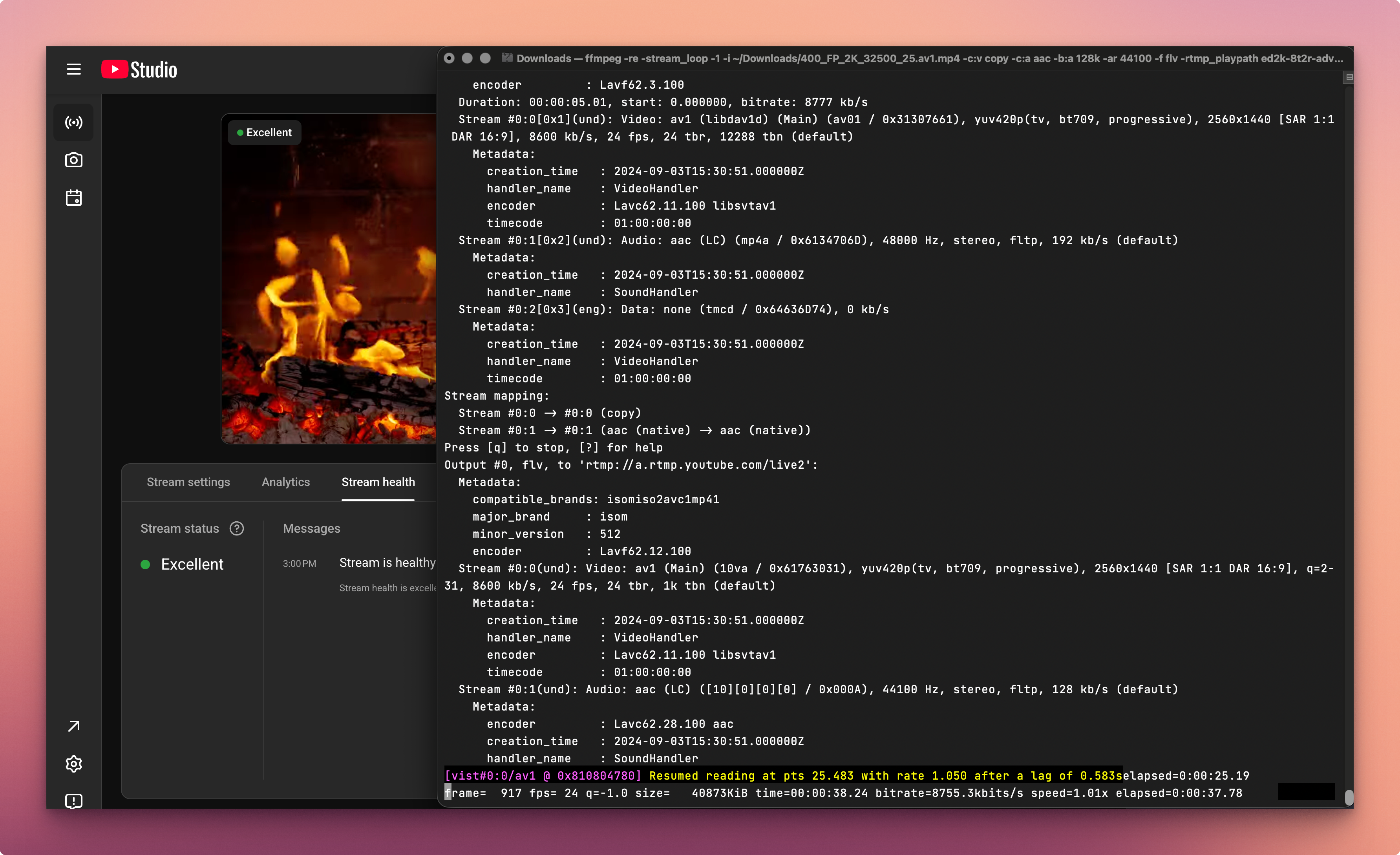
Once the command is running, FFmpeg will start printing progress lines that update once a second (frame count, bitrate, time elapsed). Over in YouTube Studio, the Go Live page should switch from “Waiting for stream” to a green status and a small preview of your video. That’s how you know it’s actually live.
Option 2: Encode the video on the fly
Pick this one when pre-encoding isn’t an option. Maybe you’re streaming a feed you don’t own, or your source file is huge and you don’t want a second copy of it on disk. FFmpeg will loop the source and re-encode every frame as it goes, which keeps a CPU core busy for the entire run:
ffmpeg -re -stream_loop -1 -i source.mkv \
  -c:v libx264 -preset veryfast -bf 0 -g 60 -sc_threshold 0 \
  -b:v 6000k -maxrate 6000k -bufsize 12000k \
  -c:a aac -b:a 128k -ar 44100 -ac 2 \
  -f flv \
  -rtmp_playpath YOUR-STREAM-KEY \
  -rtmp_live live "rtmp://a.rtmp.youtube.com/live2"
It works, but it’s the worse choice for anything you’re planning to run long. You’ll burn more electricity, generate more heat, and over the course of days the audio and video can slowly drift out of sync. The -bf 0 flag in there sidesteps an obscure bug that only shows up after a day or two of looping. If you’ve ever had a stream stall overnight for no obvious reason, that flag is part of the cure. Use Option 1 when you can.
Both options share the same publishing style: stream key in -rtmp_playpath, base URL in -rtmp_live live. The -rtmp_live live flag tells the server this is a live broadcast, not a recorded asset it should try to seek in.
Streaming a loop with no audio track
YouTube rejects a video-only feed. If your source has no sound, generate a silent track so the stream stays valid:
ffmpeg -re -stream_loop -1 -i video_no_audio.mp4 \
  -f lavfi -i anullsrc=channel_layout=stereo:sample_rate=44100 \
  -c:v copy -c:a aac -b:a 128k \
  -map 0:v -map 1:a \
  -f flv \
  -rtmp_playpath YOUR-STREAM-KEY \
  -rtmp_live live "rtmp://a.rtmp.youtube.com/live2"
Don’t add -shortest to that command. It would kill the stream the moment FFmpeg compares the audio and video lengths, because they’re both infinite.
The seam test: a good loop is invisible. If you can spot the exact frame where the video restarts, your viewers can too. Two things make the jump disappear: keyframes placed on a steady, predictable interval (the-sc_threshold 0flag handles this), and an audio track that fits evenly into the length of the video.
Streaming to other platforms
Nothing above is YouTube-specific except the URL. The same command pattern works for any streaming platform that accepts an RTMP feed. Swap the last two lines of any command (the URL and the stream key) and you’re streaming somewhere else.
YouTube
rtmp://a.rtmp.youtube.com/live2
YouTube Studio → Go Live
Twitch
rtmp://live.twitch.tv/app (or a regional rtmp://<region>.contribute.live-video.net/app)
Creator Dashboard → Settings → Stream
Facebook Live
rtmps://live-api-s.facebook.com:443/rtmp
Live Producer → Streaming software → Stream key
Kick
rtmps://...kick.com/... (shown per-account)
Creator Dashboard → Stream key
Any RTMP server
your server’s rtmp://host[:port]/app
wherever that service issues keys
A Twitch loop, for example:
ffmpeg -re -stream_loop -1 -i loop_ready.mp4 \
  -c:v copy -c:a aac -b:a 128k -ar 44100 \
  -f flv \
  -rtmp_playpath YOUR-TWITCH-KEY \
  -rtmp_live live "rtmp://live.twitch.tv/app"
A few platform notes. Twitch caps most channels at 6000 kbps, so dial 1080p down to match. Facebook prefers RTMPS, and its keys can be single-use, generate a fresh one per stream. Twitch and Kick also don’t love a perfectly static loop on a “live” channel long-term, so check each platform’s terms before running 24/7. YouTube is the most permissive for this use case. If juggling a different command and key per platform sounds tedious, that’s exactly what the cloud option below removes.
Common FFmpeg 24/7 streaming problems
Ten minutes in, it looks flawless. Two days in, it’s a different machine. The catalogue of grief:
- Stream death. A DNS hiccup, a brief disconnect, YouTube closing the socket on their end. Any of those will end the FFmpeg process. There’s no auto-restart. Mine went dark around 3am and I found out at breakfast, which is a six-hour gap on a channel that’s allegedly 24/7.
- No retry on the output side.
-reconnectis an input-side flag. If RTMP drops, that’s it. - Audio drift, eventually. Each loop nudges the audio timing by a tiny fraction. The nudges stack up, and after a few thousand loops the audio is a frame or two out. Invisible on landscape footage, obvious on a talking head.
- The logs start filling with warnings (
Non-monotonous DTS) because the same playback timestamps keep getting replayed every loop. Adding-fflags +genptsmakes FFmpeg recalculate them and clears most of it; a clean pre-encode prevents the rest. - CPU and memory creep, but only if you’re re-encoding live. One core stays pinned the whole run, and the process slowly gobbles more memory over days. Mine had a $5 VPS running out of memory by day three.
- The seam stutters when keyframes or audio length don’t line up (covered earlier). It’s the most visible failure and the one you’ll fix first because it’s the one your viewers complain about.
- No proper playlist. Looping one file: trivial. Three files in sequence: you concatenate them into one file in advance or hand-roll something on top of the concat demuxer. The “playlist” is the file you made.
- Want to swap the video on a running stream, drop the bitrate, reorder clips? Kill the process and start a new one. The channel goes offline and the new stream gets a new ID. There’s no in-place edit.
- Not point-and-click, in case that wasn’t obvious. Terminal, flags, error messages that don’t always say what they mean.
- Something has to keep the process alive. Laptops can’t do it: sleep, lid close, Wi-Fi handoffs all kill the stream. You need an always-on machine, a supervisor that relaunches when FFmpeg dies, and a way to verify that the relaunch actually reconnected to YouTube (those are not the same event).
- And a VPS isn’t free. Monthly bill, plus the hours you’ll spend hardening it. Worth pricing against managed. Streamloop runs around $4/month, so DIY isn’t automatically the cheap path it looks like.
A wrapper script handles the relaunch part. But that’s another piece to write, deploy, and maintain, which is the actual problem.
Why FFmpeg is genuinely hard to run 24/7
Every one of those has a fix. The fixes are all yours.
What you end up running isn’t really a command, it’s a small operations setup. An always-on machine, scripts that keep FFmpeg running, basic monitoring, and a way to actually check the channel is live (not just that the process is up). Plus the occasional late-night debug session when an FFmpeg release breaks one of your wrappers.
Past one channel the math gets worse than linearly. By number three you’ve quietly built the kind of monitoring you’d build for a small SaaS service, just to keep your loops on.
For a hobby loop, fine. You glance at the channel once a week and move on. For anything where someone’s actually depending on it being live (a customer, a client, an audience), the maintenance cost compounds quickly.
The cloud alternative: loop videos as 24/7 live streams without FFmpeg
Streamloop does the one thing this article is about (loop a pre-recorded file as a live stream) and runs it on hardware that’s already built to stay up.
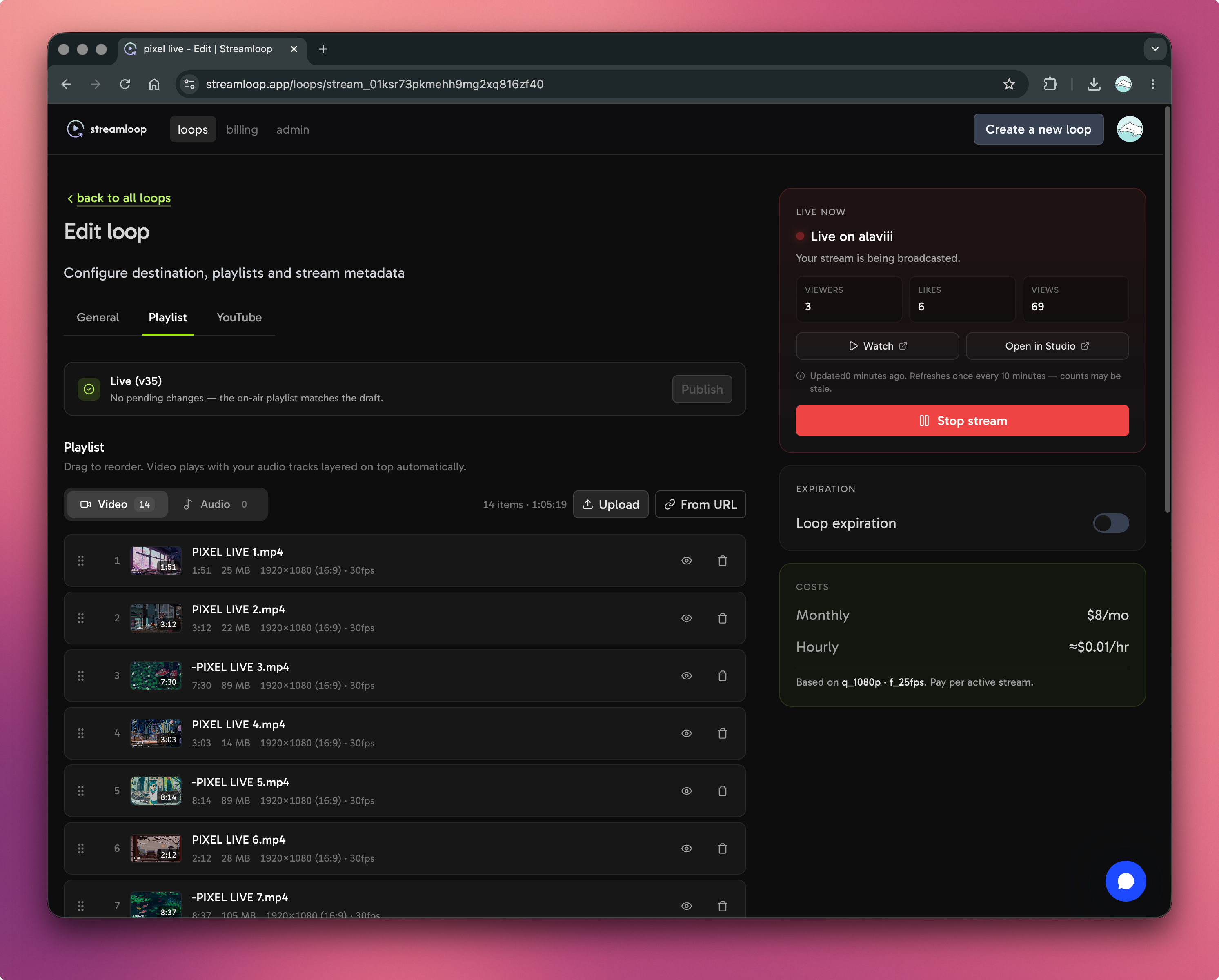
Upload a video, point it at YouTube (or Twitch, Facebook, any RTMP endpoint), and it loops from the cloud. No VPS to harden, no systemd unit to write, no discovering at 9 a.m. that it died at 3. The reconnects, the always-on box, the monitoring: all of that moves off your plate.
It was built for this specific case, which matters more than it might sound. Most “go live” tools assume you have a camera and an OBS scene; Streamloop assumes you have a file. Pre-recorded video on a live channel is the whole product, not a workaround.
Billing is hourly, no monthly subscription.
Two other things worth mentioning. It runs in their cloud, so your laptop can be closed and your home upload speed stops mattering. And one file can fan out to several platforms from the same source. That’s the part that turns from annoying to genuinely tedious if you do it yourself, where every destination is its own FFmpeg process to watch.
So here’s the split. If you like the command line, run a single channel, and don’t mind being the one who gets paged when it dies, FFmpeg with -stream_loop -1 is a real answer, and you now have every command. But “don’t mind being paged” is doing a lot of work in that sentence. Run more than one stream, or need the channel up whether or not you’re awake, and the math tips hard toward managed. At ~$4/month against the cost of a VPS plus your time, Streamloop isn’t really the expensive option, it’s the one that stops the loop being your problem.
FAQ
How do I loop a video forever in FFmpeg?
Put -stream_loop -1 before your input file. The -1 means infinite. A minimal forever-loop to an RTMP endpoint looks like ffmpeg -re -stream_loop -1 -i input.mp4 -c:v copy -c:a aac -f flv -rtmp_playpath YOUR-KEY -rtmp_live live "rtmp://your-endpoint/app".
Can you stream a pre-recorded video as live on YouTube?
Yep. RTMP doesn’t know whether the bytes are coming from a camera or a file on loop. It’s all the same to YouTube’s ingest. Encode the file to H.264 with AAC audio, spin up a live event in Studio, aim -stream_loop -1 at the ingest URL, done.
Does YouTube Live support a playlist or only a single video?
Single video. No native playlist for live looping. If you want a sequence of clips, concatenate them into one file with FFmpeg’s concat demuxer and loop that, or use a tool that does the queuing for you.
What’s the difference between -stream_loop placement before and after the input?
It has to come before -i. It’s an input option; put it anywhere else and FFmpeg either ignores it or errors out.
Why does my looped stream keep stopping after a few hours?
The FFmpeg process died (network blip, dropped RTMP connection, leaked memory) and nothing brought it back. There’s no built-in auto-restart for output streams. Wrap it in systemd or supervisord, or move to something that handles reconnection for you.
Which codec should I use to stream to YouTube?
AV1. YouTube takes it natively, it saves the most bandwidth, and SVT-AV1 encodes in software. Use H.265 only if you need HDR over RTMP. For Twitch, Facebook, and Kick, use H.264, because many of those ingests still won’t take anything else.
Can I run a 24/7 stream without leaving my computer on?
Not with FFmpeg alone. The process has to live somewhere that doesn’t sleep: your own server, a VPS, or a cloud-based live streaming service that runs the loop for you.
The short version
The command is genuinely simple: ffmpeg -re -stream_loop -1 -i your_file.mp4 -c:v copy -c:a aac -b:a 128k -ar 44100 -f flv -rtmp_playpath YOUR-KEY -rtmp_live live "rtmp://a.rtmp.youtube.com/live2". Pre-encode to H.264 with fixed 2-second keyframes, give yourself 1.5× bitrate headroom on upload, and you’ve got a YouTube live stream loop running.
The hard part was never the flag. It’s the days and weeks of keeping that process alive, watching for crashes, and being the one who gets paged when the loop goes dark. If that’s a trade you want to make, you now have every command you need. If it isn’t, Streamloop runs the same loop from the cloud so you don’t have to.
Streamloop is fully autonomous cloud alternative to ffmpeg -stream_loop
We have a great UI and playlist management – that’s much easier to manage than ffmpeg streams.