
How to Put a Pre-Recorded Video on TikTok LIVE
Written by AndrewFounder of Streamloop
We are opening early access to TikTok RTMP streaming from Streamloop. If you have at least 1,000 followers, you can apply.
Short answer: yes, with limits. If your account has TikTok LIVE access, a tool can send a video that you recorded earlier to TikTok over RTMP. TikTok documents no way to loop a saved file as a LIVE, so the tool does the looping.
Streamloop is one such tool. It turns pre-recorded videos into a 24/7 live stream from the cloud, so your computer can be off and you need no OBS. It suits creators who loop lofi music, ambient scenes, replays or product showcases. While the LIVE runs, new viewers can find you at any hour.
Know two TikTok limits first: you may need a new stream key for each LIVE, and TikTok may demonetize looped LIVEs.
The 60-second version
1. Get TikTok LIVE access, then copy your Server URL and stream key (how to get a TikTok stream key).
2. Export your video vertical (9:16), at 1080x1920.
3. Upload it to Streamloop, add the TikTok destination, and start the loop.
4. Before each new TikTok LIVE, check that the key in Streamloop is still current.
Can you really go live on TikTok with a pre-recorded video?
Yes, if your account has LIVE access. TikTok LIVE accepts an RTMP feed from tools such as OBS and Streamlabs. That feed can be a camera, or a video file on a loop.
The risk is in TikTok's monetization rules, not in the setup. Its LIVE Monetization Guidelines list content that may be demonetized, and four items fit a loop:
- "Pre-recorded videos, spliced videos, and looping videos that are presented to viewers as if they are authentic LIVE experiences"
- "Reproduced or unoriginal content that is imported or uploaded with no meaningful or creative edits"
- content run by "third-party tools, without meaningful creator presence"
- "largely passive or unattended" content, such as a creator who sleeps during a LIVE
In short, TikTok wants a creator present during a LIVE. A demonetized LIVE can lose access to Gifts. TikTok also says that these checks "may also be used to assess For You feed eligibility".
For a channel that stays live around the clock, YouTube is a better fit. See the 24/7 YouTube live stream guide.
What do you need before you start?
You need LIVE access, a Server URL and stream key from TikTok, a vertical video, and a way to play it.
- LIVE access on TikTok. TikTok gives a stream key only to accounts with LIVE access. Apply for LIVE access if you do not have it yet, or see why a key can be missing.
- A Server URL and a stream key. You copy both from TikTok. TikTok does not say how long a key lasts, and BIGVU reports a new key for each LIVE. If the key changes, the loop cannot reconnect until you add the new key.
- A vertical video. Step 1 below gives the export settings.
- A way to play it. Use OBS on your own computer, or a cloud tool such as Streamloop.
Why not just use OBS on your own PC?
A long stream from your own PC has costs, even though OBS with a looping media source works:
- Your computer must stay on and awake. Sleep, a Windows update or a lost Wi-Fi connection stops the stream.
- Your own power and upload bandwidth run all the time.
- To change the video or restart after a crash, you must be at the computer.
For a one-hour stream, OBS is fine. For a long stream that runs without your PC, a cloud tool is easier: you upload once to Streamloop, and a server plays the loop.
How to stream a pre-recorded video to TikTok LIVE with Streamloop
Streamloop sends your video to TikTok LIVE in five steps. You export the video vertical, copy the Server URL and key from TikTok, and upload the video. Then you add TikTok as a destination and start the loop.
Step 1: Prepare your video
Export your video at 9:16, the shape of a normal TikTok video. Use 1080x1920 at 30 frames per second, and save it as an MP4.
A playlist of a few clips also works, and it makes the loop feel less repetitive.
Step 2: Get your TikTok stream key
Copy the Server URL and the stream key from LIVE Producer on TikTok. Follow how to get a TikTok stream key. It also explains what to do if you see no key.
Step 3: Upload your video to Streamloop
Sign up at Streamloop, create a loop, and upload your video file.
Step 4: Add TikTok as a destination
Open your loop and select Add destination, then Connect new destination, then TikTok. On a new loop with no destinations, the first button reads Connect a destination.
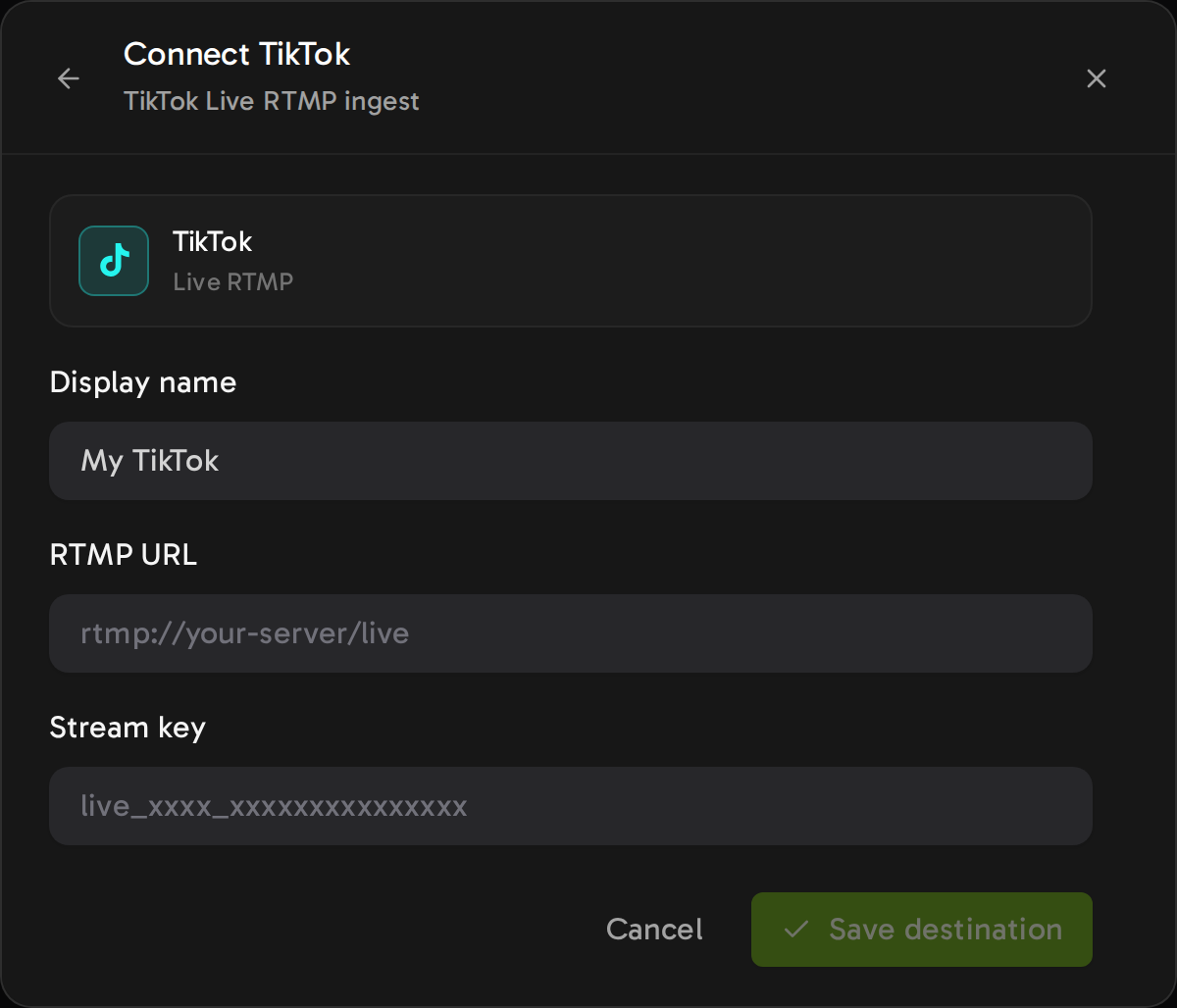
Fill in the two fields:
- RTMP URL: paste the Server URL that TikTok shows. Streamloop does not fill in a TikTok URL.
- Stream key: paste the key that you copied from TikTok.
Select Save destination.
If TikTok gives you a new key for a later LIVE, stop the loop. Add TikTok again with the new values, select Remove from loop on the old row, and start the loop.
Step 5: Set your quality and go live
Pick the quality and frame rate. TikTok does not say what it accepts above 1080p, so choose 1080p or lower, at 30 fps. Then start the loop.
What people loop on TikTok LIVE
With LIVE access, people loop content such as:
- Lofi or chill music with a calm animated background
- Replays or highlight reels
- Ambient scenes, such as aquariums, fireplaces, rain and nature
- Product showcases or menus for a small business
- Countdowns before a real live event
Calm formats with nobody present are the most likely to count as passive or unattended. Stay with the LIVE when you can, and reply to viewers' comments.
Can you pre-record a TikTok LIVE?
TikTok documents no way to loop a saved file as a LIVE. With LIVE access, a tool can send the file to TikTok over RTMP. Streamloop does this from the cloud. TikTok may demonetize pre-recorded LIVEs.
Does TikTok allow 24/7 streaming?
TikTok gives no rule about 24/7 LIVEs. BIGVU reports a new key for each LIVE, so a loop may need new values for the next LIVE. TikTok may also demonetize looped LIVEs.
Do I need 1,000 followers?
To go LIVE, TikTok asks for 1,000 followers, which "may vary across regions". Streaming from a computer has its own rules. See who can get a TikTok stream key.
Can I go live on TikTok without leaving my PC on?
Yes, while a LIVE runs. With a cloud tool such as Streamloop, the video plays from a server, so your computer can be off. You need TikTok LIVE access, and you may need to update the key for each LIVE.
Will TikTok ban me for looping a video?
TikTok gives no ban rule for loops. A loop may earn no Gifts, because TikTok may demonetize looping videos "presented to viewers as if they are authentic LIVE experiences". For content that misses its For You standards, TikTok may restrict "the visibility of LIVE sessions or the use of certain LIVE features". Community Guidelines violations may result in "revoking their ability to go LIVE".
Put your video on TikTok LIVE
Streaming is billed by the minute, only while live: one 24/7 stream at 1080p is about $10 per 30 days. Start with a $1 trial week, which becomes a monthly plan unless you cancel, or top up and pay as you go.