
FFmpeg: how to loop a video for a 24/7 YouTube live stream
Written by AndrewFounder of Streamloop
To loop a video with FFmpeg, put -stream_loop -1 before -i and add -re. Then send the output as FLV to an RTMP server. This command loops a file to YouTube until you stop it:
ffmpeg -re -stream_loop -1 -i loop_ready.mp4 \
  -c:v copy -c:a aac -b:a 128k -ar 44100 \
  -f flv "rtmp://a.rtmp.youtube.com/live2/YOUR-STREAM-KEY"
The video is copied, not encoded again, so prepare the file once before you loop it. For a file that you cannot prepare, use the live encode further down. This guide is for anyone who runs a lofi, ambient, sermon or study loop from a server or a spare machine.
How do you make FFmpeg loop a video?
-stream_loop is an input option. It sets how many times FFmpeg loops the input file that follows it: 0 means no loop, and -1 means an infinite loop.
| Value | What it does |
|---|---|
| No loop. The file plays once. |
| The file plays 4 times: the first play and 3 loops. |
| The file loops until you stop FFmpeg. Use this for a 24/7 stream. |
- Value
-stream_loop 0
- What it does
No loop. The file plays once.
- Value
-stream_loop 3
- What it does
The file plays 4 times: the first play and 3 loops.
- Value
-stream_loop -1
- What it does
The file loops until you stop FFmpeg. Use this for a 24/7 stream.
Put the option before -i. FFmpeg applies an option to the next file in the command. After the input file, the next file is the output, and FFmpeg stops with an error.
Add -re as well. It makes FFmpeg read the input at its native frame rate, so the file plays in real time. Without it, FFmpeg reads the file as fast as it can, which is the wrong speed for a live stream.
How do you install FFmpeg?
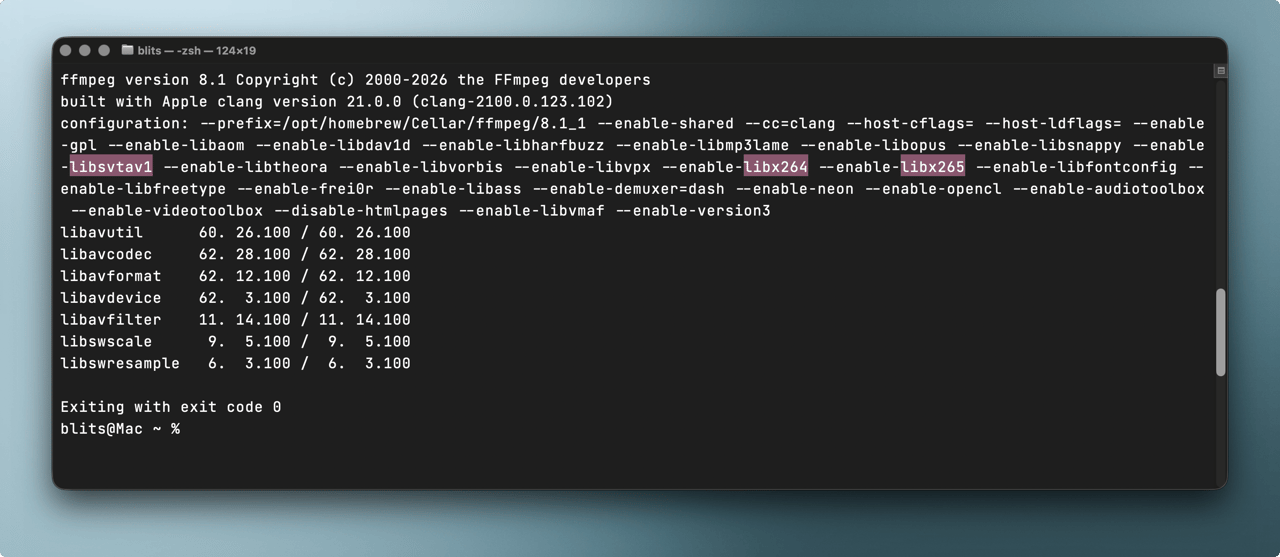
Use a recent build that includes the encoders in this guide: libx264 for H.264, libx265 for H.265 and libsvtav1 for AV1.
If you already have FFmpeg, skip to the version check at the end of this section.
Install FFmpeg on macOS
If you do not have Homebrew, install it first. Paste this into Terminal:
/bin/bash -c "$(curl -fsSL https://raw.githubusercontent.com/Homebrew/install/HEAD/install.sh)"Then install FFmpeg from the homebrew-ffmpeg tap:
brew tap homebrew-ffmpeg/ffmpeg
brew install homebrew-ffmpeg/ffmpeg/ffmpeg
Install FFmpeg on Linux
This script finds your processor type and installs a current static build from BtbN:
case "$(uname -m)" in
  x86_64) ARCH=linux64 ;;
  aarch64|arm64) ARCH=linuxarm64 ;;
  *) echo "Unsupported architecture: $(uname -m)"; exit 1 ;;
esac
wget "https://github.com/BtbN/FFmpeg-Builds/releases/download/latest/ffmpeg-master-latest-${ARCH}-gpl.tar.xz"
tar -xf "ffmpeg-master-latest-${ARCH}-gpl.tar.xz"
sudo cp "ffmpeg-master-latest-${ARCH}-gpl/bin/ffmpeg" /usr/local/bin/
Install FFmpeg on Windows
Run this in PowerShell. It downloads the current build from BtbN and adds it to your PATH:
$arch = if ($env:PROCESSOR_ARCHITECTURE -eq "ARM64") { "winarm64" } else { "win64" }
$zip = "ffmpeg-master-latest-$arch-gpl.zip"
Invoke-WebRequest "https://github.com/BtbN/FFmpeg-Builds/releases/download/latest/$zip" -OutFile $zip
Expand-Archive $zip -DestinationPath "$env:LOCALAPPDATA\ffmpeg" -Force
$ffmpegDir = Get-ChildItem "$env:LOCALAPPDATA\ffmpeg" -Directory | Select-Object -First 1
$bin = Join-Path $ffmpegDir.FullName "bin"
[Environment]::SetEnvironmentVariable("Path", "$bin;" + [Environment]::GetEnvironmentVariable("Path","User"), "User")
To check the install, run ffmpeg -version. The configuration line must include --enable-libx264, plus --enable-libx265 or --enable-libsvtav1 for H.265 or AV1.
How do you prepare the video for a seamless loop?
Encode the file once with streaming settings. The loop command then copies the video with -c:v copy and does not encode it again, so the stream needs little CPU.
YouTube asks for a keyframe every 2 seconds, and never more than 4 seconds apart. Set -g to twice your frame rate: 60 at 30 fps, or 120 at 60 fps. To see the frame rate of your file, run ffprobe source.mov. YouTube also asks for a constant bitrate and AAC audio at 128 kbps and 44.1 kHz.
For H.264, which every platform in this guide accepts:
ffmpeg -i source.mov \
  -c:v libx264 -preset slow -profile:v high -pix_fmt yuv420p \
  -b:v 6000k -maxrate 6000k -bufsize 12000k \
  -g 60 -keyint_min 60 -sc_threshold 0 \
  -c:a aac -b:a 128k -ar 44100 \
  -movflags +faststart \
  loop_ready.mp4
-sc_threshold 0 stops extra keyframes at scene cuts, so the keyframes stay 2 seconds apart. Set -b:v, -maxrate and -bufsize from the codec and bitrate table.
For H.265 (this command makes an SDR file, and YouTube needs H.265 for HDR):
ffmpeg -i source.mov \
  -c:v libx265 -preset slow -pix_fmt yuv420p \
  -b:v 10000k -maxrate 10000k -bufsize 20000k \
  -x265-params "keyint=60:min-keyint=60:scenecut=0" \
  -c:a aac -b:a 128k -ar 44100 \
  -movflags +faststart \
  loop_ready_h265.mp4
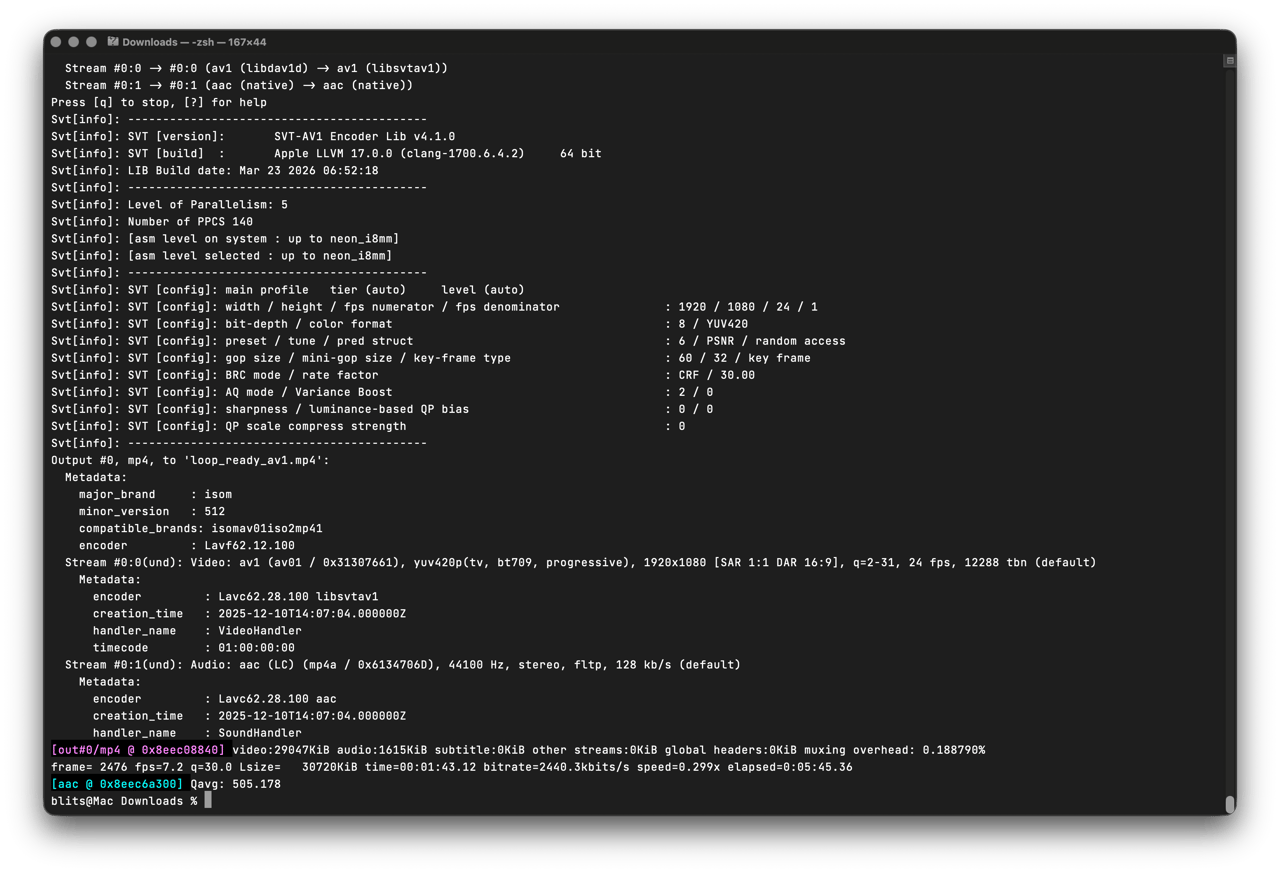
For AV1, which needs the least bitrate on YouTube in SDR:
ffmpeg -i source.mov \
  -c:v libsvtav1 -preset 8 -pix_fmt yuv420p \
  -b:v 10000k -bufsize 20000k \
  -svtav1-params "keyint=60:rc=2:pred-struct=1" -g 60 \
  -c:a aac -b:a 128k -ar 44100 \
  loop_ready_av1.mp4
Both commands use 10 Mbps, the YouTube recommendation for 1080p at 30 fps. In the H.265 command, -maxrate caps the bitrate at that value. SVT-AV1 has a constant bitrate only in its low delay mode, so the AV1 command sets rc=2:pred-struct=1.
For 60 fps sources, change every 60 in these commands to 120. FFmpeg versions before 6.1 cannot send H.265 or AV1 in FLV, so use H.264 there. Play the result once before you loop it.
Which codec and bitrate should you use for YouTube?
YouTube’s live encoder settings accept H.264, H.265 and AV1 over RTMP and RTMPS, at up to 60 fps.
| Codec | Use it when | Keep in mind |
|---|---|---|
AV1 | You stream only to YouTube, in SDR | Slowest to encode, but you encode the file once. YouTube does not support AV1 for HDR. |
H.265 (HEVC) | You stream HDR to YouTube | YouTube uses H.265 for HDR. Encoding is slower than H.264. |
H.264 | You stream to Twitch, Facebook or Kick, or to several platforms | Needs the most bitrate of the three. Kick accepts H.264 only. |
- Codec
AV1
- Use it when
You stream only to YouTube, in SDR
- Keep in mind
Slowest to encode, but you encode the file once. YouTube does not support AV1 for HDR.
- Codec
H.265 (HEVC)
- Use it when
You stream HDR to YouTube
- Keep in mind
YouTube uses H.265 for HDR. Encoding is slower than H.264.
- Codec
H.264
- Use it when
You stream to Twitch, Facebook or Kick, or to several platforms
- Keep in mind
Needs the most bitrate of the three. Kick accepts H.264 only.
YouTube gives a minimum and a recommended bitrate for each resolution. H.264 needs more bitrate than AV1 or H.265 for the same picture:
| Resolution and frame rate | AV1 or H.265 | H.264 |
|---|---|---|
720p, 30 or 60 fps | 2 to 6 Mbps | 3 to 8 Mbps |
1080p, 30 fps | 4 to 10 Mbps | 5 to 14 Mbps |
1080p, 60 fps | 4 to 12 Mbps | 6 to 17 Mbps |
1440p, 30 fps | 5 to 15 Mbps | 7 to 21 Mbps |
1440p, 60 fps | 6 to 24 Mbps | 8 to 34 Mbps |
4K, 30 fps | 8 to 30 Mbps | 11 to 42 Mbps |
4K, 60 fps | 10 to 35 Mbps | 14 to 50 Mbps |
- Resolution and frame rate
720p, 30 or 60 fps
- AV1 or H.265
2 to 6 Mbps
- H.264
3 to 8 Mbps
- Resolution and frame rate
1080p, 30 fps
- AV1 or H.265
4 to 10 Mbps
- H.264
5 to 14 Mbps
- Resolution and frame rate
1080p, 60 fps
- AV1 or H.265
4 to 12 Mbps
- H.264
6 to 17 Mbps
- Resolution and frame rate
1440p, 30 fps
- AV1 or H.265
5 to 15 Mbps
- H.264
7 to 21 Mbps
- Resolution and frame rate
1440p, 60 fps
- AV1 or H.265
6 to 24 Mbps
- H.264
8 to 34 Mbps
- Resolution and frame rate
4K, 30 fps
- AV1 or H.265
8 to 30 Mbps
- H.264
11 to 42 Mbps
- Resolution and frame rate
4K, 60 fps
- AV1 or H.265
10 to 35 Mbps
- H.264
14 to 50 Mbps
Your upload speed must be higher than the bitrate, with a margin. For the numbers on Twitch, Facebook and Kick, see the live stream settings guide. Their server URLs are in the platform table.
How do you stream the loop to YouTube?
If you turn on live streaming for the first time, YouTube can take up to 24 hours to enable it.
- In YouTube Studio, click Create, then Go live. The Live Control Room opens.
- Click the Stream tab and copy the stream key. The YouTube stream key guide shows each screen.
- In the command, replace YOUR-STREAM-KEY with your key, and run it:
ffmpeg -re -stream_loop -1 -i loop_ready.mp4 \
  -c:v copy -c:a aac -b:a 128k -ar 44100 \
  -f flv "rtmp://a.rtmp.youtube.com/live2/YOUR-STREAM-KEY"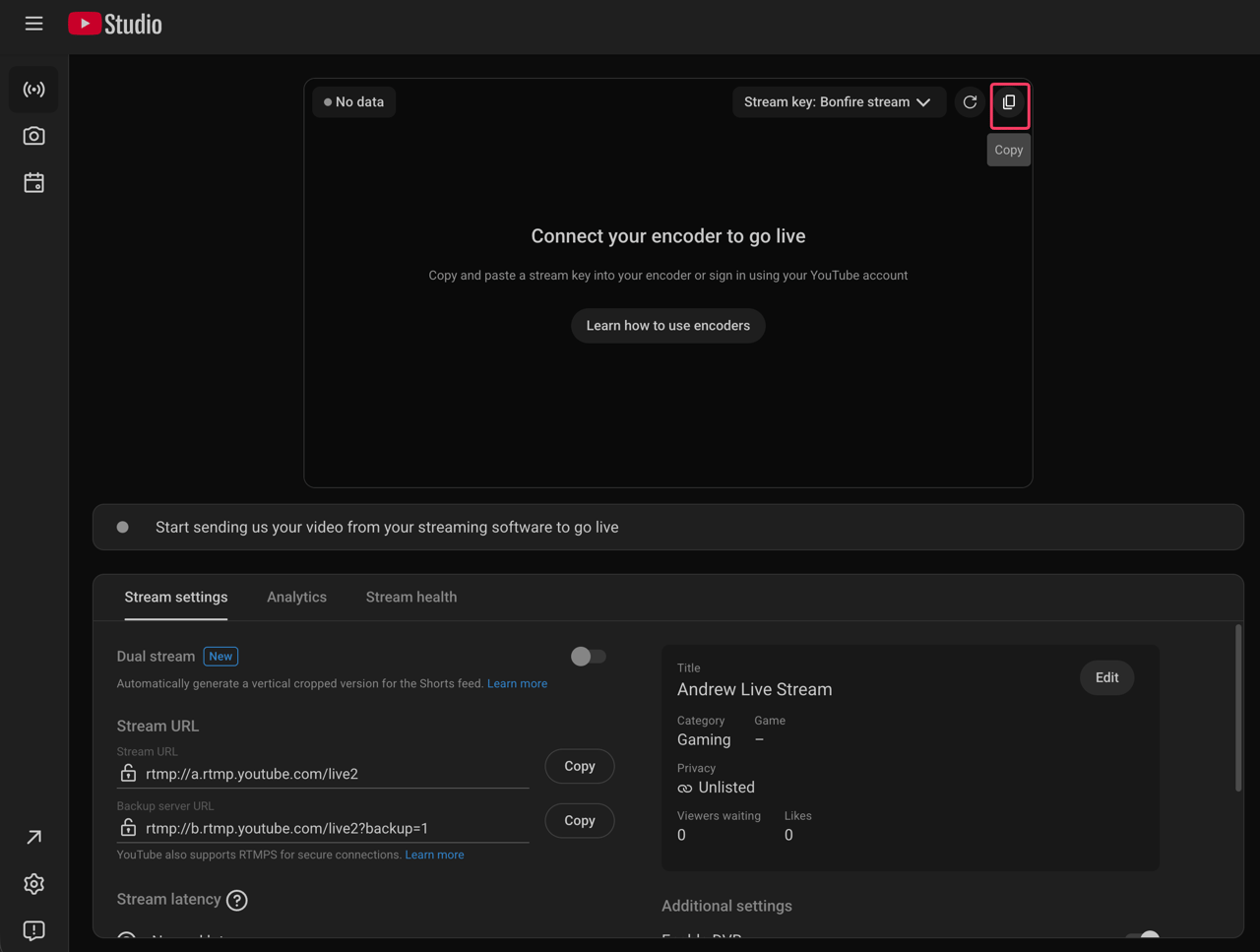
The URL is the Stream URL from the Live Control Room, with your key after the last slash. It uses RTMP, the protocol that YouTube, Twitch and Kick list for encoders.
To encrypt the stream, click the lock icon in the Stream URL field. YouTube then shows the RTMPS URL, which you use in place of the RTMP one. If you get an SSL error, add port 443 to the URL.
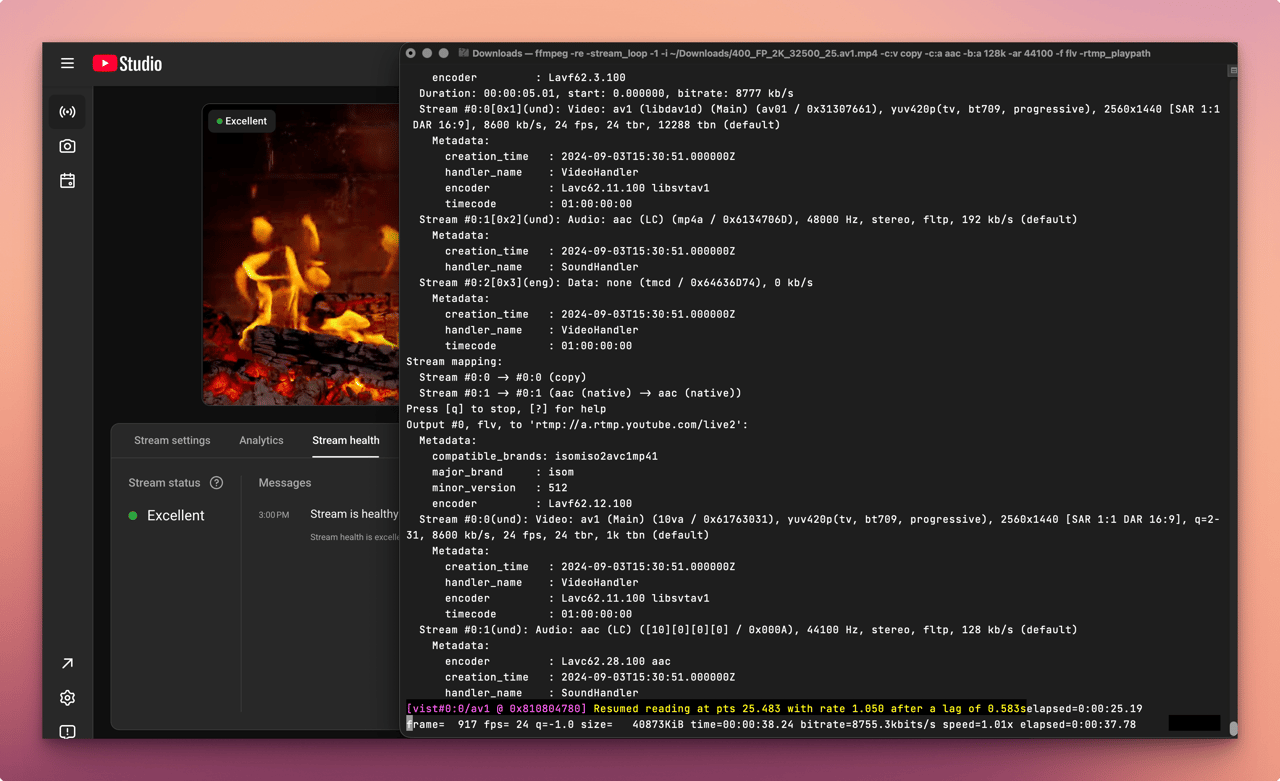
The command copies the video and encodes the audio again, to AAC at 128 kbps and 44.1 kHz. When the stream starts, FFmpeg prints a progress line with the frame count, the time and the bitrate. YouTube creates a watch page, and you are live. The Live Control Room shows a preview and the stream health.
With Auto-start and Auto-stop on in the stream settings, the encoder starts and stops the stream. If Auto-start is off, wait for the preview in the Live Control Room, then click Go live. After a restart, open the Live Control Room and check the preview and the stream health.
What if the video has no audio?
YouTube’s encoder settings include an AAC or MP3 audio track. If your file has no sound, add a silent track from the FFmpeg anullsrc source:
ffmpeg -re -stream_loop -1 -i video_no_audio.mp4 \
  -f lavfi -i anullsrc=channel_layout=stereo:sample_rate=44100 \
  -c:v copy -c:a aac -b:a 128k \
  -map 0:v -map 1:a \
  -f flv "rtmp://a.rtmp.youtube.com/live2/YOUR-STREAM-KEY"
-map 0:v -map 1:a takes the video from the file and the audio from the silent source.
What if you cannot pre-encode the file?
FFmpeg can encode each frame while it loops. Use this for a file that you cannot process in advance, such as one too large to store twice:
ffmpeg -re -stream_loop -1 -i source.mkv \
  -c:v libx264 -preset veryfast -g 60 -keyint_min 60 -sc_threshold 0 \
  -b:v 6000k -maxrate 6000k -bufsize 12000k \
  -c:a aac -b:a 128k -ar 44100 -ac 2 \
  -f flv "rtmp://a.rtmp.youtube.com/live2/YOUR-STREAM-KEY"
The encode uses CPU for as long as the stream runs. The machine must keep up in real time, so pre-encode when you can.
How do you stream the loop to Twitch, Facebook or Kick?
Change only the URL at the end of the command. Each platform gives you a server URL and a stream key, and the key goes after the last slash.
| Platform | Server URL | Where the stream key is |
|---|---|---|
YouTube |
| |
Twitch |
| |
| ||
Kick |
| |
Any RTMP server |
| Where that service gives you keys |
- Platform
YouTube
- Server URL
rtmp://a.rtmp.youtube.com/live2
- Where the stream key is
- Platform
Twitch
- Server URL
rtmp://ingest.global-contribute.live-video.net/app
- Where the stream key is
- Platform
Facebook
- Server URL
rtmps://live-api-s.facebook.com:443/rtmp/(use the one that Live Producer shows)
- Where the stream key is
- Platform
Kick
- Server URL
rtmps://fa723fc1b171.global-contribute.live-video.net:443/app
- Where the stream key is
- Platform
Any RTMP server
- Server URL
rtmp://host:port/app
- Where the stream key is
Where that service gives you keys
Twitch recommends 6,000 kbps for 1080p at 60 fps. Kick accepts H.264 at up to 8,000 kbps. On Facebook, a standard key works for one broadcast, and a live video ends after 8 hours. Turn on a persistent stream key there, so that a restart can use the same key. Facebook Live Policies say that Live "should not be used to broadcast looping videos", so read the 24/7 Facebook guide first. To send one loop to several platforms, see how to run the loop without a server.
How do you restart FFmpeg when the stream drops?
When the connection to the server drops, the FFmpeg process ends. The reconnect options in the FFmpeg documentation belong to the HTTP protocol, for input. They do not reconnect an RTMP output, so something else must start FFmpeg again.
This shell loop starts FFmpeg again 5 seconds after it stops. Run it in tmux or screen, so that it does not stop when you close the terminal:
while true; do
  ffmpeg -re -stream_loop -1 -i loop_ready.mp4 \
    -c:v copy -c:a aac -b:a 128k -ar 44100 \
    -f flv "rtmp://a.rtmp.youtube.com/live2/YOUR-STREAM-KEY"
  sleep 5
done
On a Linux server, a systemd service does the same, and it also starts the loop after a reboot. Save this as /etc/systemd/system/ffmpeg-loop.service:
[Unit]
Description=FFmpeg 24/7 loop
Wants=network-online.target
After=network-online.target

[Service]
ExecStart=/usr/local/bin/ffmpeg -re -stream_loop -1 -i /srv/loop/loop_ready.mp4 -c:v copy -c:a aac -b:a 128k -ar 44100 -f flv rtmp://a.rtmp.youtube.com/live2/YOUR-STREAM-KEY
Restart=always
RestartSec=5

[Install]
WantedBy=multi-user.target
Then run sudo systemctl enable --now ffmpeg-loop. Restart=always restarts FFmpeg after any exit, and RestartSec=5 waits 5 seconds first. Each restart leaves a short gap. After the first restart, check the preview and the stream health in the Live Control Room.
Other problems show up on long runs:
- A jump where the video starts again. Pre-encode the file with fixed keyframes, as shown above.
- Changes need a restart. To change the file or the bitrate, stop FFmpeg and start it again.
- A laptop stops the stream. Sleep and network changes end the process, so use a machine that stays on.
- Several videos. List them in a text file for the concat demuxer, and loop the list. Encode all files with the same settings first.
ffconcat version 1.0
file 'intro.mp4'
file 'part-2.mp4'ffmpeg -re -stream_loop -1 -f concat -safe 0 -i playlist.txt \
-c:v copy -c:a aac -b:a 128k -ar 44100 \
-f flv "rtmp://a.rtmp.youtube.com/live2/YOUR-STREAM-KEY"How can you run the loop without a server?
Streamloop turns pre-recorded videos into a 24/7 live stream from the cloud. Your computer can be off, and you need no OBS and no FFmpeg. It suits lofi and ambient channels, sermon replays and study streams. A 24/7 live stream stays live, so new viewers can find it at any hour.
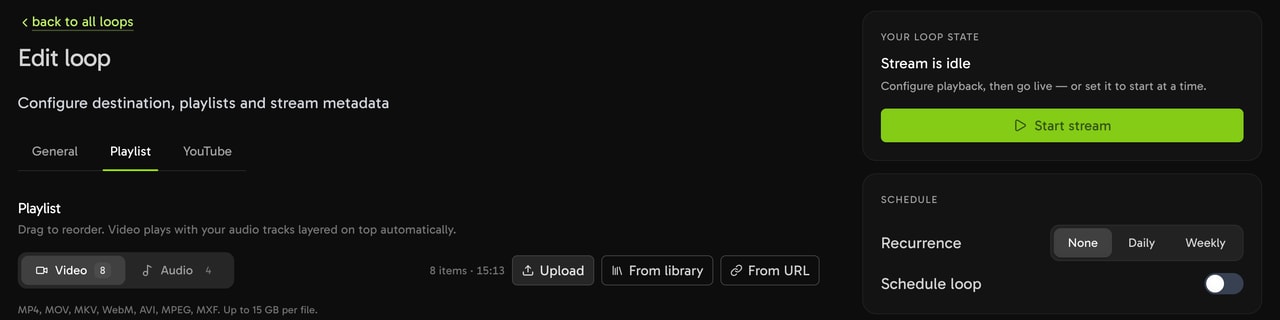
Upload a video, point it at YouTube (or Twitch, Facebook, any RTMP endpoint), and it loops from the cloud. Streamloop uses your stream key or a YouTube sign-in to send the loop to your channel. You do not rent a server, and you do not write a restart script or a systemd unit.
For the full setup on YouTube, read how to run a 24/7 YouTube live stream. One loop can go to up to 5 destinations, and how to multistream shows that setup.
If you run one channel and like the command line, FFmpeg with -stream_loop -1 does the job, and this page has every command. If you run several streams, or you do not want to look after a server, Streamloop runs the loop for you.
Streaming is billed by the minute, only while live: one 24/7 stream at 1080p is about $10 per 30 days. Start with a $1 trial week, which becomes a monthly plan unless you cancel, or top up and pay as you go. See all prices.
Streamloop is fully autonomous cloud alternative to ffmpeg -stream_loop
We have a great UI and playlist management. That’s much easier to manage than ffmpeg streams.
Frequently asked questions
How do I loop a video forever in FFmpeg?
Put -stream_loop -1 before -i. Add -re, so that FFmpeg reads the file in real time. Send the output with -f flv to the RTMP URL of your platform. Your stream key goes at the end of the URL. The command at the top of this page is a complete example for YouTube.
How do I loop a video a set number of times?
Give -stream_loop the number of extra plays. -stream_loop 3 plays the file 4 times: the first play and 3 loops. To make a longer file in place of a stream, copy the streams to a new file: ffmpeg -stream_loop 3 -i input.mp4 -c copy output.mp4.
Can you stream a pre-recorded video as live on YouTube?
Yes. FFmpeg sends the file to YouTube as an encoder stream, in the same way that OBS sends a camera. Paste your stream key into the command, start FFmpeg, and YouTube creates a watch page for the stream. Use the encode settings from YouTube Help, so that the stream health stays good.
Does YouTube Live support a playlist or only a single video?
YouTube plays the one stream that your encoder sends. To show several videos, the encoder must send them in order. With FFmpeg, list the files in a concat file. Then loop the list with -stream_loop -1 -f concat -safe 0 -i playlist.txt. The files must use the same codecs and settings.
What’s the difference between -stream_loop placement before and after the input?
Before -i, the option loops that input file. FFmpeg applies an option to the next file in the command. After the input, the next file is the output, so FFmpeg stops with an error: it cannot apply an input option to an output file.
Why does my looped stream keep stopping after a few hours?
The FFmpeg process ended, for example after a network drop, and nothing started it again. FFmpeg does not reconnect an RTMP output. Run it in a shell loop or a systemd service that restarts it. On Facebook, a live video also ends after 8 hours.
Which codec should I use to stream to YouTube?
For YouTube only, AV1 or H.265 need the least bitrate in the YouTube table, and HDR needs H.265. H.264 needs more bitrate, but YouTube, Twitch, Facebook and Kick all accept it. If one file goes to several platforms, use H.264.
Can I run a 24/7 stream without leaving my computer on?
Not if FFmpeg runs on that computer. The process must run on a machine that stays on, such as your own server or a rented one. A cloud service such as Streamloop runs the loop for you, so your computer can be off.
Sources
Checked on October 15, 2026 against the FFmpeg documentation, YouTube Help and the Streamloop dashboard.
- FFmpeg documentation: ffmpeg, Formats and Protocols
- YouTube Help: Choose live encoder settings, bitrates, and resolutions
- YouTube Help: Encrypt your stream using RTMPS
- YouTube Help: Create a YouTube live stream with an encoder
- systemd manual: systemd.service