
How to Find Your YouTube Stream Key and Server URL
Your YouTube stream key and server URL are in YouTube Studio. Select Create, then Go live, and open the Stream tab: both are under Stream settings.
Use a computer, because YouTube documents the key only in YouTube Studio, not in the phone app. The key works like a password for your channel. Our advice: never show or share it.
- Where
- YouTube Studio, Create, Go live, Stream tab
Using OBS? OBS can sign in to YouTube instead, with no key. Key leaked? Reset it. No key or no Go live? See the fixes. Using Streamloop? Connect channel needs no key.
On this page
Find your YouTube stream key
The first time, YouTube can take up to 24 hours to turn on live streaming. No Go live button? See the fixes.
Open YouTube Studio on a computer
Sign in to the channel that you want to stream to.
Open Live Control Room
At the top right, select Create, then Go live.
Open the Stream tab
Select Stream in the left menu. For your first stream, edit the stream and select Create stream.
Copy the stream key
Under Stream settings, copy the key from the Stream key field. Do not paste it anywhere public.
Copy the Stream URL
Copy the Stream URL from the same panel. Paste the URL and the key into your encoder.
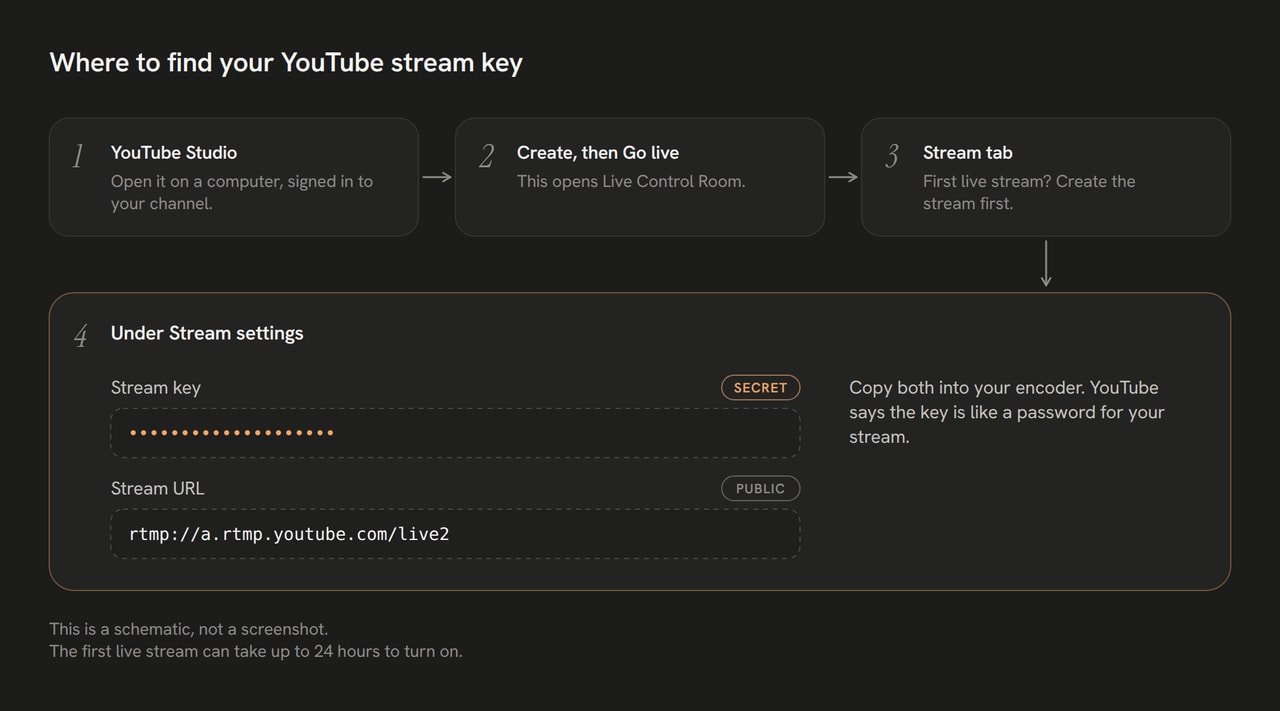
A schematic of the path, not a screenshot. The first live stream can take up to 24 hours to turn on.

YouTube RTMP and RTMPS server URLs
The server URL tells your encoder where to send the video. The stream key tells YouTube which channel it is. YouTube calls the server URL the Stream URL.

The server URL says where the stream goes, and many channels share it. The key says which channel it is, so keep it secret.
| Server, checked 2026-10-14 | URL |
|---|---|
| RTMP, primary (the default shown in Live Control Room) | rtmp://a.rtmp.youtube.com/live2 |
| RTMP, backup | rtmp://b.rtmp.youtube.com/live2?backup=1 |
| RTMPS, primary (encrypted, recommended by YouTube) | rtmps://a.rtmps.youtube.com:443/live2 |
| RTMPS, backup | rtmps://b.rtmps.youtube.com:443/live2?backup=1 |
From the OBS Studio service list. Streamloop code uses the same RTMP primary and backup hosts. YouTube Help does not print these URLs.
To see the RTMPS URL in Live Control Room, select the lock icon in the Stream URL field. For RTMPS, use rtmps and port 443.
Add YouTube to OBS: stream key or sign-in
OBS Studio can sign in to your YouTube account, so you do not copy a key. Use the key for a channel that you cannot sign in to. Other encoders have the same two fields: Server and Stream key.
Open the stream settings
In OBS Studio, open Settings, then Stream. Set Service to YouTube - RTMPS.
Sign in, or choose the key
Select Connect Account (recommended) and sign in with Google. To use a key instead, select Use Stream Key.
Paste the key and save
Paste the stream key from Live Control Room. Select Apply, then OK.
Reset a leaked stream key
Reset the key if it leaked. Only a channel owner or manager can reset a key.
Reset between streams. YouTube does not say what happens to a stream that is live during a reset.
Open Live Control Room
In YouTube Studio, select Create, then Go live.
Find the Stream key section
Select the Stream tab in the left menu. Find the Stream key section.
Select Reset
Select Reset next to your hidden stream key. YouTube makes a new key.
Update every encoder
Copy the new key. Paste it into every encoder or tool that used the old key.
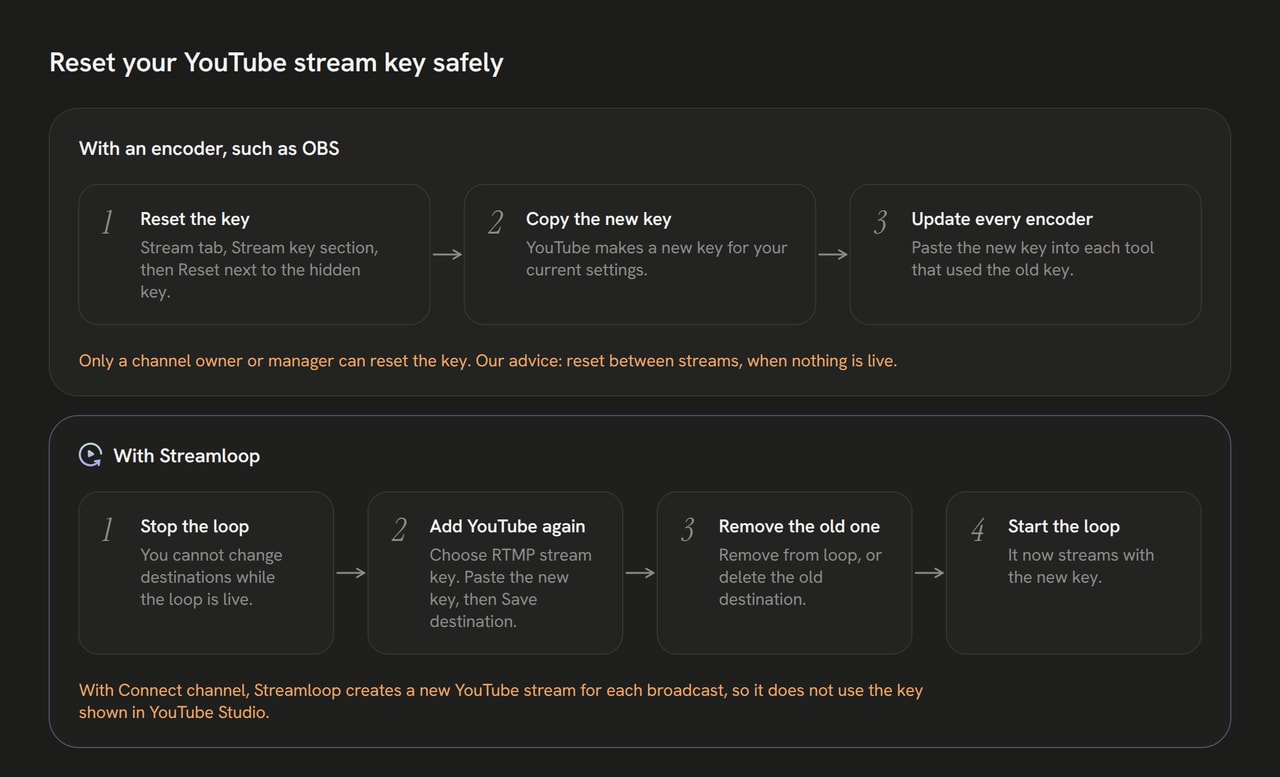
Top: reset with an encoder. Bottom: the same change in Streamloop on the key route. Connect channel does not use this key.

Fix a missing key or a rejected stream
YouTube publishes no single list of causes. These are the common ones.
You cannot see a stream key or Go live
| What you see | Likely cause | Fix |
|---|---|---|
| No Go live | The channel is not verified, or is new to live | Verify by phone, then wait up to 24 hours |
| Live streaming is blocked | A restriction in the past 90 days, a strike, or an age under 16 | A strike blocks live streaming for 14 days |
| No key in the phone app | YouTube documents the key only on a computer | Use YouTube Studio in a computer browser |
YouTube does not receive your stream
| Symptom | Likely cause | Fix |
|---|---|---|
| It stopped after a reset | The encoder has the old key | Paste the new key into every tool |
| A scheduled stream key stopped | The API docs say a one-off key can be deleted after its broadcast | Use a reusable custom stream key |
| RTMPS does not connect | The URL says rtmp, or the port is wrong | Use rtmps with port 443 |
No key needed with Streamloop: Connect channel
Streamloop streams prerecorded video to YouTube from the cloud. For a live game or camera stream to one channel, OBS is enough.
Add YouTube with Connect channel and sign in with Google. Streamloop asks Google for YouTube access, to create broadcasts, and for your email address. It creates a new YouTube stream for each broadcast, so it does not use the key shown in YouTube Studio.
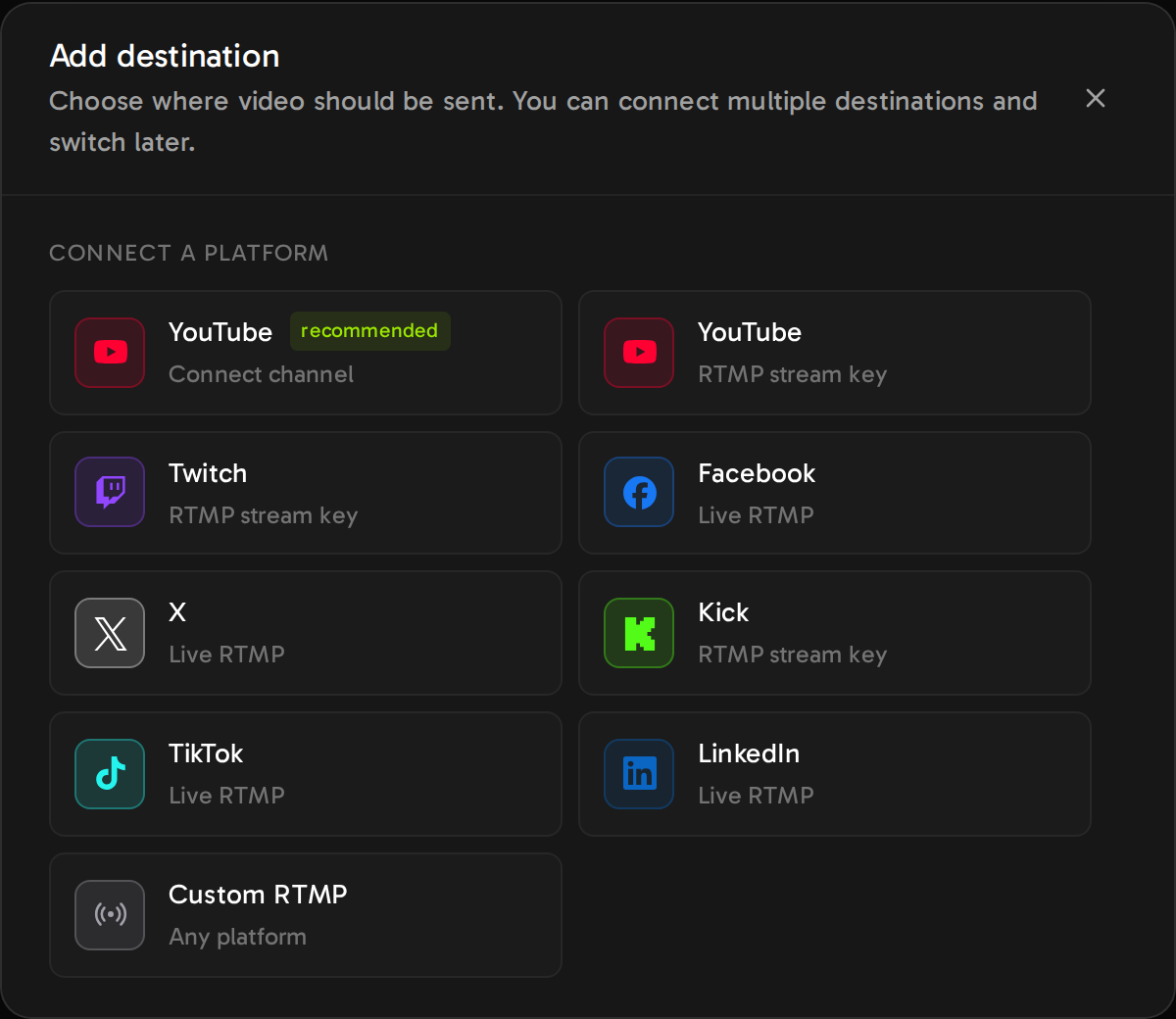
Connect channel signs in with Google. RTMP stream key takes a key from YouTube Studio.
The RTMP stream key option has no change-key button: stop the loop, add the new key, and remove the old destination.
Next: send one loop to YouTube and other platforms, or run a 24/7 prerecorded stream.
Stream to YouTube without a key
The $1 trial gives 7 days of nonstop streaming at the quality you pick. A card is required. On day 7, the monthly plan of that quality starts. Plans start at $4 per 30 days, and 1080p at 30 fps is $10.
Other stream key guides
Frequently asked questions
Can I get a YouTube stream key on my phone?
YouTube documents the stream key only in YouTube Studio on a computer. A cloud loop streams prerecorded video with no computer on: see the 24/7 guide.
Do I need 50 subscribers to get a stream key?
No. YouTube lists the 50-subscriber rule only for the mobile app. An encoder needs a verified channel with no live streaming restrictions in the past 90 days.
What happens if someone gets my YouTube stream key?
YouTube compares the key to a password, so another person can stream to your channel with it. Reset the key, then update your own encoder.
Does my YouTube stream key change every time I stream?
No. YouTube loads your previous settings, including the key. To pick a key on purpose, create a custom stream key under Select stream key.
Sources
Sources
YouTube Help, support.google.com/youtube, answers 2907883, 9854503, 10364924, 2853702, 2474026, 2853835, 9228390, 171664 and 2853834
OBS Studio services.json and en-US.ini: github.com/obsproject/obs-studio. YouTube Live Streaming API: developers.google.com/youtube/v3/live
Streamloop product code. Questions or a correction? Contact us