
How to Set Up a 24/7 Twitch Stream From Pre-Recorded Video
Yes, you can run a 24/7 Twitch stream from pre-recorded video. Twitch allows it, but you must label the stream as a Rerun, and Twitch ends each broadcast after 48 hours.
This guide is for creators who want a Twitch channel to stay live with videos they already have. It comes from Streamloop, a cloud service that streams past broadcasts, podcasts or show episodes 24/7.
No computer that stays on? Go to the cloud steps. A computer that stays on, and you want a free setup? Go to the OBS steps. Already stream live on this channel? See how to go live yourself. Want Affiliate? See the Affiliate rules.
- Allowed
- Yes, labelled as a Rerun
Twitch asks you to label pre-recorded content.
- Longest broadcast
- 48 hours
After that, your encoder must start a new broadcast.
- Uploads
- Affiliates and Partners only
A loop is a live stream, not an upload.
- Music-only streams
- Need written approval
Twitch calls them radio station-style broadcasts.
On this page
Can you stream pre-recorded videos on Twitch?
Yes. Twitch lets you broadcast pre-recorded video from any encoder. Twitch Help calls this a Rerun: "To broadcast a Rerun, you can capture and stream your VODs from your streaming encoder of choice."
An upload is a different feature. Twitch Help says: "Uploading videos is limited to Affiliate or Partners at this time." Uploads and Highlights also share a 100-hour storage limit.
Do you have to label a 24/7 stream as a Rerun on Twitch?
Yes. Twitch asks you to tell viewers when you broadcast pre-recorded content. Twitch Help lists three steps:
- Select the Rerun checkbox in the Edit Stream Info panel.
- Add "[Rerun]" to the start of your stream title.
- Add "[Rerun]" to the start of your Go Live notification.

Select Rerun so that viewers know the video was recorded before.
Set the label, the title and the category on Twitch before you start. An encoder that uses only your stream key does not change them.
Choose the category that fits the video. Twitch also has an Always On category.
Which way should you run a 24/7 Twitch stream?
Streamloop turns pre-recorded videos into a 24/7 live stream from the cloud, and it sends the loop to Twitch with your stream key. Your computer can be off, and you do not need OBS.
It suits channels that replay past streams, podcasts, sermons or show episodes. A live stream shows as live at any hour, so new viewers can find it.
OBS and FFmpeg are free, and they fit when a computer or a server is on anyway.
| Compare | Cloud loop (Streamloop) | OBS with VLC Video Source | FFmpeg on a server |
|---|---|---|---|
| Computer on? | No | Yes, every hour you are live | No, but a server that you rent stays on |
| Software cost | $10 per 30 days, 24/7 at 1080p30 | Free | Free |
| At the 48-hour limit | Starts a new broadcast by itself, after a short pause | Depends on how your encoder reconnects | You script the restart |
| Skill | Upload files and select options | OBS scenes and sources | Command line |
| Best for | Unattended channels | A computer that is on anyway | Developers with a server |
Large playlists are free up to 30 GiB, then $0.35 per GiB a month while live; files that need encoding cost $0.005 per encode minute.
To compare 24/7 streaming tools, see the best 24/7 streaming software.
Start a loop on Streamloop, or follow the cloud steps.
How do you set up a 24/7 Twitch stream with Streamloop?
1. Copy your Twitch stream key
In Twitch, open the Creator Dashboard, then Settings, then Stream. Copy the key under Stream Key & Preferences.
Treat the key like a password. For a key reset and the server URL, see how to find your Twitch stream key.

The key shows only as dots. Show, Copy and Reset are next to it.
2. Create a loop in Streamloop
Sign in at streamloop.app, and select New loop. Choose Pre-recorded video.
3. Add your videos
In the Playlist tab, select Upload, From library or From URL. From URL takes a Google Drive, YouTube or direct link.
Streamloop accepts MP4, MOV, MKV, WebM, AVI, MPEG and MXF files, up to 15 GB each.

Add videos from your computer, your library or a link.
Under Loop behavior, choose In order, Shuffle or Smart order.
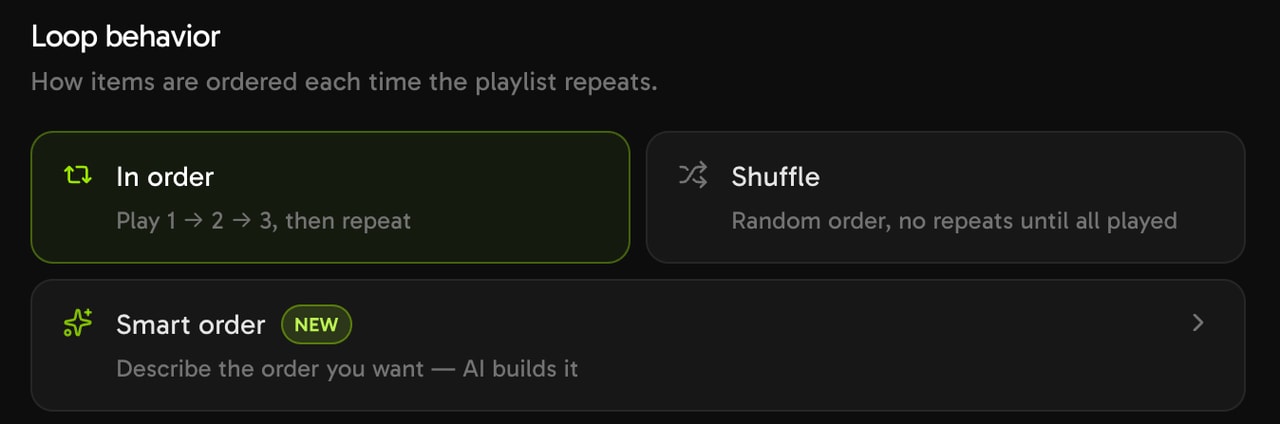
Choose how the playlist repeats.
4. Connect Twitch
Open the General tab, and select Connect a destination. Then select Connect new destination, and choose Twitch.
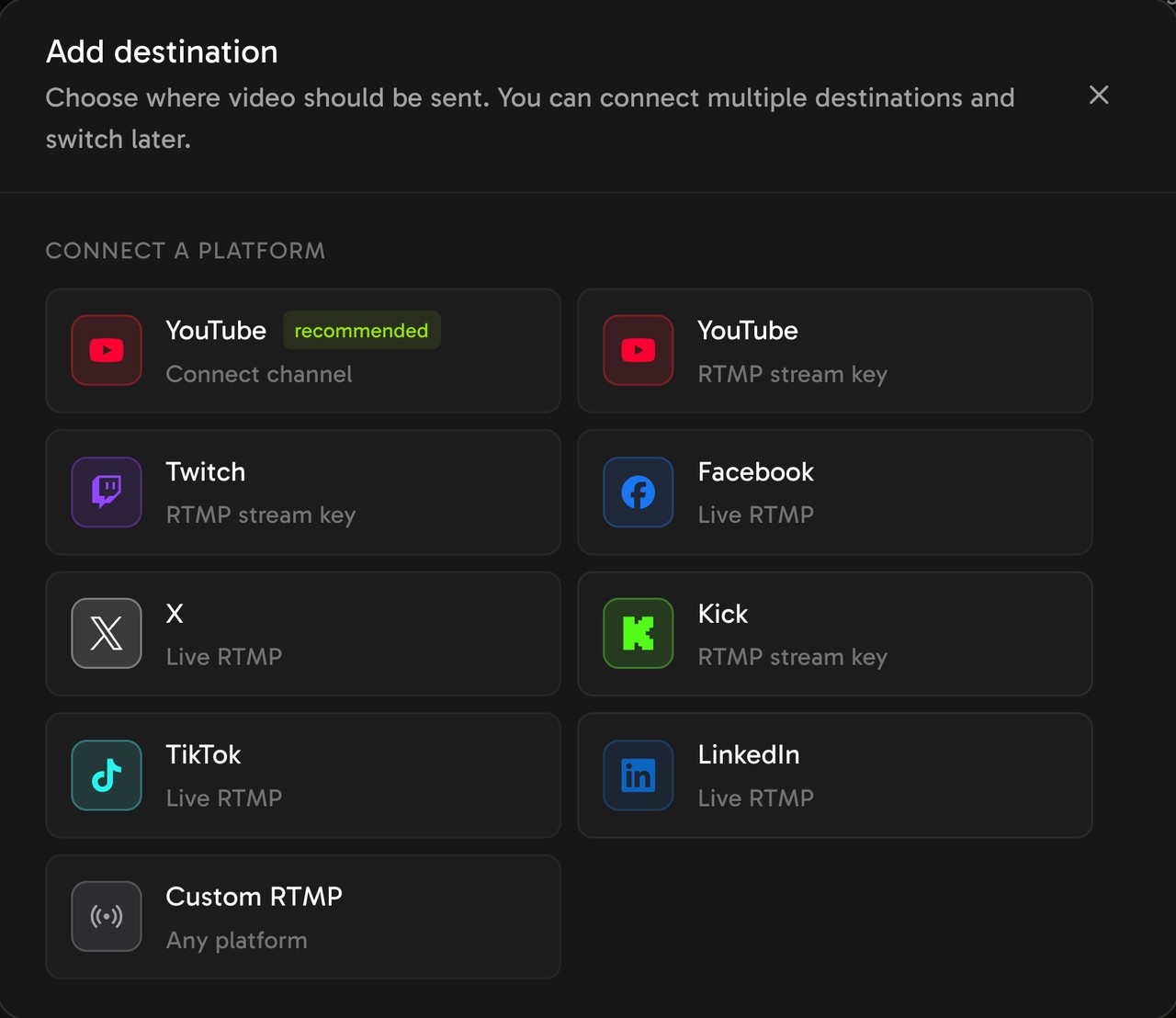
Choose Twitch. It connects with your stream key.
Paste your stream key into Stream key, and select Save destination.
To send to a different Twitch server, choose Custom RTMP instead of Twitch.
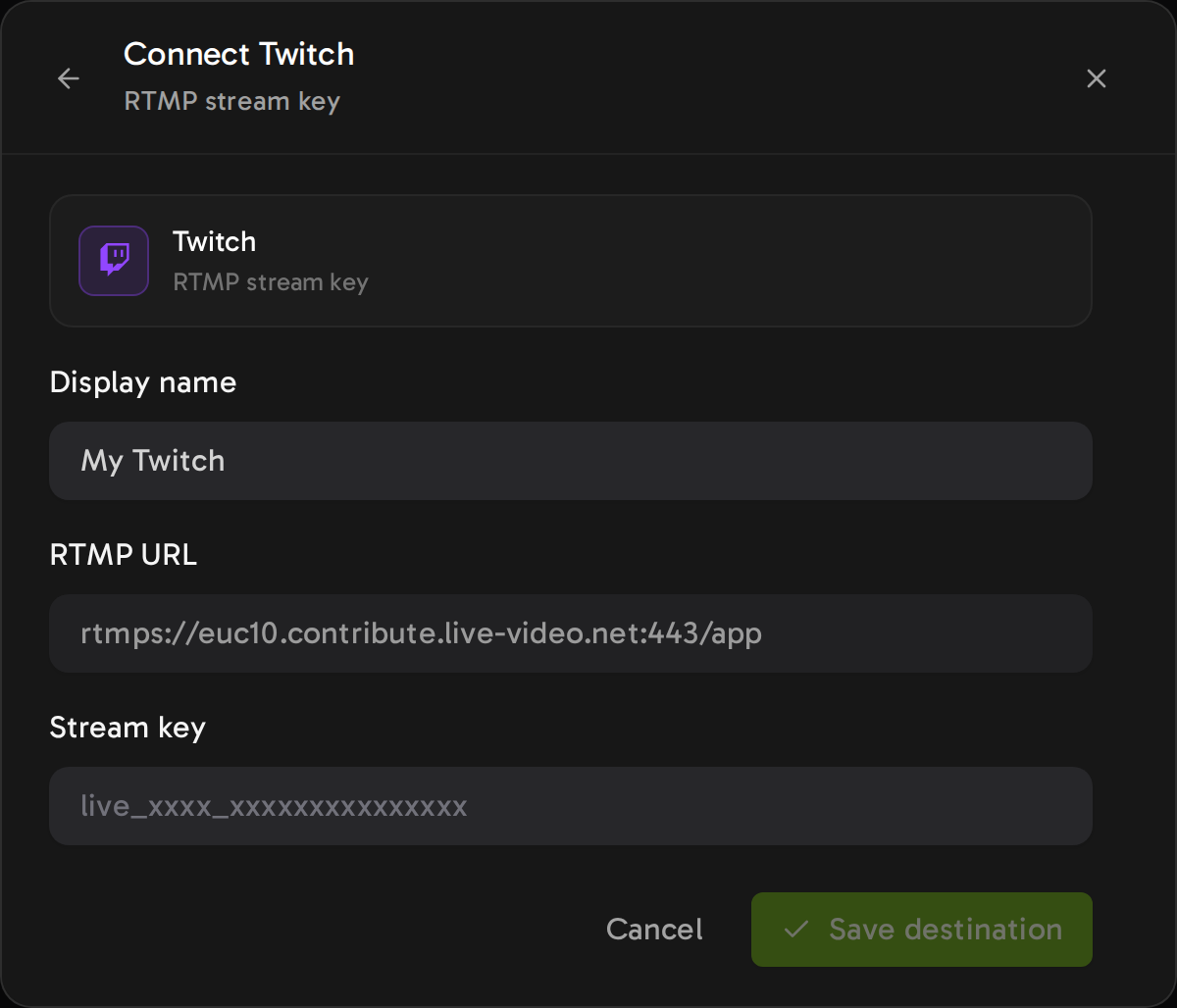
The Twitch server is filled in and locked. You paste only the key.
5. Choose 1080p at 30 fps
In Output quality, choose 1080p and 30 fps.
Streamloop streams to Twitch at up to 1080p. A loop set to 1440p or 4K does not start while Twitch is a destination. For bitrates, see streaming settings by platform.
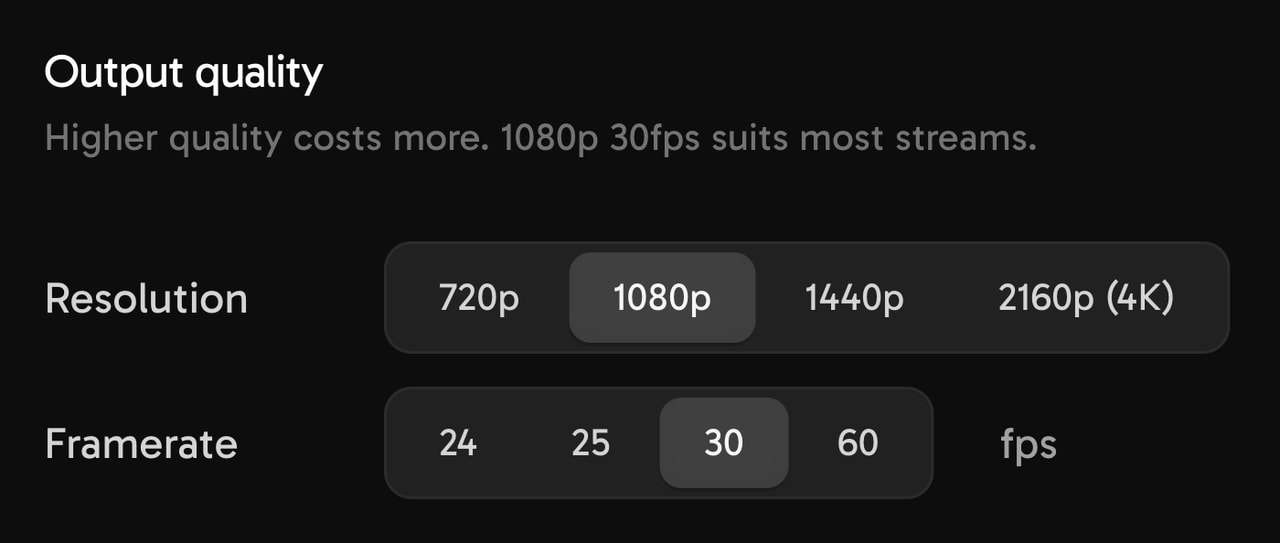
Choose 1080p for Twitch.
6. Set the Rerun label, then start the loop
On Twitch, select Rerun and add "[Rerun]" to the title, as in the Rerun section.
In Streamloop, select Start stream, or set a schedule. Then you can close your computer.
Can you change the videos without stopping the stream?
With Streamloop, yes. Edit the playlist, then select Publish. The new playlist starts at the next video, and Twitch stays connected.
How do you loop videos to Twitch with OBS for free?
OBS is free, but your computer must stay on every hour you are live.
- For one file, add a Media Source, and select Loop.
- For a folder of files, install VLC. Then add a VLC Video Source, and select Loop Playlist.
- Open Settings, then Stream. Choose Twitch, and paste your stream key.
- To test without viewers, add ?bandwidthtest=true to the end of the key.
- Set the Rerun label on Twitch, then select Start Streaming.
The OBS Knowledge Base explains both sources. The Twitch developer documentation says that the test setting disables live viewing.
OBS chooses a Twitch server for you. The default server is rtmp://ingest.global-contribute.live-video.net/app, and Twitch lists the others at ingest.twitch.tv.
Twitch ingest addresses have used live-video.net since January 2021, as Twitch announced.
In a 2023 OBS forum thread, a user warned that OBS Studio is not designed for unattended 24/7 streaming of prerecorded files.
Developer with a server? Use FFmpeg instead, and script the restart at 48 hours, as the FFmpeg loop guide shows.
What happens when Twitch ends the broadcast at 48 hours?
The maximum stream length on Twitch is 48 hours. The Twitch Broadcasting Guidelines say: "This cannot be changed."
Your encoder must then start a new broadcast. With OBS or FFmpeg, check that it reconnects, or restart it yourself.
Streamloop reconnects to Twitch about every 20 hours, well before the limit. After a short pause, Twitch starts a new broadcast, and the playlist continues from the same place.

Each reconnect starts a new Twitch broadcast, long before the 48-hour limit.
Can you still go live yourself on the same channel?
Yes. Run the loop from the cloud while you are offline, with the cloud steps, and stop it before you go live.
Your channel has one stream key, so only one encoder can send to it at a time. A Daily or Weekly schedule in Streamloop can run the loop in your offline hours.
To stream live to Twitch and YouTube at once, see how to stream on Twitch and YouTube at the same time.
Want graphics on top of your live OBS feed? Streamloop Live Scenes adds them in the cloud, at up to 1080p60, without guest cameras. Choose Scene when you create a stream.
What music and footage can you loop on Twitch?
The Twitch Music Guidelines do not allow "radio station-style broadcasts of recorded music without a live visual performance". The exception needs the music rights and prior written authorization from Twitch.
Background music in a video needs rights too. Your own past streams can contain music that you do not own, so check them first.
Three copyright strikes end a Twitch account. The Twitch DJ Program is "only applicable to those who live-stream as DJs".
Do not loop old game footage to earn Drops. The Twitch Community Guidelines prohibit "Using VODs or static images to stream with the core purpose of Drop Farming".
Will a 24/7 stream help you reach Twitch Affiliate?
Not by itself. Twitch asks for 25 followers, 4 hours of streaming, 4 different stream days and an average of 3 viewers on 4 different days.
You also need two-factor authentication. Twitch changed these rules in 2026, as its Monetization for All post explains.
Twitch Help says that a day with fewer than 3 average viewers does not count against you. A quiet 24-hour loop does no harm, but that day may not count as one of the 4.
The Affiliate help page says nothing about Reruns, so live streams with you present are the surer way to those days.
Start your 24/7 Twitch stream
Build a playlist from your own videos, add your Twitch stream key, and let it loop from the cloud while your computer stays off. Streaming is billed by the minute, only while live: one 24/7 stream at 1080p is about $10 per 30 days. Start with a $1 trial week, which becomes a monthly plan unless you cancel, or top up and pay as you go. See all prices.
Frequently asked questions
How do 24/7 streams work?
An encoder plays your videos in a loop and sends them to Twitch as a live broadcast. Twitch ends each broadcast at 48 hours, so the encoder then starts a new one.
Can I stream pre-recorded videos on Twitch?
Yes. Twitch allows pre-recorded video from any encoder, but you must label the stream as a Rerun. Uploads, which are not live, are for Affiliates and Partners only.
Does a 24/7 loop count as a rerun?
Yes. Twitch calls pre-recorded content a Rerun. Select Rerun in Edit Stream Info, and start the stream title and the Go Live notification with "[Rerun]".
Where do I find my Twitch stream key?
In the Twitch Creator Dashboard, open Settings, then Stream. The key is under Stream Key & Preferences. Never share it. How to find your Twitch stream key has the full steps.
Where can Streamloop import videos from?
From your computer, your Streamloop library, or a Google Drive, YouTube or direct link. Each file can be up to 15 GB.
Do I have to download my videos before uploading them?
Not for Streamloop, because it takes a Google Drive, YouTube or direct link. OBS and FFmpeg need files on the computer. To get your own videos back from YouTube, use the YouTube Studio download.
Do I need to leave my computer on?
With OBS on your own computer, yes. A cloud service, such as Streamloop, or FFmpeg on a rented server runs the stream with your computer off.
Can I edit the playlist without ending the Twitch stream?
Yes, in Streamloop. Edit the playlist, then select Publish. The new playlist starts at the next video, and the broadcast stays live.
How long can one Twitch broadcast run?
Up to 48 hours, and you cannot change this limit. Streamloop starts a new broadcast before then, about every 20 hours.
Can I put music on repeat 24/7?
Only with the music rights and written approval from Twitch. Twitch does not allow radio station-style broadcasts of recorded music without a live visual performance. The Twitch DJ Program covers live DJ sets only.
Will a 24/7 stream get me to Affiliate?
Not by itself. Quiet days do not count against you, but they may not count toward the 4 days with 3 average viewers. Live streams with you present are the surer way.
Can you stream 24/7 on YouTube too?
Yes. One Streamloop loop can send to up to 5 destinations, such as Twitch and YouTube. A second destination costs $6 per 30 days at 1080p. See how to multistream.
How does Lofi Girl stream 24/7?
This guide does not cover the Lofi Girl setup. On Twitch, recorded music without a live visual performance needs the music rights and written approval from Twitch.
How much do 24/7 live streams make?
No reliable average exists. Twitch income from subs, Bits and ads follows how many people watch, and a 24/7 loop has few viewers in many hours.
Can I use the same Twitch channel for regular live streams?
Yes. Stop the loop, go live with OBS, and start the loop again when you finish. Only one encoder can send to your stream key at a time.
Sources
Checked on October 15, 2026 against Twitch Help and the Streamloop dashboard.
More sources
Twitch: Music Guidelines
Twitch blog, 2020: Music related copyright claims and Twitch
Twitch blog, 2018: New Video Producer tools available today
Twitch blog, 2026: Everything we announced at TwitchCon Rotterdam 2026