
How to Multistream: Stream to Multiple Platforms at Once
To stream to multiple platforms at once, send the same video to each platform at the same time. Use a plugin, a relay or Live Scenes for a live show, and a cloud service for prerecorded video, 24/7 or on a schedule.
Multistreaming is also called simulcasting, and YouTube calls it simulstreaming. I built Streamloop, so I say where another tool is the better choice.
On this page
Which one are you? Live or prerecorded
Track A is a live source, such as OBS or a camera. Track B is prerecorded video from the cloud. Both send to every platform at once, not to one platform after another.
- A gamer or webcam streamer
Track A. A free OBS plugin with a fast upload, or a cloud relay. Choose a method
- A podcast with guests
Track A. A browser studio, such as StreamYard, that hosts remote guests. See guests
- A church
Both. Track A for the live service: choose a method. Track B for a recorded replay: see replays.
- A 24/7 or replay channel
Track B. A cloud service plays your files, and your computer can be off. Streamloop fits this job. Go to Track B

Where the video is encoded and whose upload carries each copy, for a live source (Track A) and prerecorded video (Track B).
In short: a plugin uploads one copy per platform. A relay or Live Scenes takes one copy, and a loop needs no upload while live.
Track A: choose a live method →Track B: start the $1 trial →
Track A: choose a live method
This track is for a live feed from OBS, a camera or an encoder. Your computer or device stays on for the whole stream.
| Method | Best for | Upload while live | Cost | Not a fit |
|---|---|---|---|---|
| Free OBS plugin | A live game or camera, with a fast upload | One copy per platform | Free | A slow upload or a busy computer |
| Cloud relay | A live show from OBS with a limited upload | One copy | Free tiers for 2 platforms. Paid plans from $15 a month | A show that cannot depend on one more service |
| Browser studio, such as StreamYard | A podcast or a show with remote guests | It runs in your browser | StreamYard Core: $44.99 a month, or $35.99 billed yearly, for 3 destinations | Gamers who need OBS scenes |
| Streamloop Live Scenes | A live feed mixed with playlists, overlays or a fallback slate | One copy, over RTMP, RTMPS or SRT | About $20 per 30 days at 1080p30, streaming included | Guest cameras, or more than 1080p at 60 fps |
We found no tool on YouTube, Twitch or Kick that sends your stream to another platform. Technical users can run nginx-rtmp, SRS or the FFmpeg tee muxer on a rented server. See the FFmpeg guide.
Upload speed for a live multistream
With a plugin, add the bitrates of all copies. YouTube says to aim for an upload speed of 1.5 to 2 times that total. A relay or Live Scenes needs one copy. OBS gives a looser rule for one stream: set your bitrate to about 75% of your upload speed.
| Setup | What your connection sends | Upload speed to aim for |
|---|---|---|
| Plugin on your computer: YouTube, Twitch and Kick at 6 Mbps each | 18 Mbps, three copies | 27 to 36 Mbps |
| Cloud relay or Live Scenes: one copy at 6 Mbps | 6 Mbps, one copy | 9 to 12 Mbps |
From YouTube Help, Stream across platforms, read on October 14, 2026. Twitch recommends 6,000 kbps for 1080p at 60 fps. Kick accepts up to 8,000 kbps. YouTube lists 6 Mbps as its minimum for 1080p at 60 fps with H.264.
Track A: how to multistream a live source
Before you start, read the Twitch conditions and pick a bitrate from the settings table.
Steps: with a free OBS plugin
OBS Studio 32.2.2 cannot stream to several platforms by itself, and the release candidate of OBS 33.0 adds no way. Free plugins add it: obs-multi-rtmp 0.7.4.4 and Aitum Multistream 1.0.8.
- Download a multi-output plugin from its release page. Install it, then restart OBS.
- In OBS, open Settings, then Stream, and set up your main platform as usual.
- In the plugin, add one output for each other platform, with its server URL and stream key. Where the plugin allows it, share the main encoder.
- Start the stream and the plugin outputs. Then check each platform in a private browser window.
Steps: with a cloud relay
- Create an account with a relay service, and connect each platform in its dashboard.
- Copy the server URL and the stream key that the relay gives you.
- In OBS, open Settings, then Stream, and enter the relay server URL and stream key.
- Start the stream in OBS. Then check that each platform shows it.
If the relay has a problem, every platform loses the stream.
Steps: with Streamloop Live Scenes
Live Scenes takes your OBS feed into a cloud scene and sends it to up to 5 destinations. The scene encodes the feed again, at up to 1080p and 60 fps.
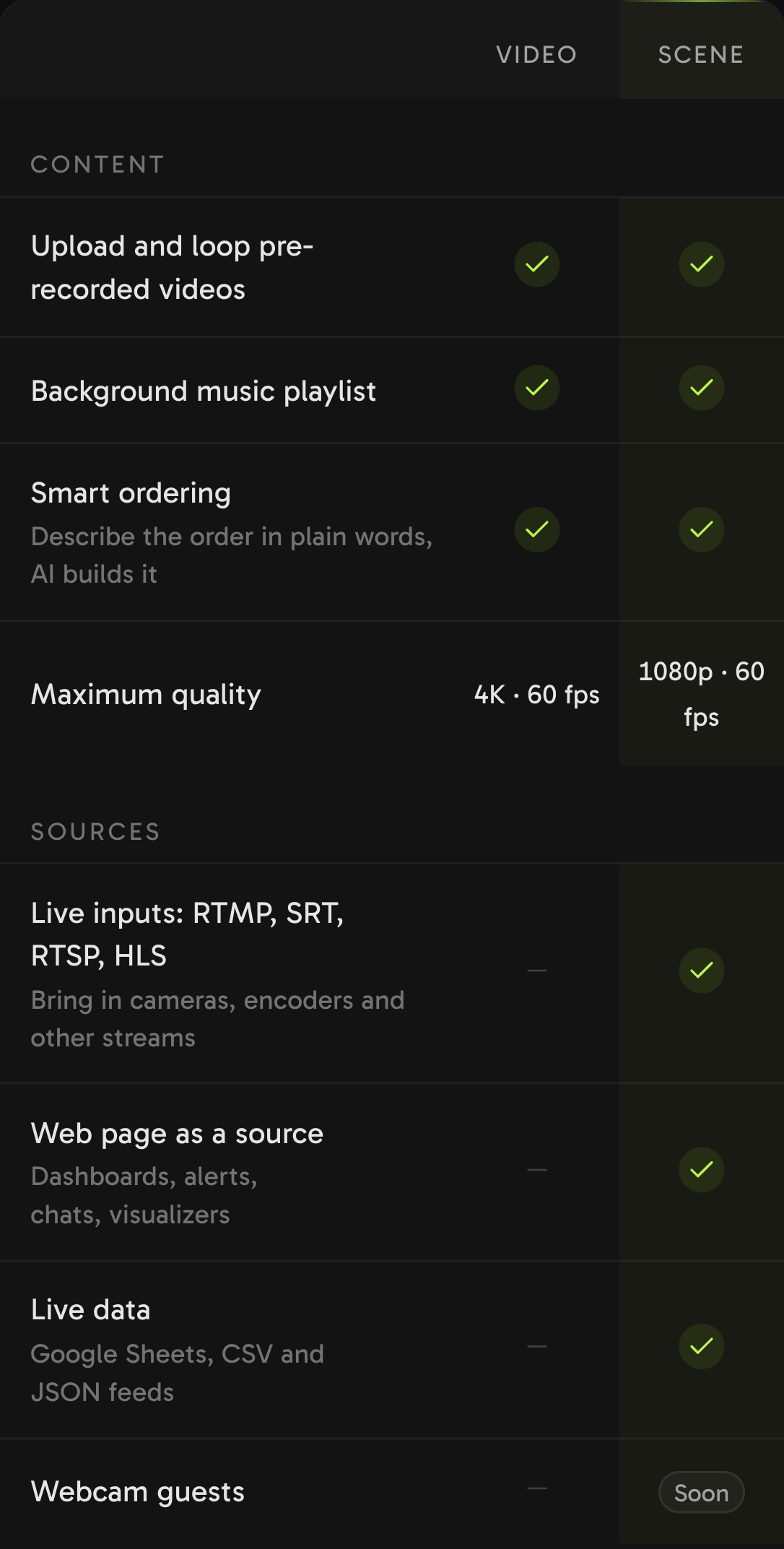
When you create a stream, choose Scene to use live inputs.
- Sign in at streamloop.app and create a stream.
- Choose Scene and request access. Describe your use case, and access is granted within 24 hours.
- After access, select Choose scene. Then select Open studio.
- In the studio, add an RTMP input or an SRT input. Then select Create stream key.
- Copy the details now, because the studio shows them only once. For RTMP or RTMPS, copy the server URL and the stream key. For SRT, copy the SRT URL.
- In OBS, open Settings, then Stream, and set the service to Custom.
- For RTMP or RTMPS, paste the server URL and the stream key. For SRT, paste the SRT URL as the server, and leave the stream key empty.
- Select New scene and choose Full camera. This layout shows the first live input edge to edge.
- Select Publish. The stream shows only the published version of the scene.
- On the loop page, add up to 5 destinations. Then select Go live in the studio, and check each platform in a private browser window.

Add a live input. Choose RTMP input or SRT input for OBS.

Copy the server URL into OBS. The stream key is cropped out here.

The studio, with Go live and Publish at the top right.

A scene loop with three destinations: Kick, Twitch and a connected channel.
For a plain game or camera stream, a plugin or a relay is simpler. See Live Scenes.
Track A: guests, vertical video and chat
- Guests. For remote guests, use a browser studio such as StreamYard. StreamYard Free has no multistreaming, and Streamloop has no guest cameras.
- Vertical and horizontal. Aitum Vertical, a free OBS plugin, version 1.6.6, adds a vertical canvas. That is a second encode and a second upload.
- Twitch Dual Format. It sends horizontal and vertical to Twitch, and needs OBS 32.0.0 or newer. Budget about 12.5 to 13.5 Mbps of upload at 1080p for Twitch alone.
- YouTube dual stream. It is on by default from Live Control Room, as a centre crop. From an encoder, a separate vertical feed needs a second stream key.
- Chat. Social Stream Ninja is free and reads YouTube, Twitch, TikTok, Kick, Facebook and more. Restream Chat and Streamlabs Ultra also merge chat.
The Twitch terms do not allow merged chat on the Twitch stream itself. Read the rules.
Track A: what live multistreaming costs
| Option | Price | What you get |
|---|---|---|
| OBS with obs-multi-rtmp or Aitum Multistream | Free | Any number of platforms. Your upload carries every copy |
| Restream Free | Free | 2 channels, with Restream branding in Restream Studio |
| OneStream Live Free | Free | 2 destinations at 720p |
| StreamYard Core | $44.99 a month, or $35.99 billed yearly | 3 destinations, in a browser studio |
| Your own relay on a Hetzner CX23 server | About $7.09 (EUR 5.99) a month, when in stock | Any number of platforms, with 20 TB of traffic. You run the server |
| Streamloop Live Scenes | About $20 per 30 days at 1080p30, streaming included | Up to 5 destinations. Each extra destination adds $6 per 30 days at 1080p |
From the pricing page of each vendor, read on October 14, 2026. Live Scenes has no free credits. More relays and their paid plans are in Restream alternatives.
Multistream a live feed with Live Scenes
Choose Scene, describe your use case, and access is granted within 24 hours. Then send your OBS feed to up to 5 destinations.
Track B: choose how to stream prerecorded video
This track is for video files that stream for hours, 24/7 or on a schedule. A cloud service plays the files, so your computer can be off.
- Streamloop. Up to 5 destinations, billed by the minute while live.
- Other hosted services. Upstream, LiveReacting, Gyre, Castr, OneStream Live, Restream and StreamYard also stream prerecorded video. Compare the costs.
- Your own server. FFmpeg on a rented server can stream your files to each platform without a stop, but you maintain the server. See the FFmpeg guide.
A church replay
Send one scheduled run to YouTube and Facebook. Say in the title that the replay is prerecorded. In Streamloop, turn on Loop expiration and set it to the length of the video.
Rules for prerecorded and looped streams
- Facebook. Live "should not be used to broadcast looping videos". Prerecorded content must be "clearly marked as pre-recorded".
- TikTok. TikTok may demonetize "pre-recorded videos, spliced videos, and looping videos" presented as authentic LIVE.
- Twitch. Tick the Rerun box, and start the title and the go-live notification with "[Rerun]". A broadcast can last at most 48 hours.
- YouTube. Repetitive or reused content cannot earn money. YouTube may not save a stream longer than 12 hours.
- Kick and X. We found no Kick rule on looped streams. An X Live Studio stream can last at most 24 hours.
What Streamloop does at the time limits
- Twitch. About every 20 hours, a pause of usually 5 to 100 seconds starts a new broadcast. Near 48 hours, Streamloop forces a 5-minute pause.
- Facebook. Every 7 hours 45 minutes, a pause of about 4 minutes starts a new live video before the 8-hour limit.
- YouTube. One broadcast lasts as long as the loop runs. For replays, set a daily schedule with runs under 12 hours.
- X. No planned pause. Plan for X to end the stream after 24 hours, and check that destination each day.
See the 24/7 guide and the 24/7 Facebook guide.
When Streamloop is not the answer
- A live camera or game. Use Track A, or Live Scenes for an OBS feed.
- Live guests. Streamloop has no guest cameras.
- A separate vertical version, or different settings per platform. Every destination gets the same encode.
- Merged chat. A loop has no chat tool.
- More than 5 platforms. A loop sends to at most 5 destinations.
Track B: how to multistream a prerecorded video with Streamloop
Upload the video once, add up to 5 destinations, choose a quality that every destination accepts, and start. Every setting is also in the multistream docs.
Create a loop and add your video
Sign in at streamloop.app. Open Loops and select New loop. Type a name, and choose the resolution and the frame rate. Add videos with Upload, From library or From URL.
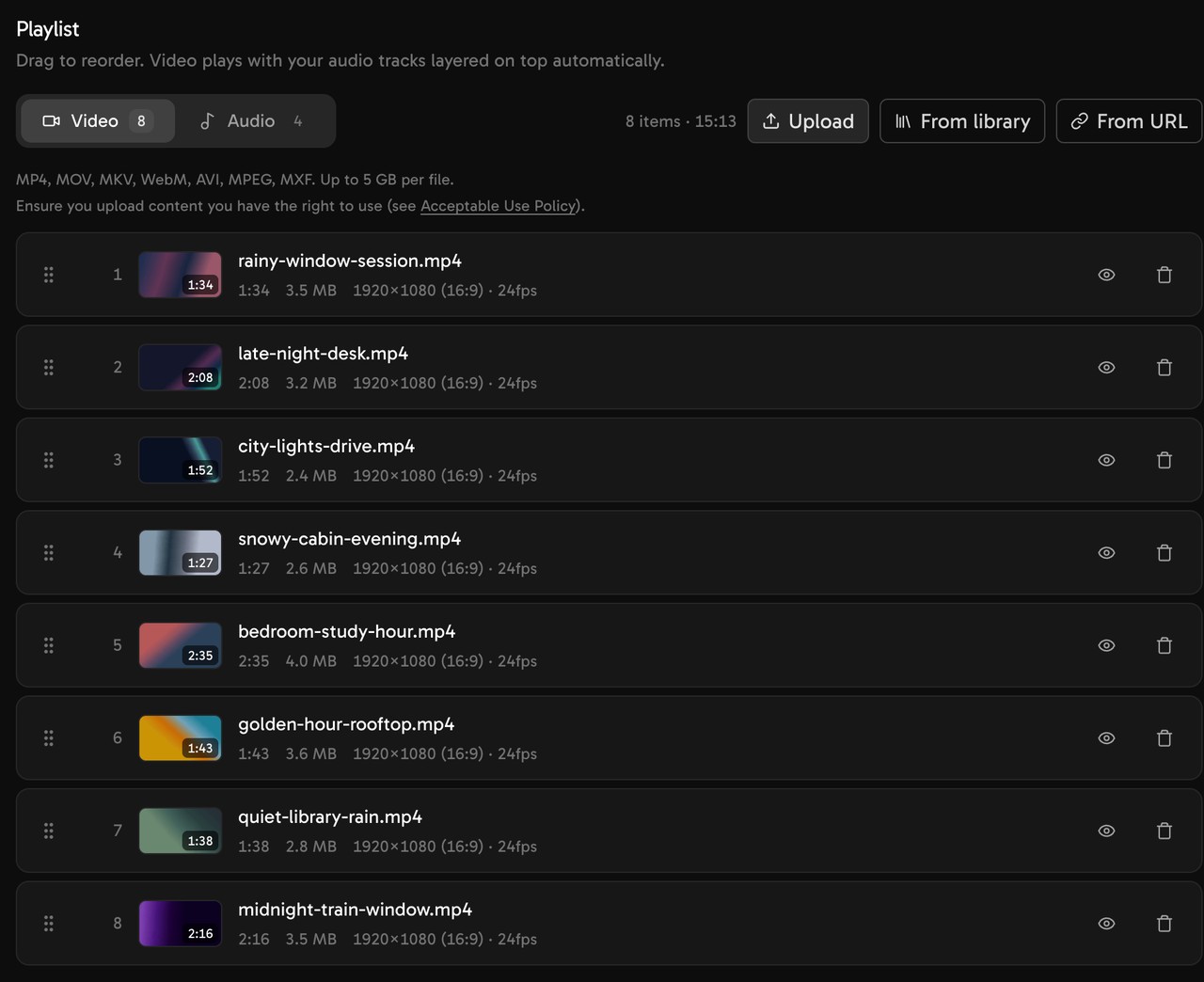
A video playlist in Streamloop. You upload the files once, before the loop starts.
Add the first destination
Open the General tab and add a destination. Pick YouTube, Twitch, Facebook, X, Kick, TikTok, LinkedIn or Custom RTMP. Custom RTMP fits any platform with a server URL and a key.
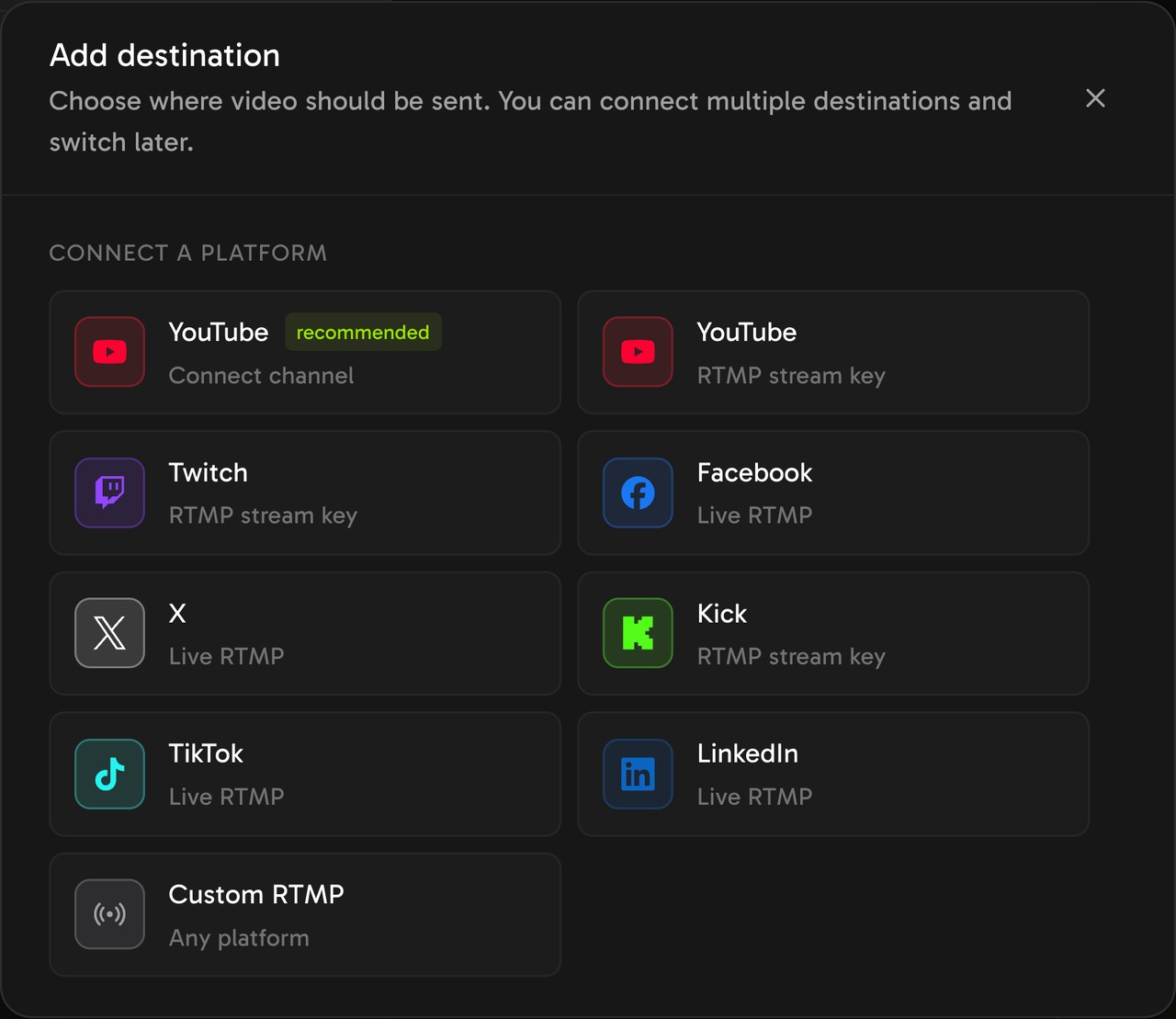
Pick the platform. Only YouTube can also connect by signing in to the channel.
Connect the platform
For YouTube, select Connect channel and sign in with Google. Streamloop then creates the broadcast, so you do not copy a key.
For other platforms, paste the RTMP URL and the stream key. Streamloop fills in the URL for Twitch, Facebook, X and Kick.
Keep the stream key secret. See the Twitch key and the TikTok key.
LinkedIn shows its key one or two hours before a scheduled event. Add LinkedIn after the key appears.
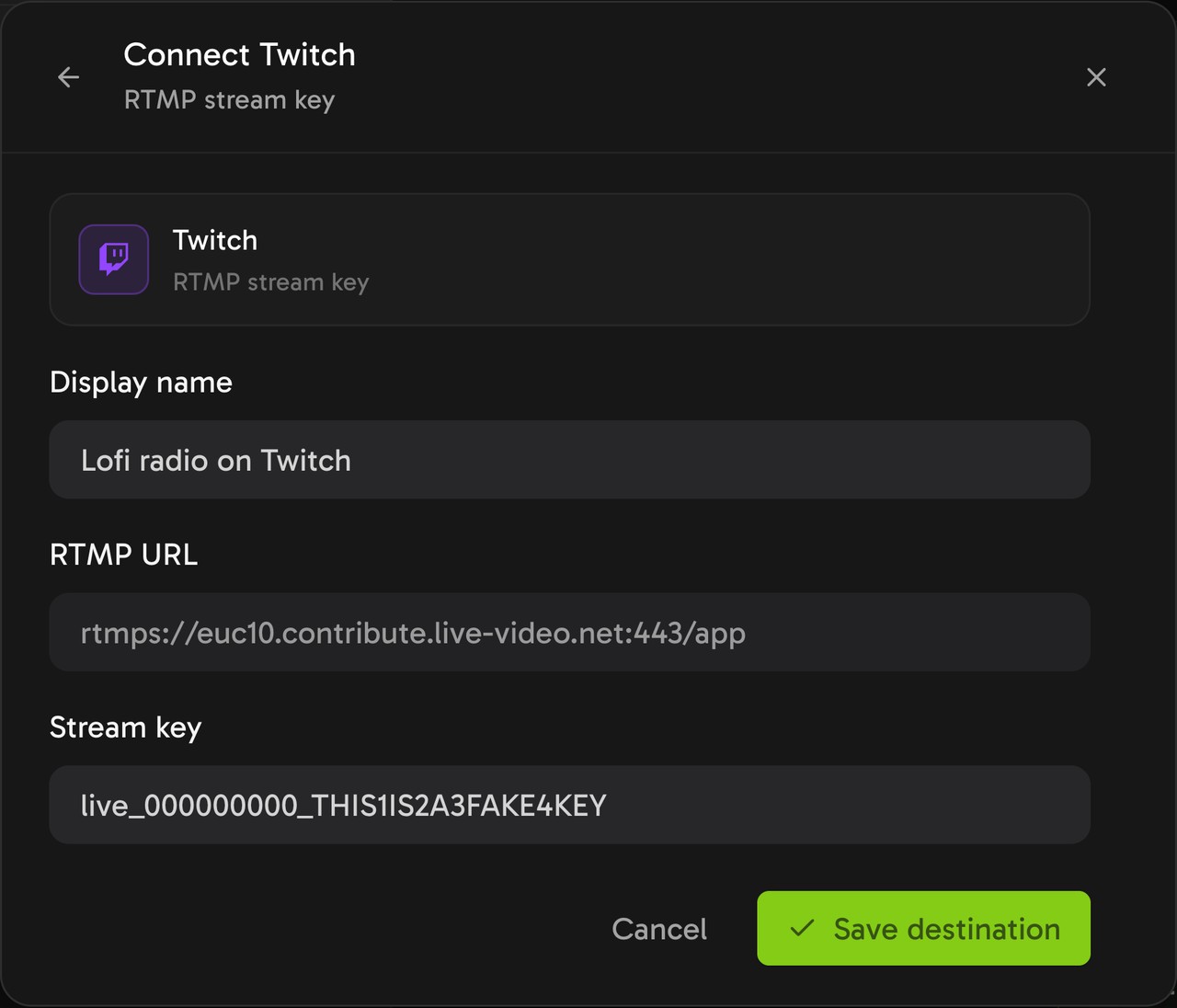
The Twitch server URL is already filled in. Paste the stream key from your Twitch dashboard.
Add more destinations, up to 5
Repeat the last two steps for each platform. You can add one YouTube channel with Google sign-in. Add more YouTube channels with their RTMP stream keys.
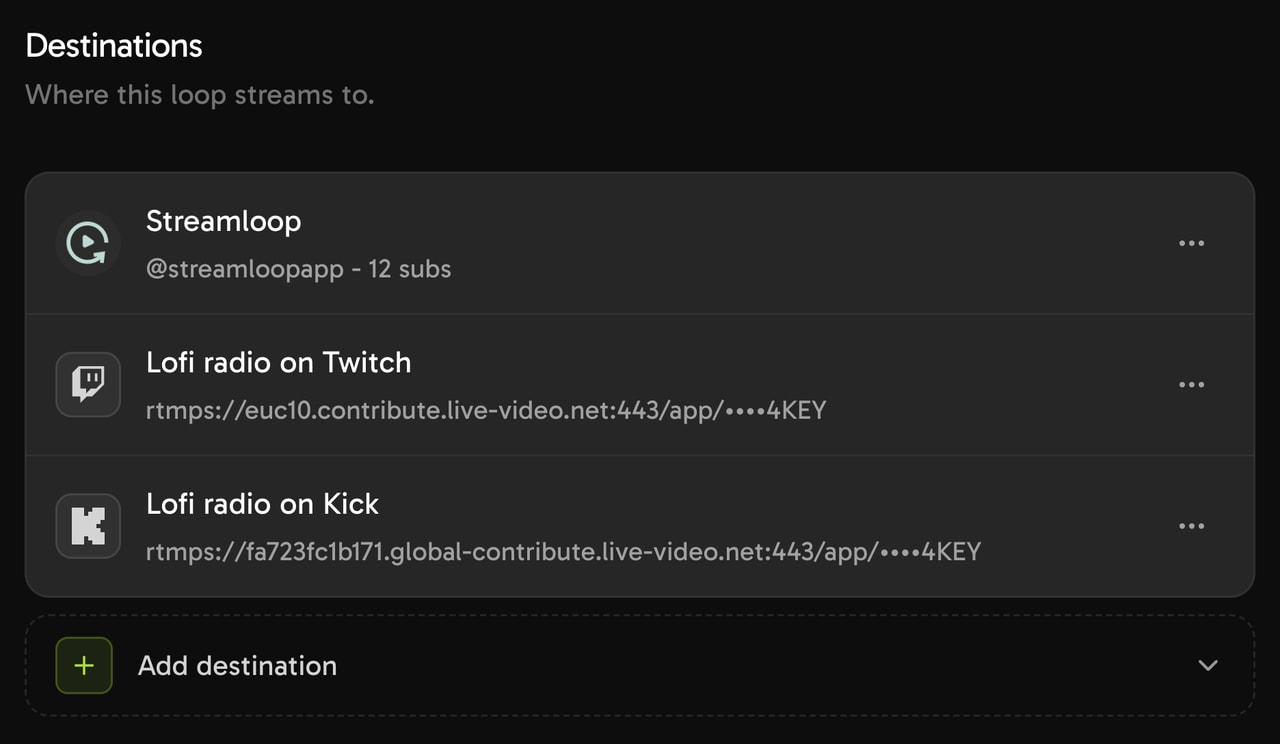
One loop with three destinations: a connected channel, Twitch and Kick.
Choose one quality and check the cost
In Output quality, choose a resolution and a frame rate that every destination accepts. Streamloop encodes once and sends the same stream everywhere, so Twitch gets the same picture. For most pairs, 1080p at 30 fps is a safe choice.
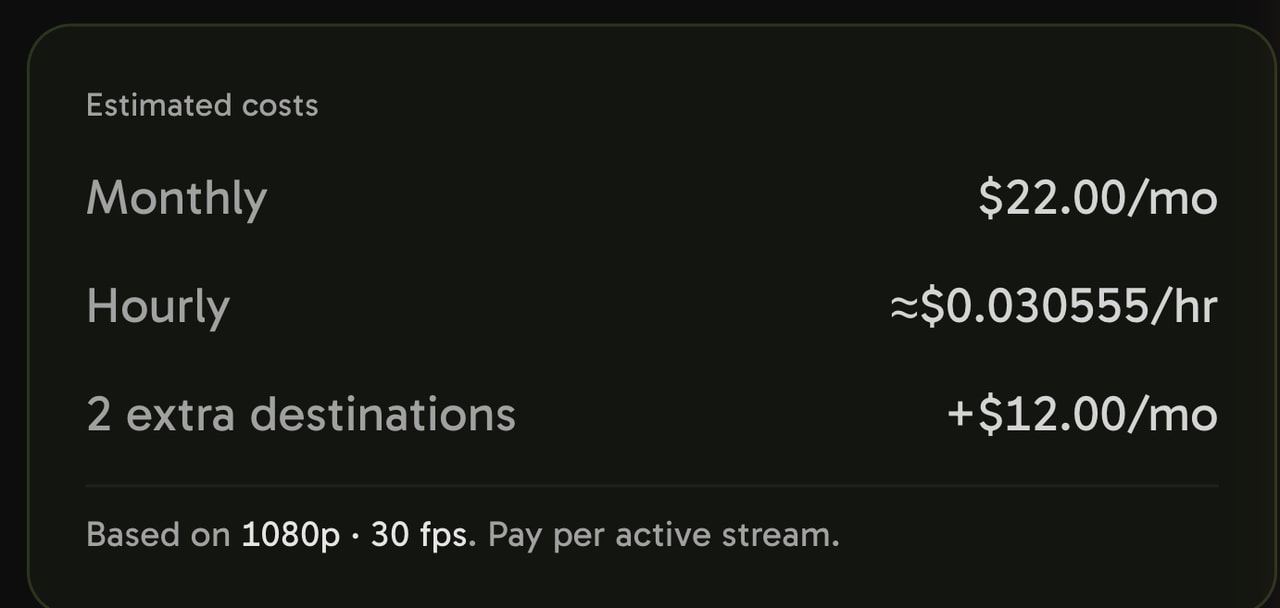
The cost estimate before the start, with two extra destinations at 1080p and 30 fps.
Start the loop
Select Start stream. Streamloop prepares the playlist, then sends the stream to every destination at the same time. To start later, schedule the loop.
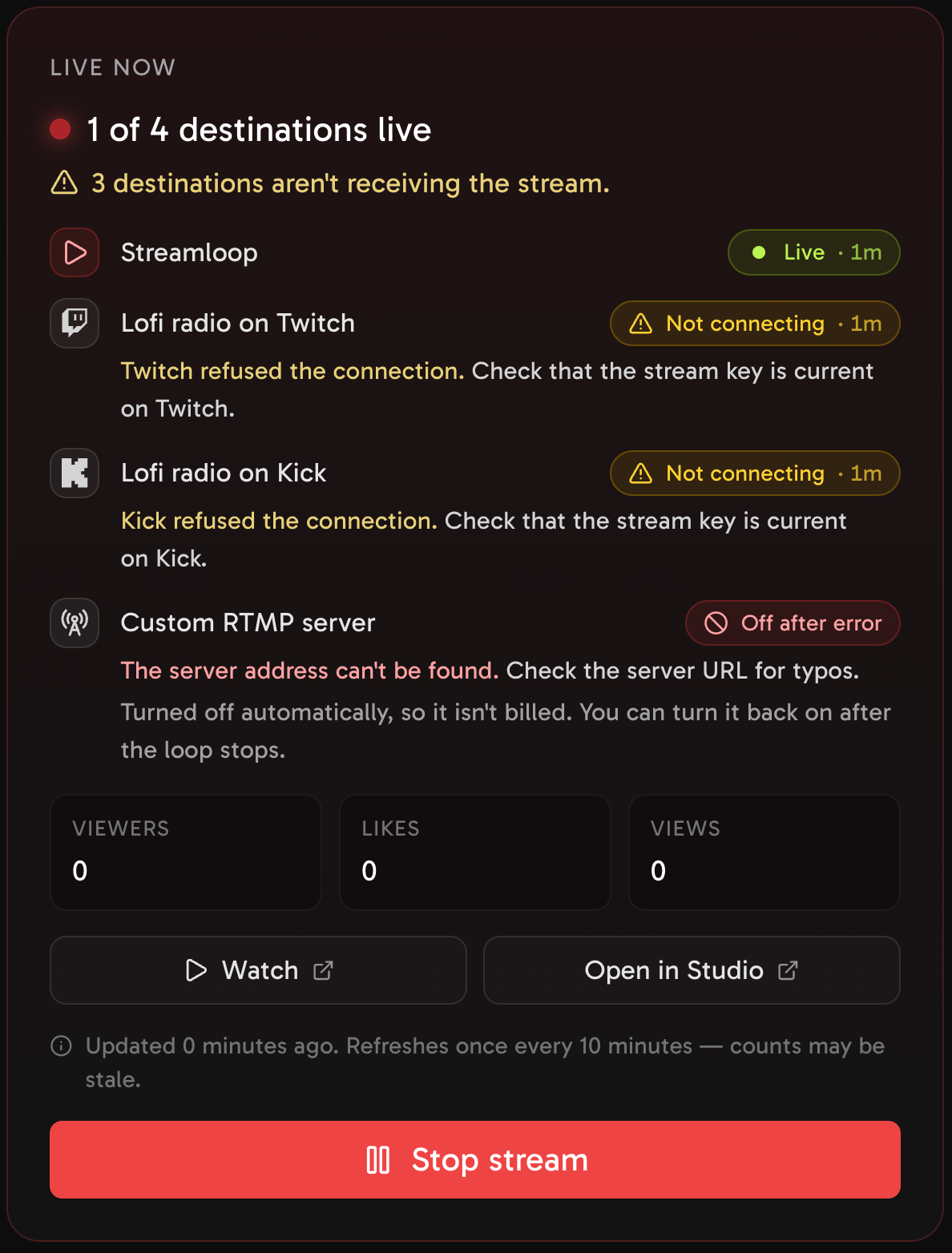
In this test, Twitch and Kick refused the connection, and the custom server address could not be found. The Streamloop channel kept streaming.
Stop or fix one destination
While the loop is live, you can stop sending to one destination, but not to the last one. To add or remove a destination, stop the loop first. If the output drops, Streamloop restarts it automatically. It does not bill while the stream reconnects.
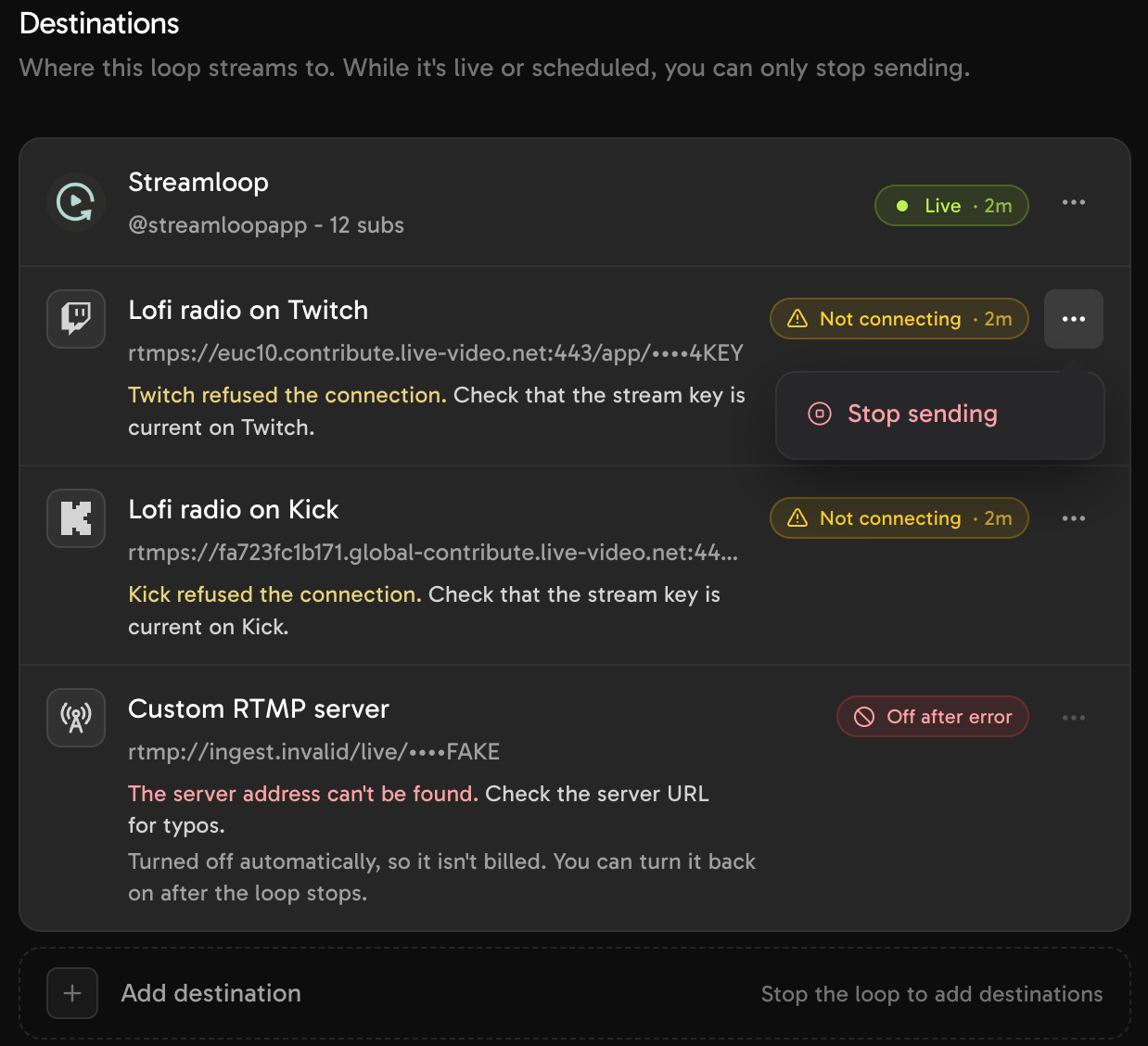
While the loop is live, you can stop sending to one destination. To add a destination, stop the loop first.


Track B: what prerecorded multistreaming costs
Streamloop bills by the minute, only while live, so part-time use costs less than a nonstop channel.
| Prerecorded job, 1080p at 30 fps, 30 days | Streamloop | Upstream | LiveReacting | Your own Hetzner CX23 server |
|---|---|---|---|---|
| 1 platform, nonstop | $10 | $30, or $24 billed yearly | $39.99, or $33 billed yearly | About $7.09 |
| 3 platforms, nonstop | $22 | $30, or $24 billed yearly | $39.99, or $33 billed yearly. Offer: $21.99 for 5 months | About $7.09 |
| 5 platforms, nonstop | $34 | $30, or $24 billed yearly | $39.99, or $33 billed yearly | About $10.57, with 2.9 TB of extra traffic |
| 3 platforms, 2 hours a day (60 hours) | About $1.83. The first top-up is at least $5 | The free plan covers 24 of the 60 hours. Paid: $30, or $24 billed yearly | Medium plan: $39.99, or $33 billed yearly. Up to 3 hours per stream | About $7.09 |
Read on October 14, 2026. Streamloop prices are before the 5% card fee. Upstream sends up to 10 destinations, and LiveReacting 24/7 up to 5. The LiveReacting offer is for new customers until October 31, 2026.
Server prices assume 14 Mbps of video and 128 kbps of audio per platform. Hetzner listed the CX23 as unavailable.
Streamloop costs the least of these hosted services for one platform and for part-time hours. A 10-minute test at 1080p30 to three destinations costs about half a cent.
With many platforms, Upstream can cost less, because its price includes up to 10 destinations. Your own server costs less while it is in stock.
Streamloop prices
| Resolution | Streaming, 30 days at 30 fps | Each extra destination, 30 days |
|---|---|---|
| 720p | $5 | $3.50 |
| 1080p | $10 | $6 |
| 1440p | $20 | $8 |
| 4K | $30 | $12.50 |
The first destination is included. Billing is by the minute while live. Encoding adds $0.005 per minute of encoding time.
Top-ups start at $5. Card top-ups add a 5% fee, with a $0.50 minimum. Crypto top-ups have no fee. See the current prices and more hosted services.
Multistream a prerecorded video
The $1 trial covers 7 days to one destination, or about 3 days to three destinations. A card is required. On day 7, the monthly plan of that quality starts. To cancel, open Billing, select Cancel, then Cancel plan.
Both tracks: is multistreaming allowed?
Yes, on the main platforms, with conditions. Twitch sets the strictest rules.
- Twitch. Allowed for Affiliates and Partners, unless you have an exclusivity agreement with Twitch. The Terms of Service set three conditions.
- Equal quality. The Twitch stream must be no worse than on other platforms, including how you engage with Twitch chat.
- No pointers off Twitch. No titles, banners, QR codes, go-live notifications or chat commands that send viewers elsewhere. Bio and panel links are allowed.
- No merged chat on the Twitch stream. A chat tool for your own use is fine, says the Twitch Simulcasting Guidelines FAQ.
A February 2026 press report says that Twitch would stop enforcing this rule. Twitch has not published this, and its terms, last modified on August 12, 2026, still contain it. For prerecorded streams, see the Rerun rule.
- Kick. Allowed. Partners turn on the Multistreaming toggle for a long-form platform, such as Twitch or YouTube, and Kick reduces their payout for that session by 50%.
- YouTube. We found no rule against multistreaming, and YouTube has a help page on streaming across platforms. See the YouTube requirements.
- TikTok. LIVE needs an age of 18 or older and 1,000 followers, a number that "may vary across regions". Stream key access varies by account.
- Facebook. The account must be at least 60 days old, and the Page or professional-mode profile needs 100 followers. Use RTMPS.
- LinkedIn. LinkedIn reviews members and Pages with more than 150 followers or connections. The account must be at least 30 days old.
- Instagram. A public account with 1,000 or more followers. The stream key changes every session.
Quoted from the help pages and terms of each platform, read on October 14, 2026. Rules change, so check them before you rely on them.
Both tracks: settings and a private test
When one encode goes to every platform, the strictest platform decides the resolution, frame rate and bitrate.
| Platform | Bitrate and resolution | Keyframe interval |
|---|---|---|
| Twitch | 1080p at 60 fps: 6,000 kbps recommended, CBR | 2 seconds |
| Kick | Up to 8,000 kbps, CBR | 2 seconds |
| YouTube | 1080p at 60 fps with H.264: 6 Mbps minimum, 17 Mbps recommended | 2 seconds, at most 4 |
| 1080p at 60 fps: 4,500 to 9,000 Kbps | 2 seconds, at most 4 | |
| X | Not published. Use Recommended Encoder Settings in Live Studio, and the Main or High profile | 90 frames at 30 fps, which is 3 seconds |
| At most 1080p at 30 fps and 6 Mbps. Recommended: 720p and 3.5 Mbps. Baseline profile if the stream fails to process | 2 seconds |
From the help pages of each platform, read on October 14, 2026.
A safe default from OBS is 1080p at 30 fps, 5,000 to 6,000 kbps, with a keyframe every 2 seconds. On Streamloop, you choose only the resolution and the frame rate, and the keyframe is every 2 seconds.
Test privately before you go public
- YouTube. Set the broadcast to Private or Unlisted for the test. In Streamloop, set the privacy in the YouTube tab.
- Other platforms. Use a test mode if the platform has one. If not, test at a quiet hour and put "test" in the title.
- Each player. Watch each stream in a private browser window for about 10 minutes. Check the sound sync, then announce the stream.
Both tracks: how to fix common problems
Most problems come from upload limits, wrong keys, or settings that one platform does not accept.
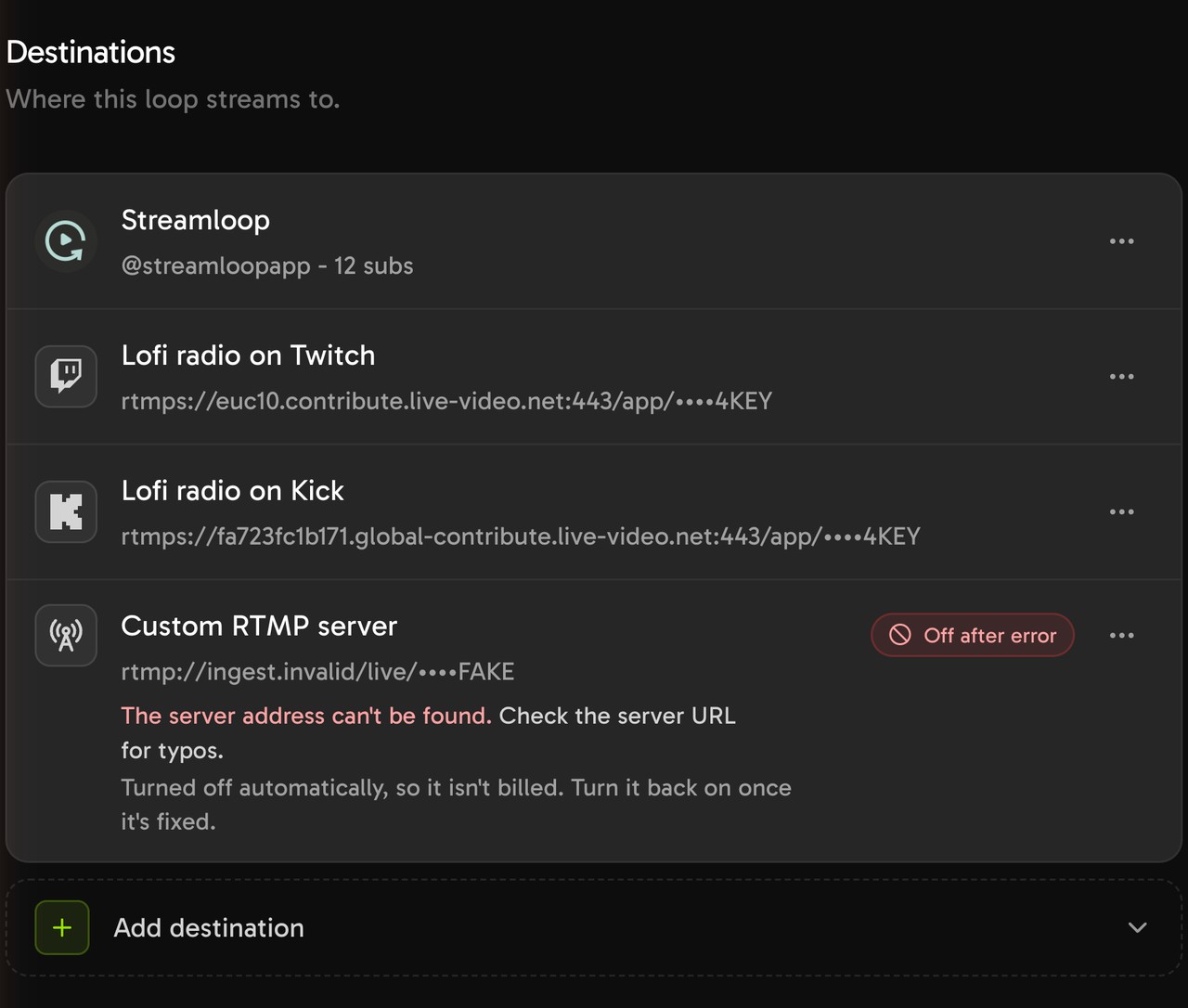
A destination with a wrong server address is turned off automatically, so it is not billed. Turn it back on after you fix it.
| Problem | Likely cause | Fix | Applies to |
|---|---|---|---|
| Dropped frames or a slow computer with a plugin | Each output is a separate upload, and maybe a separate encode | Share the main encoder, lower the bitrate, remove a platform, or use a relay | A |
| Live Scenes says "Publish the scene first" | The scene has no published version | Select Publish in the studio, then select Go live again | A |
| The scene input stays on Waiting | OBS does not reach the input | Check the server URL and the key in OBS. For SRT, leave the stream key empty. A new key reaches the stream when you publish | A |
| One platform shows nothing, and the others work | A wrong or expired stream key | Copy the key again from that platform. In Streamloop, the message says that the destination rejected the stream key | Both |
| YouTube says that live streaming is not enabled | The channel is not verified, or this is its first activation | Verify the channel. The first activation can take 24 hours or more | Both |
| Streamloop does not let you add a destination | The loop is live or scheduled | Stop the loop, add the destination, then start again | B |
| Streamloop refuses a destination at your resolution | The destination does not accept that resolution | Lower the resolution of the loop, then add the destination again | B |
| A second YouTube channel does not connect by sign-in | A loop allows one YouTube channel by sign-in | Add the other channel with its RTMP stream key | B |
Frequently asked questions
How do I stream to multiple platforms at once?
For a live show, use an OBS plugin, a cloud relay or Streamloop Live Scenes. For prerecorded video, use a cloud service that plays your files, such as Streamloop.
Can I multistream for free?
Yes, with limits. OBS plugins such as obs-multi-rtmp and Aitum Multistream are free, but your upload carries every copy. Restream Free allows 2 channels. Streamlabs Desktop Dual Output allows one vertical and one horizontal platform.
Is multistreaming allowed on Twitch?
Yes, unless you have an exclusivity agreement with Twitch. Keep equal quality, do not point viewers away from Twitch, and show no merged chat on the Twitch stream.
Can I stream on Twitch and Kick at the same time?
Yes. Kick Partners must turn on the Multistreaming toggle, and Kick reduces their payout for that session by 50%.
Is multistreaming allowed on YouTube?
Yes. We found no YouTube rule against it, and YouTube has a help page on streaming across platforms.
Can I stream to TikTok and other platforms at the same time?
Yes, if TikTok gives you a stream key. TikTok does not publish who gets one, so access varies by account. Without a key, TikTok LIVE Studio is the usual way to go live from a computer.
How much upload speed do I need to multistream?
From your own computer, add the bitrates of all copies. YouTube says to aim for an upload speed of 1.5 to 2 times that total. For three copies at 6 Mbps, that is 27 to 36 Mbps. A relay needs one copy from you.
Can I stream to two YouTube channels at the same time?
Yes. Each channel needs its own stream key. In Streamloop, connect one by Google sign-in and add the others by RTMP key.
Can I multistream without a computer?
Yes, for prerecorded video. A cloud source such as Streamloop plays your uploaded files and sends them to up to 5 platforms. For a live camera, a device must still send the feed.
How do I show chat from all platforms?
Use a chat tool such as Social Stream Ninja or Restream Chat. Do not show merged chat on the Twitch stream itself.
Is multistreaming worth it?
It is worth it when your audience is spread across platforms. It costs upload or money, and chat splits across platforms. Twitch also asks you not to send viewers away from Twitch.
Is Streamloop the cheapest way to multistream prerecorded video?
For one platform nonstop or for part-time hours, it costs the least of the hosted services that we priced. Upstream and LiveReacting cost less for five platforms.
Sources and changes
Sources
Twitch Terms of Service, section 11, Simulcasting (last modified August 12, 2026): legal.twitch.com/en/legal/terms-of-service
Twitch Help, Simulcasting Guidelines FAQ, Broadcasting Guidelines, Dual Format Streaming and On-Demand Content: help.twitch.tv
Kick Help, Multistreaming on the KICK Partner Program (11091744) and How to stream on KICK.com (7066931): help.kick.com. Kick Community Guidelines: kick.com/community-guidelines
YouTube Help, Stream across platforms (16404722), live streaming (2474026), encoder settings (2853702), archives (6247592) and monetization (1311392): support.google.com/youtube
Facebook Help 587160588142067 and Facebook Live policies: facebook.com. Meta Live Video API reference: developers.facebook.com
TikTok Support, What is TikTok LIVE?, and the TikTok LIVE monetization guidelines: support.tiktok.com, tiktok.com
LinkedIn Help, access criteria (a568503), custom stream (a564446) and encoder settings (a567498): linkedin.com/help
Instagram Help 292478487812558: help.instagram.com. X Help, Live Studio: help.x.com/en/using-x/live-studio
OBS Studio releases, obs-multi-rtmp, Aitum Multistream and Aitum Vertical: github.com
Pricing pages of Restream, StreamYard, OneStream Live, Upstream, LiveReacting and Hetzner Cloud. Streamlabs Desktop and Ultra: streamlabs.com
Press on the Twitch merged-chat change, February 25, 2026: spilled.gg
Streamloop and Live Scenes prices from the live pricing API, October 14, 2026
Questions or a correction? Contact us
Changes
October 14, 2026: first version. Platform rules, tool versions and prices read on this date.
October 14, 2026: split into Track A, a live source, and Track B, prerecorded video. Repeated sections removed.
October 14, 2026: Live Scenes steps now include Publish and the SRT settings. Track A split into its own sections.