
How to Run a 24/7 YouTube Live Stream From Pre-Recorded Video
Streamloop runs your videos as a 24/7 YouTube live stream from the cloud, with your computer off. You upload a video or a playlist, connect your channel and start. Streamloop keeps the stream live and reconnects it on its own if it drops.
It suits lofi and music channels, ambient and study streams, and churches that replay a service all week. A live stream stays live, so new viewers can find your channel at any hour. See the benefits of a 24/7 channel.
The steps below take you from your files to a live stream. Want a set order, such as an intro first? Just ask Smart order in plain words. To show one video only once, see the Premiere question.
- YouTube replay
- Under 12 hours
The stream keeps running, but YouTube may not save a replay past 12 hours. Plan for it
On this page
How to make a 24/7 YouTube live stream with Streamloop
Streamloop runs the 24/7 live stream for you from the cloud, so your computer can stay off.
Before you start, verify your YouTube channel. YouTube needs this for live streaming, and the first time it can take up to 24 hours to turn on.
Create a loop
Sign up or sign in at streamloop.app. Open Loops and select New loop. Type a loop name, for example "24/7 lofi radio". Under Pre-recorded video, select Choose video.
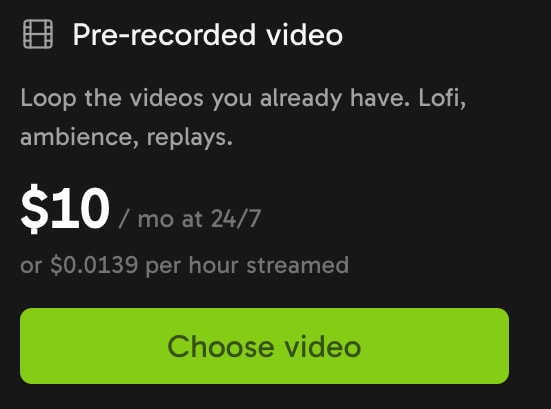
Select Choose video to loop the videos you already have.
Add your videos
Open the Playlist tab. Select Upload, From library or From URL, for example a Google Drive link.
Upload MP4, MOV, MKV, WebM, AVI, MPEG or MXF files of up to 15 GiB each. One video is enough, and the files do not have to match in format or resolution, as long as they are all landscape, all portrait or all square: Streamloop prepares each one for the stream.
For a longer schedule, see build and schedule your playlist.
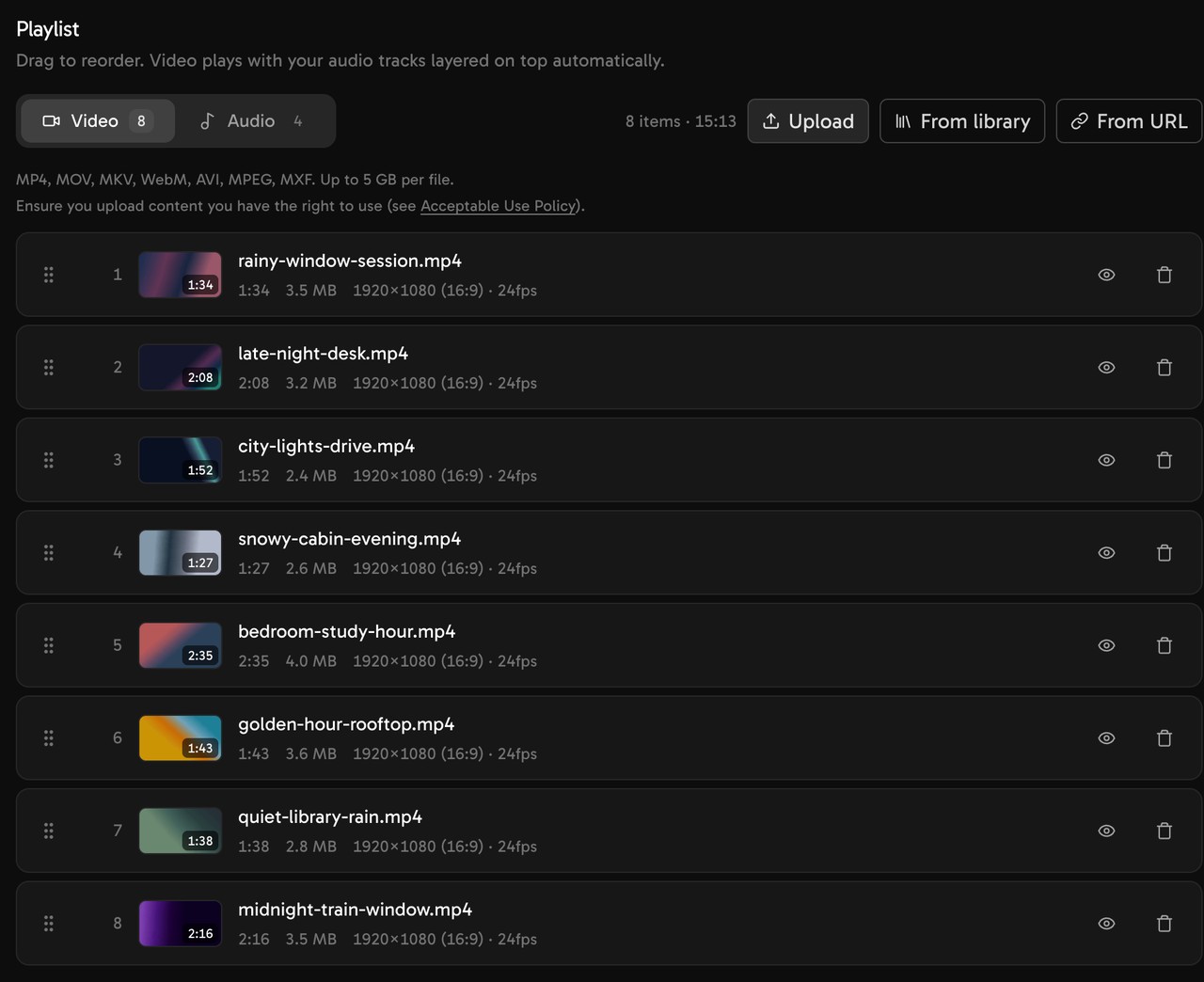
The video playlist shows each clip with its length and resolution.
Add an audio playlist (optional)
For a lofi or music stream, put one visual loop in the Video tab. Then open the Audio tab and add your tracks.
The audio plays over the video, and the sound of the video is muted. YouTube needs sound, so add music here if your videos are silent. See the lofi channel guide.
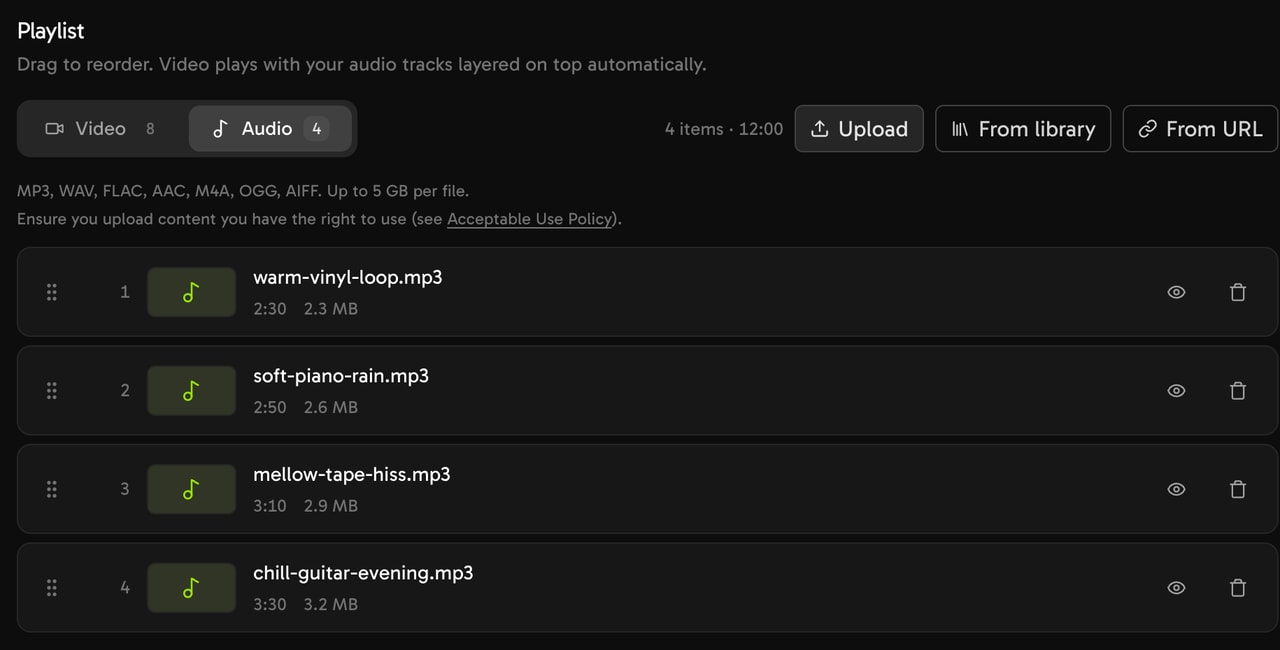
Add music as a separate audio playlist. It plays over the video playlist.
Choose the loop behavior
Under Loop behavior, select In order or Shuffle. For a different order, select Smart order and describe it in plain words. See Smart order.
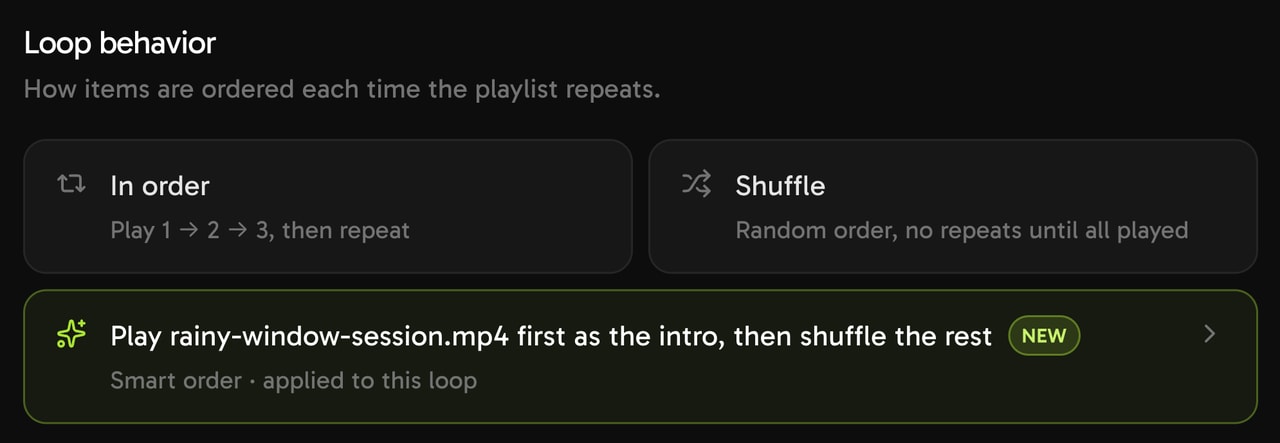
Choose how the playlist repeats: in order, shuffled, or in a Smart order.
Set the output quality
Open the General tab and find Output quality. Choose 720p, 1080p, 1440p or 4K, at 24, 25, 30 or 60 fps. For most channels, 1080p at 30 fps is enough.
You do not set a bitrate. Streamloop picks encoding settings that YouTube accepts. If your videos are vertical, the stream goes out as a vertical live stream too.
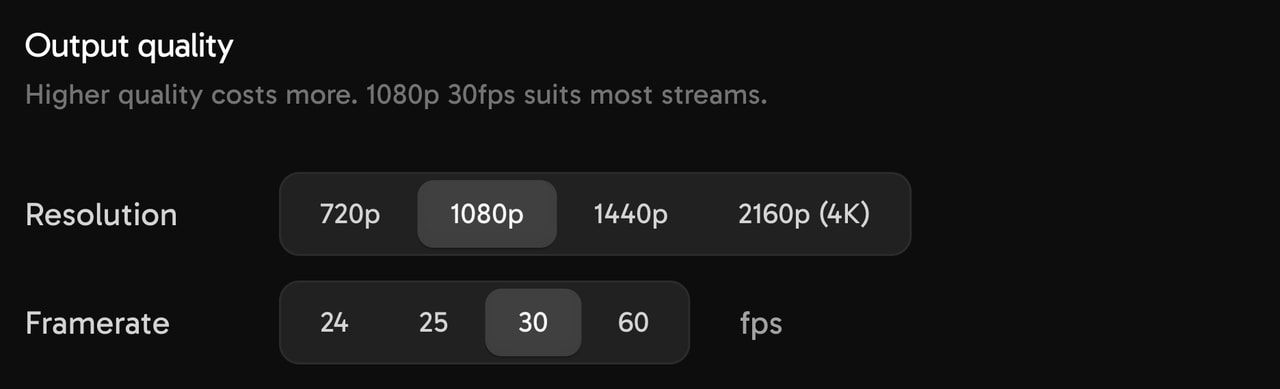
Pick the resolution and frame rate for the stream. 1080p at 30 fps suits most streams.
Connect your YouTube channel
In the General tab, add a destination. Select YouTube, then Connect channel and sign in with Google. Streamloop then creates the YouTube broadcast for you, so you do not copy a stream key.
To use a stream key instead, see the YouTube stream key guide.
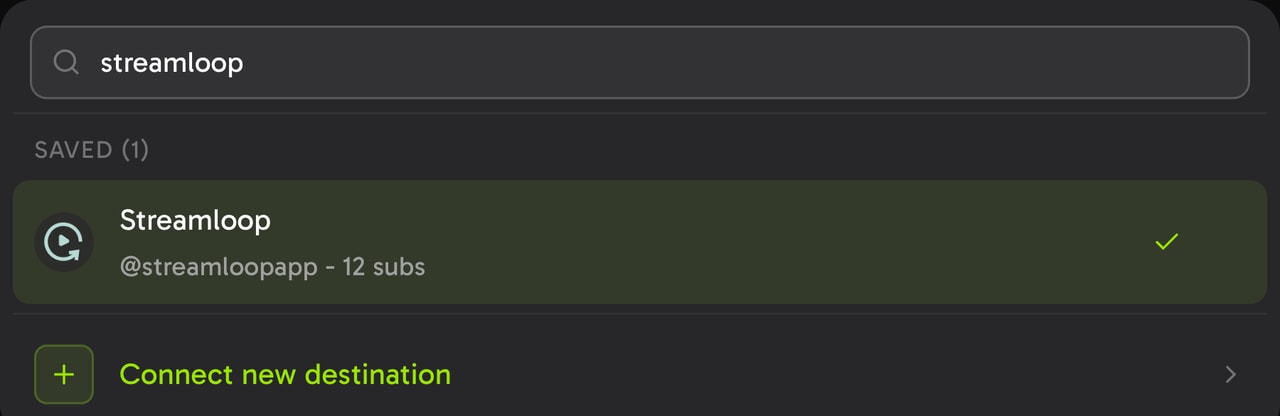
Pick a connected YouTube channel or connect a new destination.
Fill in the YouTube settings
Open the YouTube tab and set the title, description, thumbnail and privacy. Answer "Made for kids?", which YouTube requires before Streamloop can create the broadcast.
Set age restriction, latency, DVR and recording before you start, because Streamloop applies them when it creates the broadcast. Normal latency suits a loop.
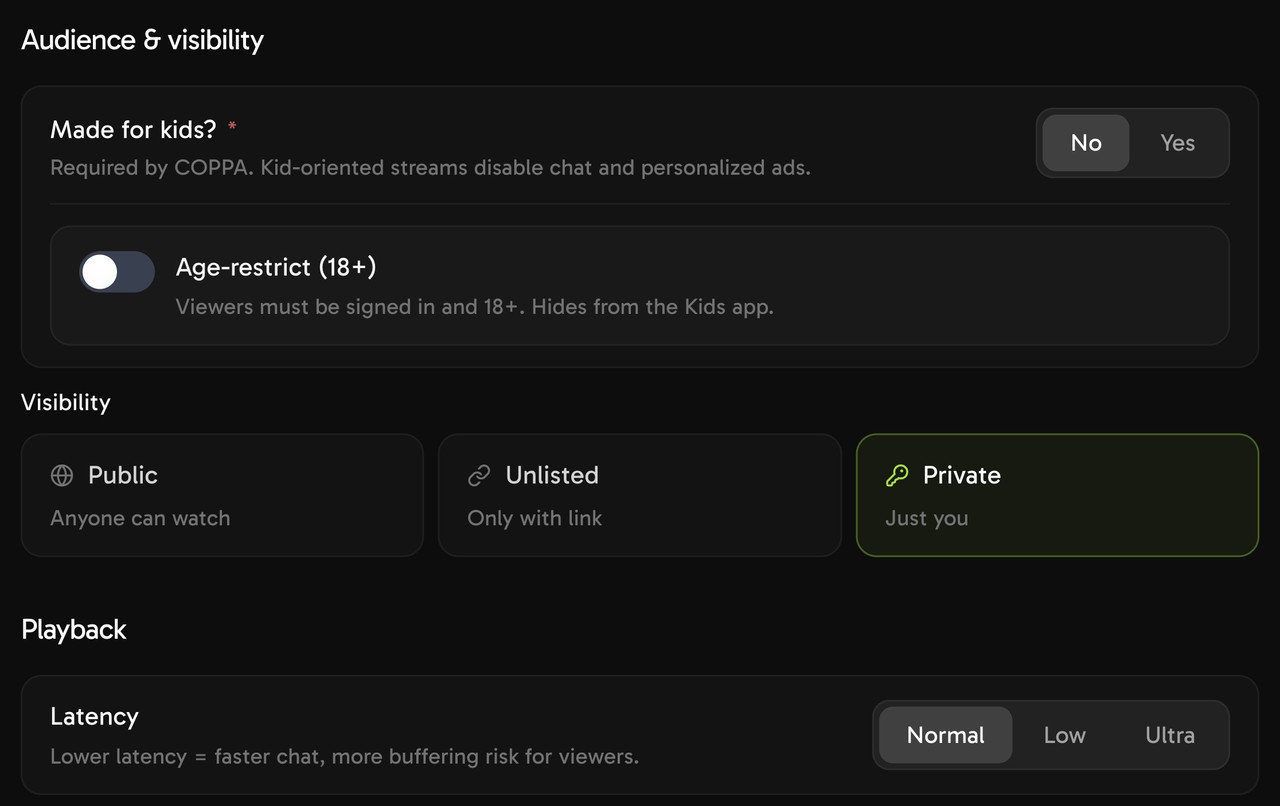
Answer Made for kids, then set the visibility and latency of the YouTube broadcast.
Start now or schedule it
To start later, turn on Schedule loop and type a time, such as "tomorrow 9am".
For a nonstop stream, leave Recurrence on None. For a repeating window, set Recurrence to Daily or Weekly, then set the From and to times. The window must be shorter than 24 hours.
Keep each run under 12 hours if you want YouTube to save a replay of it, as the replay section explains. A church that replays one service each week can read how to stream prerecorded church services.
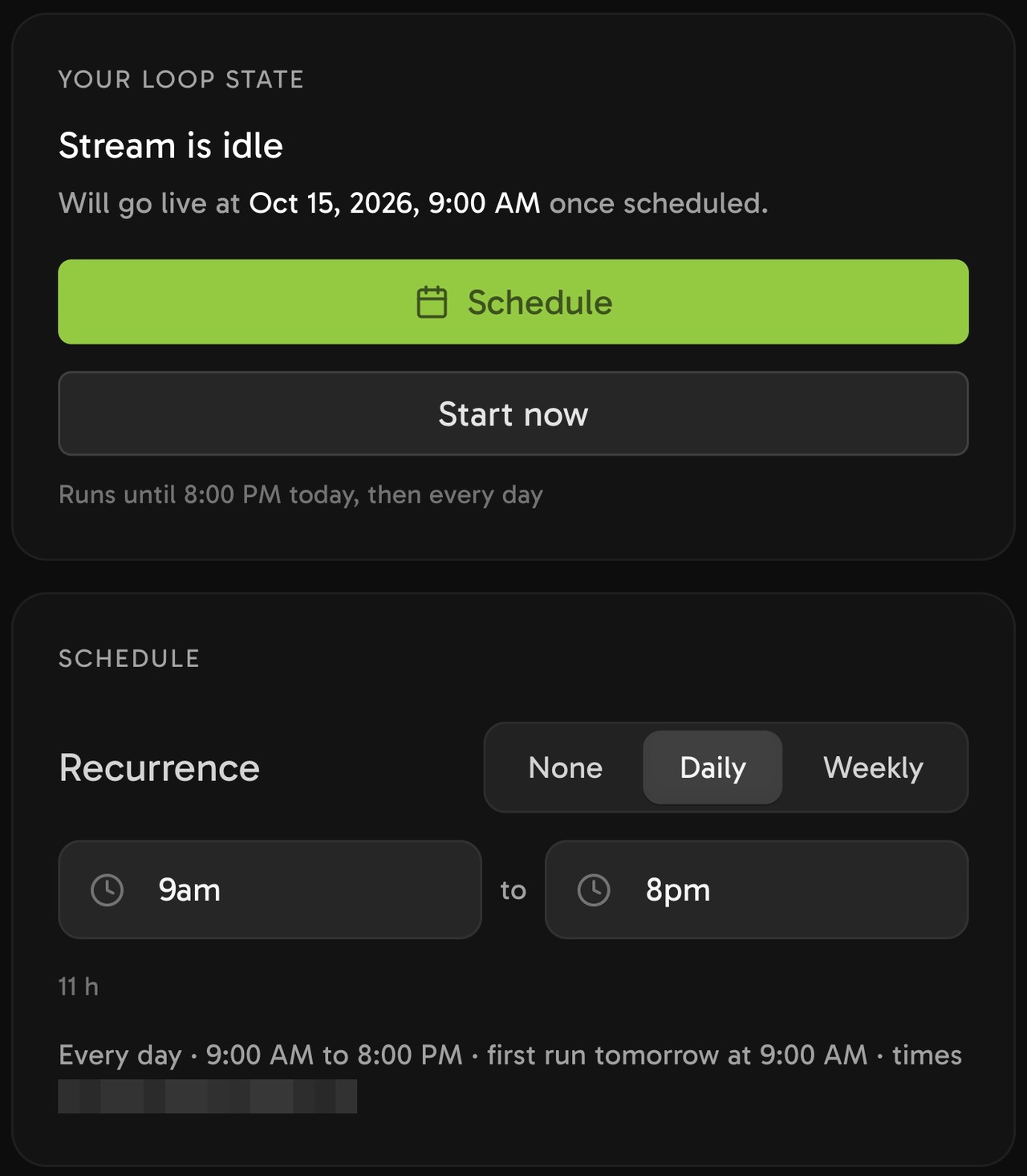
A daily window of 11 hours. Each daily run stays under 12 hours.
Start the stream
Select Start stream. For a later start, select Schedule the stream instead. If your balance is empty, Start stream first asks you to add credit. A new account can start the $1 trial there. If something else blocks the start, a panel lists it.
The status card then shows Preparing playlist, Starting, and Live on with your channel name. In YouTube Studio, Live Control Room shows the broadcast as live. You can now turn off your computer.
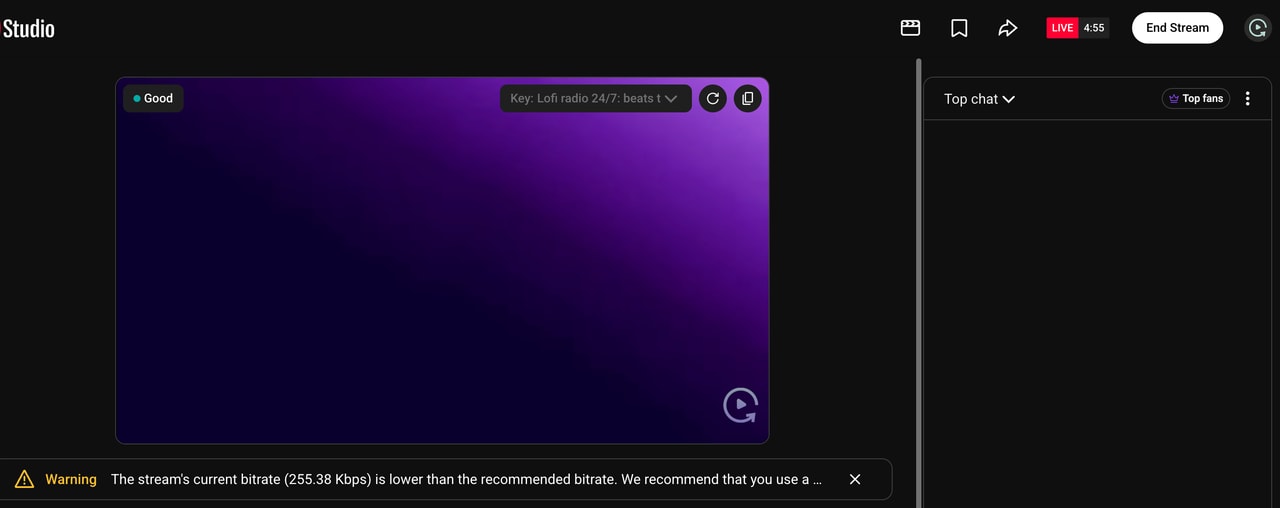
YouTube Studio receives the stream with Good health. The low bitrate note comes from the plain test video.


How much does it cost to run a 24/7 stream?
The price depends on the quality and frame rate you choose. Most channels pick 1080p at 30 fps.
| Resolution | 24 fps | 30 fps | 60 fps |
|---|---|---|---|
| 720p | $4 | $5 | $7.50 |
| 1080p | $8 | $10 | $15 |
| 1440p | $16 | $20 | $30 |
| 4K | $24 | $30 | $45 |
Price for 30 days of nonstop streaming (720 hours) to one destination.
Start your 24/7 YouTube stream for $1.
Streaming is billed by the minute, only while live: one 24/7 stream at 1080p is about $10 per 30 days. Start with a $1 trial week, which becomes a monthly plan unless you cancel, or top up and pay as you go. See all prices.
Will YouTube save a replay of a 24/7 stream?
Not reliably after 12 hours. The limit is the replay, not the broadcast.
YouTube says that it "can automatically archive" a live stream that is less than 12 hours. A longer stream "may not be captured at all." See Archive live streams in YouTube Help.
So pick the plan that fits your channel:
- One broadcast that does not stop. Use this when the live page is the product, such as a lofi radio. Viewers keep one link, but YouTube may not save a replay.
- Daily runs shorter than 12 hours. Each run is a new YouTube broadcast, so YouTube can archive each one, but the stream is off between runs. Set a window such as 08:00 to 19:00 in step 8.

A nonstop broadcast may not be archived. Daily runs under 12 hours can each get a replay, but the stream is off between runs.
How do you keep a 24/7 stream monetizable?
A 24/7 stream follows the same YouTube rules as your uploads. YouTube says that "creators are rewarded for original and authentic content", and these habits help:
- Use media you own or license. YouTube checks every live stream for copyright matches. For licensed tracks, ask the rights owner to add your channel to their allowlist in YouTube Content ID. Then a match does not interrupt your stream.
- Make it your own. Use your own visuals and a playlist that you chose. New tracks or a new look now and then keep the channel fresh, instead of one identical loop.
- For a church service, check that your music license covers live streaming.
For the details, read the YouTube channel monetization policies and Copyright issues with live streams.
What happens if the stream drops?
Streamloop reconnects on its own, and the status card shows Reconnecting. You are not billed while it reconnects.
Your computer plays no part, so a sleeping laptop or a system update cannot stop the stream. If one video cannot play, the loop goes on with the rest, and the live card says which file it skipped and why.
If a stream cannot recover, it stops and shows the reason in plain words. Read more about reliability.
What are the other ways to run a 24/7 stream?
You can also send the stream yourself with free tools:
- OBS on your own computer. OBS is free and can loop a video file, but the computer must stay on, awake and online for the whole stream.
- FFmpeg on a server. FFmpeg can repeat a file forever and send it to YouTube, if you can run and watch a server yourself. Our FFmpeg loop guide has the commands, and the encoder settings guide has the values YouTube wants.
For a live camera feed with graphics or a clock on your stream, see Live Scenes, a second Streamloop stream type.
Frequently asked questions
Can I run a 24/7 live stream from one video?
Yes. Add one video, and it repeats for as long as the stream runs. With a longer video, regular viewers notice the loop point later.
Can I change the playlist while the stream is live?
Yes. Edit the playlist and select Publish. The new version starts after the current video, and the stream does not restart.
Can an intro play once before the rest of the playlist loops?
Yes. Under Loop behavior, select Smart order and type, for example, "Play the first video once as an intro, then play the rest".
What resolution and frame rate should I use for a 24/7 stream?
1080p at 30 fps suits most channels. Use 60 fps only for fast motion, and 1440p or 4K only when your source has that detail.
How do I connect a platform other than YouTube?
Select the platform in the destination list and paste its stream key. Each platform after the first adds to the cost. See how to multistream.
Can you live stream a pre-recorded video on YouTube?
Yes. YouTube Live accepts a stream that plays from a video file. Streamloop sends that stream for you from the cloud.
Can I stream 24/7 on YouTube for free?
YouTube charges nothing to stream. Streamloop has no free plan, but you can start with the $1 trial week in the cost section. OBS is free, but your computer must stay on.
Should I use a YouTube Premiere instead of a 24/7 stream?
To show one video once, a YouTube Premiere is free: it plays an upload at a set time, with a countdown and live chat. For a show with several clips or above 1080p, schedule one run in Streamloop. In step 8, set the start time under Schedule loop and the show length under Loop expiration.
Sources and further reading
Sources
YouTube Help: Get started with live streaming, and Create a YouTube live stream with an encoder
YouTube Help: Archive live streams, Turn on DVR on live streams, Manage live stream settings, and Set your live stream audience
YouTube Help: Copyright issues with live streams, YouTube channel monetization policies, and Spam policy
YouTube Help: Premiere a new video, and Verify your YouTube account
YouTube Live Streaming API reference: liveBroadcasts, developers.google.com/youtube/v3/live/docs/liveBroadcasts
Streamloop prices: the Streamloop pricing page and dashboard
Questions or a correction? Contact us
Read next
Other platforms: Twitch, Facebook and TikTok LIVE
How a playout channel works: what cloud playout is