
How to Stream on Twitch and YouTube at the Same Time
Yes, you can stream on Twitch and YouTube at the same time. Twitch allows it for every streamer, if the Twitch stream is as good as the YouTube one and you keep viewers on Twitch.
Streaming to both at once is also called dual streaming or simulcasting. Use a free plugin or a relay for a live OBS stream, or loop a recorded video to both.
This guide is for live streamers with OBS or a camera, and for channels that loop recorded music, podcasts or sermon replays.
On this page
Streamloop, which publishes this guide, turns recorded videos into a live stream from the cloud, for channels with music, podcasts or sermon replays. Your computer can be off, and you need no OBS.
A 24/7 live stream stays live, so new viewers can find it at any hour.
Streamloop sends one loop to Twitch by stream key and to YouTube by sign-in. For a live OBS feed, its Live Scenes option takes the feed and adds graphics, with access within 24 hours.
- I stream live, with 18 Mbps of upload or more
Check the settings both accept, then add the free plugin.
- I stream live on a slower connection
- I want to stream a recorded video
See what each way costs.
Can you stream on Twitch and YouTube at the same time?
Yes, for every streamer. The Twitch Simulcasting Guidelines FAQ says its rules apply to all streamers, "unless you have an agreement with Twitch that requires exclusivity."
The Twitch Terms of Service and that FAQ set three conditions while you are live on Twitch:
- The Twitch stream is at least as good as the YouTube one, including how you talk with Twitch chat.
- You do not send viewers to YouTube with links, banners, QR codes, stream titles, go-live notifications or chat commands. Profile links in your bio and panels are allowed, but not to urge viewers to watch elsewhere.
- You do not show merged YouTube chat or other combined activity on the Twitch stream.
Twitch sends a warning before it takes any enforcement action.
YouTube allows the same live stream on several platforms. If you never streamed on YouTube, turn on live streaming a day early, because the first enable takes at least 24 hours.
How much upload speed do you need to stream live to both?
Streaming a recorded video? Skip to the loop steps.
OBS Studio 32.2.2, the current version on October 14, 2026, cannot send to two services without a plugin or a relay.
The rule from YouTube: add the bitrates of every stream you send, then have 1.5 to 2 times that total.
| How you stream | You send | Upload to have |
|---|---|---|
| OBS plugin, one 1080p60 stream to each platform | About 12 Mbps | 18 to 24 Mbps |
| OBS plugin, with Twitch Enhanced Broadcasting on | Up to about 16.5 Mbps in total: up to 10.5 for Twitch plus 6 for YouTube | 25 to 33 Mbps |
| One stream to a relay or to Live Scenes, which sends it on to both | About 6 Mbps | 9 to 12 Mbps |
Each stream is 6,000 kbps at 1080p60. Measure your upload with a real speed test. Sources: YouTube Help and Twitch Help, read on October 14, 2026.
With 18 Mbps or more, the free plugin is the simplest answer for most live streamers. With less, send one stream.
Enhanced Broadcasting sends extra qualities to Twitch only, not to YouTube. YouTube Help also lists hardware encoders, which send from your own connection like the plugin.
Which settings work on both Twitch and YouTube?
Twitch and YouTube both accept these settings.
| Setting | Value for both | Why |
|---|---|---|
| Video codec | H.264 | Twitch and YouTube both accept it |
| Rate control | CBR | Both platforms recommend it |
| Keyframe interval | 2 seconds | Both platforms recommend it |
| Audio | AAC, stereo, 128 to 160 kbps | YouTube recommends 128 kbps, and Twitch allows up to 160 kbps |
| 1080p at 60 fps | 6,000 kbps | Twitch recommends it, and it is the YouTube minimum for H.264 |
| 1080p at 30 fps | 5,000 to 6,000 kbps | Twitch recommends 4,500 kbps, but the YouTube minimum for H.264 is 5 Mbps |
Never give YouTube a better picture than Twitch. Twitch calls that a worse experience on Twitch, which breaks its first condition.
Test privately before you go public, as the multistream guide shows.
How do you set up the free OBS multi RTMP plugin for Twitch and YouTube?
The free Multiple RTMP outputs plugin (obs-multi-rtmp) by sorayuki adds more outputs to OBS. Use it when your upload is 18 Mbps or more.
Install the plugin that matches your OBS
Download the obs-multi-rtmp release for your OBS version from the author's release page, currently 0.7.4.4. Install it, and restart OBS.
On the OBS forum, a July 26, 2026 review says it did not load in the current OBS. An August 1 review says 0.7.4.3 works on Ubuntu.
If it fails, send one stream instead.
Set Twitch as the main stream
In OBS, open Settings, then Stream. Choose Twitch, and paste your Twitch stream key.
Copy the YouTube values
Copy the server URL and the stream key from YouTube Studio.
Add YouTube as a target
In the Multiple output dock, select Add new target. Enter the YouTube server URL and stream key.
For the encoder, choose Reuse the streaming encoder as OBS, so both platforms get the same picture.
Use 6,000 kbps at 1080p60, as in the settings table.
Start both streams
Start streaming in OBS, then select Start all in the dock. Check both channels in a private browser window.
What if your upload is too slow for two streams?
Send one stream from OBS to a cloud service, and it sends a copy to Twitch and to YouTube. One 1080p60 stream at 6,000 kbps needs about 9 to 12 Mbps of upload.
The stream passes through one more server, which can add some delay.
How do you send one stream through a relay?
Choose a relay if you only need the same picture on both. The free Restream plan streams to 2 channels, so it covers Twitch and YouTube.
- Create a relay account, and choose a plan that streams to Twitch and YouTube.
- Add Twitch and YouTube as destinations in the relay.
- Copy the server URL and stream key of the relay into OBS, under Settings, then Stream.
- Use 6,000 kbps at 1080p60, and start streaming. Check both channels in a private window.
How do you send one stream through Live Scenes?
Choose Streamloop Live Scenes if you want overlays, a countdown or a fallback slate when your feed drops. It re-encodes your feed, goes up to 1080p60 and has no guest cameras.
Live Scenes is paid: $26 per 30 days around the clock at 1080p30 to both, billed per minute while live.
- In Streamloop, select New loop, choose Scene and describe your use case. Access is granted within 24 hours.
- Select Open studio, add an RTMP input, and select Create stream key. Copy the server URL and key, because they show only once.
- In OBS, under Settings, then Stream, set the service to Custom. Paste the server URL and the stream key.
- Select Publish in the studio. On the loop page, add Twitch by stream key and connect YouTube.
- Select Go live in the studio. Check both channels in a private window.
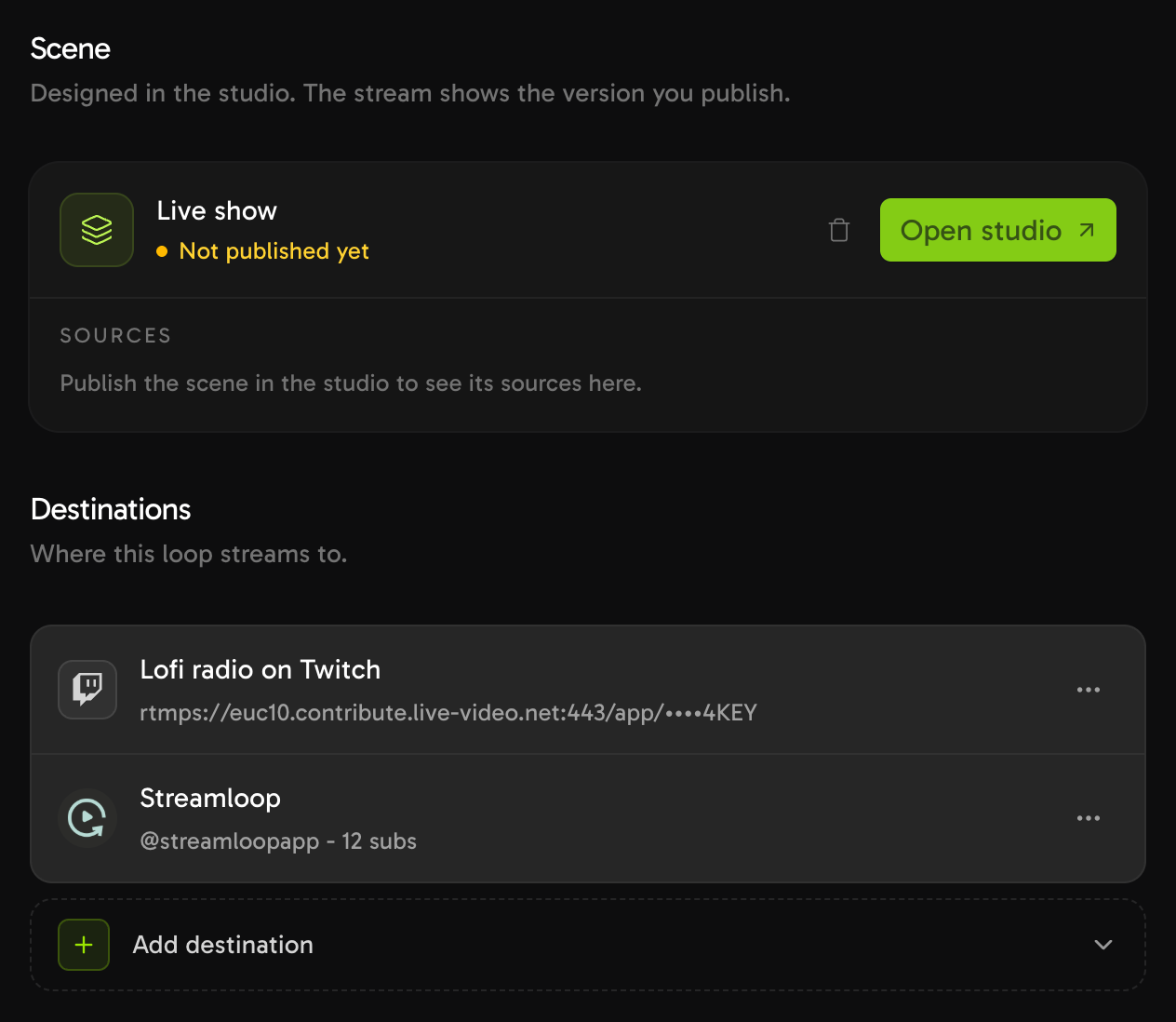
A Scene loop with Twitch and a connected YouTube channel. The Twitch key shows only its last four characters.
Send your OBS feed to Twitch and YouTube
Choose Scene when you create a stream, and describe your use case. Access is granted within 24 hours.
More detail: Live Scenes.
How do you stream a prerecorded video to Twitch and YouTube at the same time?
For $0, OBS can play a video file on loop as a Media Source, with the free plugin for the second platform. Your computer must stay on, and your upload carries both streams.
A paid cloud service plays the file with your computer off. These are the steps in Streamloop.
Create a loop with your video
Select New loop, and choose Pre-recorded video. Upload your video, up to 15 GB per file.
Connect your YouTube channel
Select Add destination, then YouTube with Connect channel, and sign in with Google.
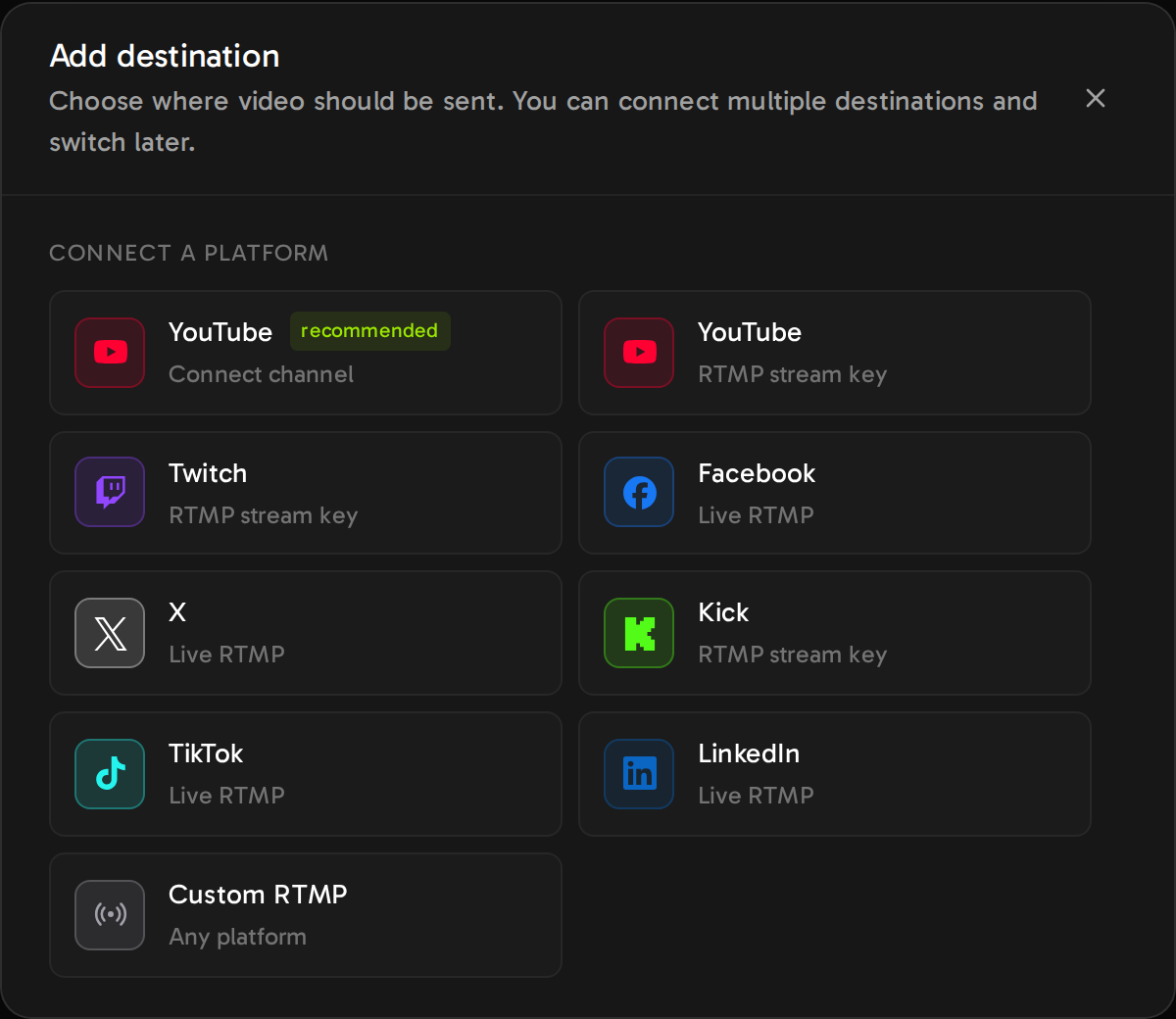
Connect channel signs in with Google. For Twitch, you paste a stream key.
Add Twitch with your stream key
Add a second destination: Twitch, RTMP stream key. Streamloop fills in the server URL.
Paste your Twitch stream key, and select Save destination.
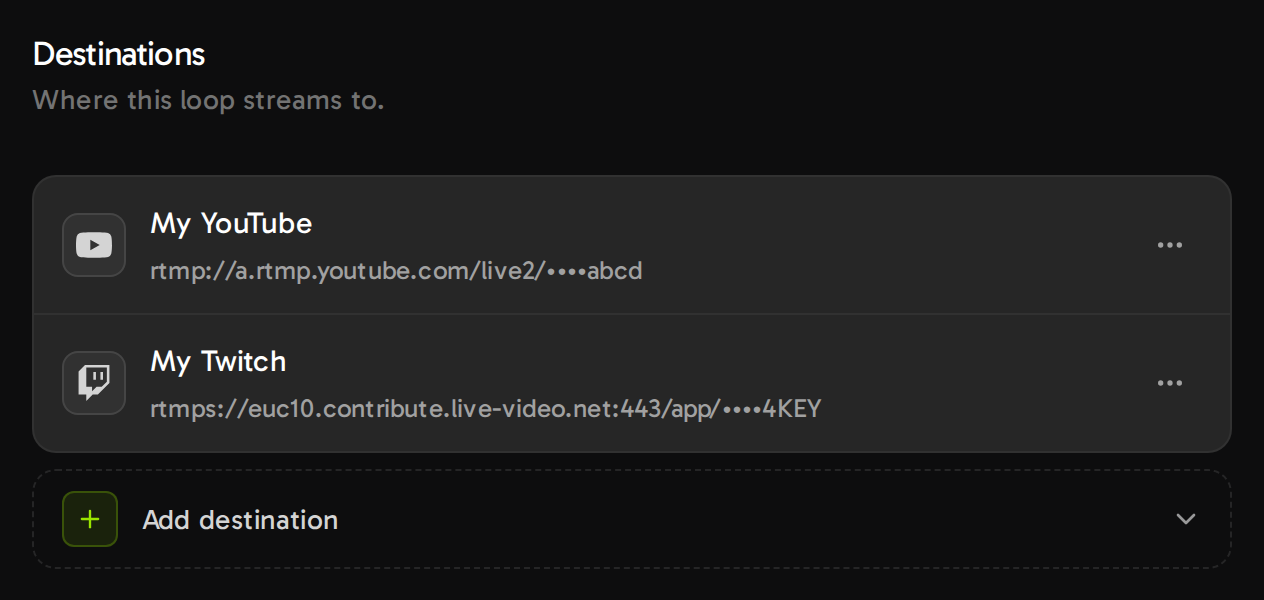
After you save, each destination shows only the last four characters of its key.
Choose 1080p at 30 fps
In Output quality, choose 1080p and 30 fps. One encode goes to both, at H.264 and up to 5,600 kbps for Twitch.
That is below the YouTube minimum of 6 Mbps for 1080p60, so 30 fps is the safe choice.
Start the loop
Add both destinations first, because you cannot add one while the loop is live. Then select Start stream.
If one platform fails, the other keeps streaming.
Twitch ends any broadcast after 48 hours, from OBS too. Streamloop reconnects a 24/7 loop every 20 hours or so, with a pause of up to 100 seconds.
Next, see whether Twitch needs a Rerun label.


Do you have to mark a prerecorded stream as a rerun on Twitch?
Twitch asks you to tell viewers when you broadcast prerecorded content, which it calls non-live content.
It lists three steps: select the Rerun checkbox in Edit Stream Info, and start the stream title and the go-live notification with [Rerun].
Streamloop connects to Twitch by stream key only, so you add the Rerun label in Twitch yourself.
YouTube rules for looped streams are in the multistream guide.
How much does it cost to stream to Twitch and YouTube at the same time?
The free ways cost upload, not money. Streamloop bills per minute, only while the stream is live, so the cost follows your live hours.
| Way | For | Cost | Note |
|---|---|---|---|
| OBS plugin | Live streams | $0 at any quality | Your upload carries both streams |
| Relay free plan | Live streams | $0 at any quality | The free Restream plan covers 2 channels, with its branding in its browser studio |
| Live Scenes, 1080p30 to both | Live streams | $20 + $6 = $26 per 30 days around the clock | About $0.036 per live hour, so about $0.11 for a 3-hour show. No free credits. Live inputs pay no preparation fee. Uploaded videos in a scene pay one only if they need re-encoding. |
| OBS with a looping file | Recorded video | $0 at any quality | Your computer stays on, and your upload carries both streams |
| Streamloop loop, 1080p30 to both | Recorded video | $10 + $6 = $16 per 30 days around the clock | A 2-hour weekly replay costs about $0.044 per run, plus $0.005 per minute of encoding if the file needs it |
The $6 is the second destination at 1080p.
Pay as you go needs a top-up of at least $5. Or start a 7-day trial for $1. The trial covers one destination for 7 days, and a second destination is billed from your balance.
Prices for other qualities are in the multistream guide, for recorded loops and for Live Scenes.
Loop a recorded video to Twitch and YouTube
Add YouTube and Twitch to one loop, and stream from the cloud with your computer off.
Frequently asked questions
Can Twitch Affiliates and Partners stream on YouTube at the same time?
Yes. Affiliates and Partners follow the same simulcasting rules as every streamer, unless they signed an exclusivity agreement with Twitch.
Can I show Twitch and YouTube chat together on my stream?
Not on the Twitch stream, because the third Twitch condition forbids merged chat there. A combined chat that only you see is fine. Creator-tool blogs, such as Streams Charts, reported in 2026 that Twitch stopped enforcing the rule. Twitch has not announced a change, and its terms still contain it.
Can I stream vertical to YouTube and horizontal to Twitch?
Twitch Dual Format sends a vertical version to Twitch only. The free Streamlabs plan sends one horizontal and one vertical stream. Streamloop sends one shape to every destination.
Where does this information come from?
I built Streamloop, so I say where another tool is the better choice.
Sources
Twitch Terms of Service, section 11, Simulcasting, last modified August 12, 2026: legal.twitch.com/en/legal/terms-of-service
Twitch Help: Simulcasting Guidelines FAQ, Broadcasting Guidelines, Enhanced Broadcasting and Video on Demand, at help.twitch.tv
YouTube Help: Stream across platforms, and the live encoder settings, bitrates and resolutions page, at support.google.com/youtube
OBS forum: Multiple RTMP outputs plugin page and its reviews. OBS Knowledge Base: Sources guide. OBS Studio and obs-multi-rtmp release notes on GitHub.
Restream and Streamlabs pricing pages. Streams Charts and Streamlabs blog posts on merged chat, 2026.
Checked on October 14, 2026 against Twitch Help, the Twitch Terms of Service, YouTube Help, the OBS forum and the Streamloop dashboard. A correction? Contact us
Changes
October 14, 2026: first version.