
How to Find Your Facebook Stream Key and Server URL
Your Facebook stream key is in Live Producer, on a computer. The server URL is under Advanced settings.
It is for anyone who connects OBS or a cloud tool to Facebook. Keep the key private: anyone with it can stream to your post.
This guide is from Streamloop, a cloud service for channels that run pre-recorded video, such as sermon replays or music, as a 24/7 live stream.
On this page
Where is the stream key in Facebook Live Producer?
Live Producer shows the key when you choose Streaming software as the source.
- On a computer, open Live Producer at facebook.com/live/producer.
- Under Choose where to post, select your profile, a Page that you manage, or a group.
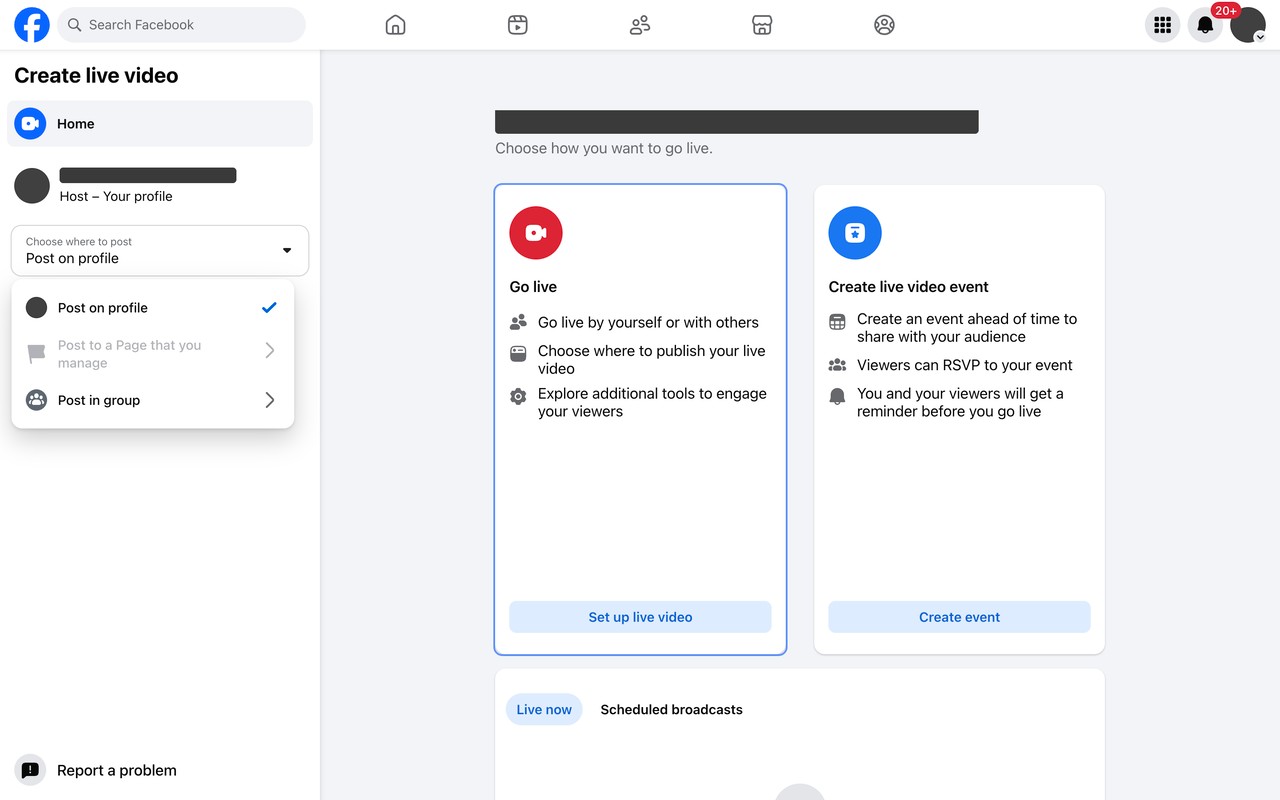
With no Pages on our test account, the Page option was greyed out.
- On the Go live card, select Set up live video.
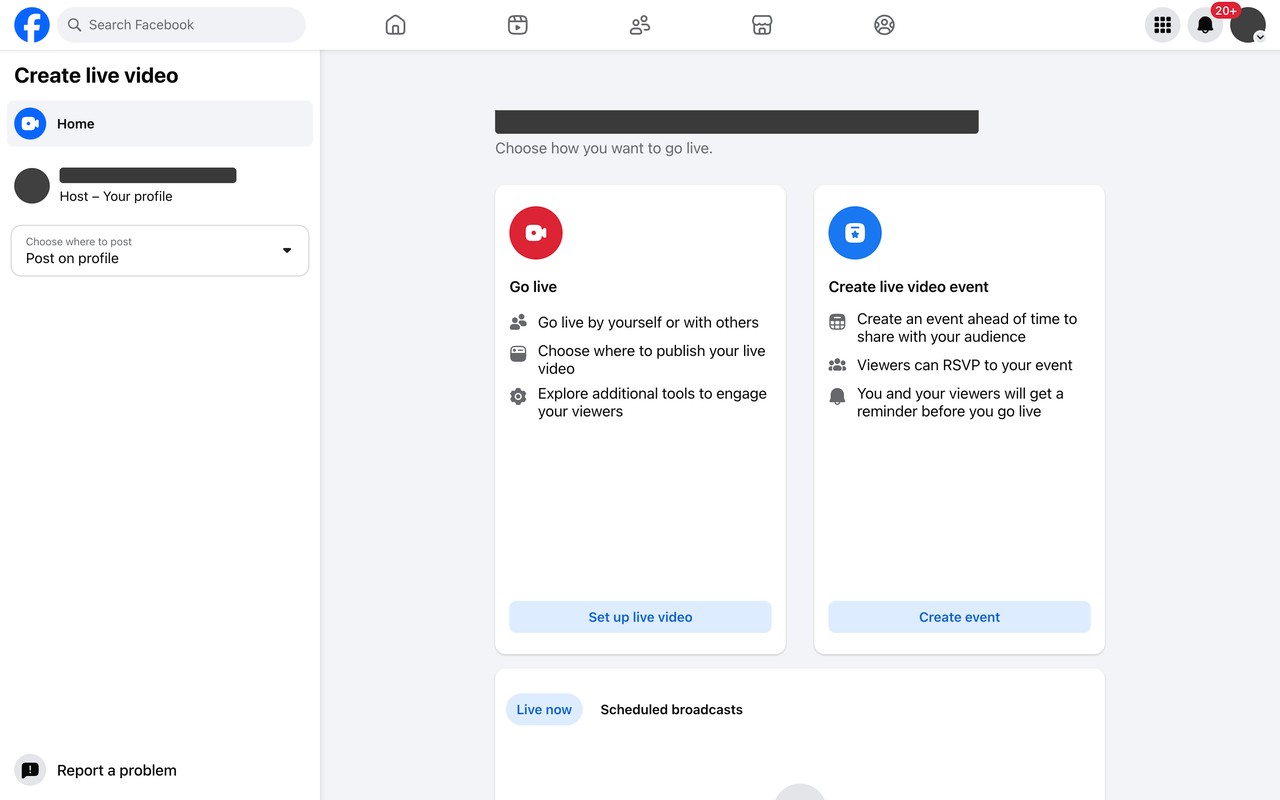
Meta Help calls this button Select.
- For the video source, choose Streaming software.
- Under Streaming software setup, select Copy next to Stream key.
- Open Advanced settings, and copy the Server URL.
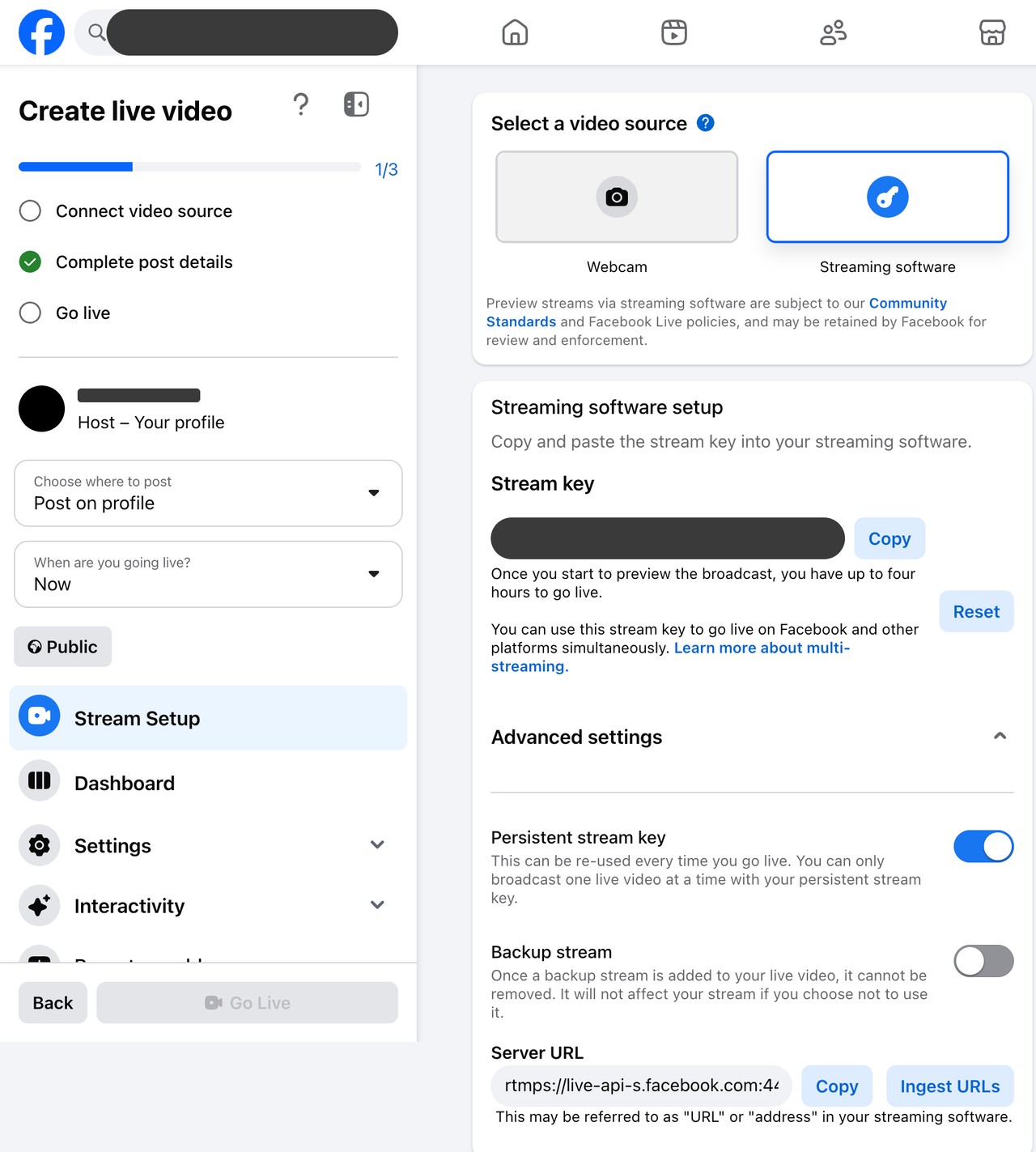
We hid the key.
What is the Facebook RTMP server URL, and how is it different from the key?
The RTMP server URL says where the video goes. The stream key says which live video it is, and it is secret. Facebook requires RTMPS, so the URL starts with rtmps://.
| Checked October 14, 2026 | Server URL | Stream key |
|---|---|---|
| Value | Live Producer showed rtmps://live-api-s.facebook.com:443/rtmp/ | Your own key |
| Field in OBS | Server | Stream Key |
| Changes | Can differ by ingest location | Yes, unless you turn on a persistent key |
Meta's developer documentation and OBS use rtmps://rtmp-api.facebook.com/rtmp/. Use the server URL that Live Producer gives you.

One-field tools take the server URL plus the key after /rtmp/. Custom RTMP streaming shows how.
How do you add the stream key to OBS?
OBS needs both values from Live Producer.
- In OBS, select File, then Settings, then Stream.
- Set Service to Custom..., and paste the Server URL into Server.
- Paste the stream key into Stream Key, and select Apply.
- Select Start Streaming, then go live in Live Producer.
Why is there no stream key option on Facebook?
Meta lets an account go live only when it meets the live requirements.
| What you see | Cause, per Meta | Fix |
|---|---|---|
| You cannot go live from the account | The account must be at least 60 days old | Wait until the account is 60 days old |
| You cannot go live from a Page or professional profile | It must have at least 100 followers | Grow it to 100 followers |
| You cannot select your Page | You need Facebook access or task access to create content | Ask a Page admin for that access |
| You are on a phone | Live Producer is only available on desktop devices | Open it in a browser on a computer |
Source: Meta Help Centre and Meta Business Help Centre, read on October 14, 2026.
Do you need a persistent stream key?
Yes, if you reuse the setup or a tool reconnects on its own. No, for one live stream.
Meta says a standard key is only valid for your current stream. After you start the preview, Live Producer gives you up to four hours to go live. Meta Help says five.
How do you turn on a persistent key?
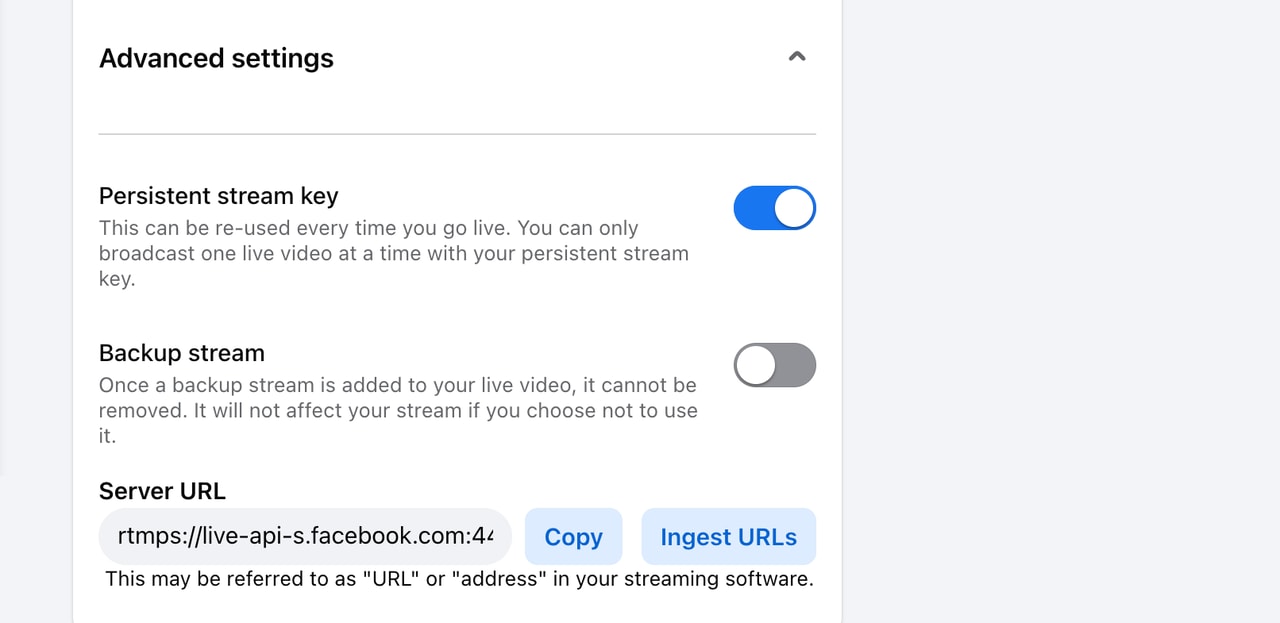
- In the streaming software setup, select Advanced settings.
- Turn on Persistent stream key.
- Copy the new key into every tool. Turning it on changes the existing key.

How do you stream prerecorded video to Facebook 24/7 without a computer?
For a live OBS stream to Facebook, you do not need Streamloop. Without your own computer, use a cloud streaming service such as Streamloop. Or run an encoder such as OBS on a computer that stays on. Scheduling in Live Producer sets up one broadcast, not a 24/7 stream.
Streamloop turns prerecorded videos, such as sermon replays or music, into a 24/7 live stream from the cloud. A live stream that stays live can be found at any hour, while an upload usually gets most of its views early.
- In your loop, select Add destination, then Connect new destination, then Facebook.
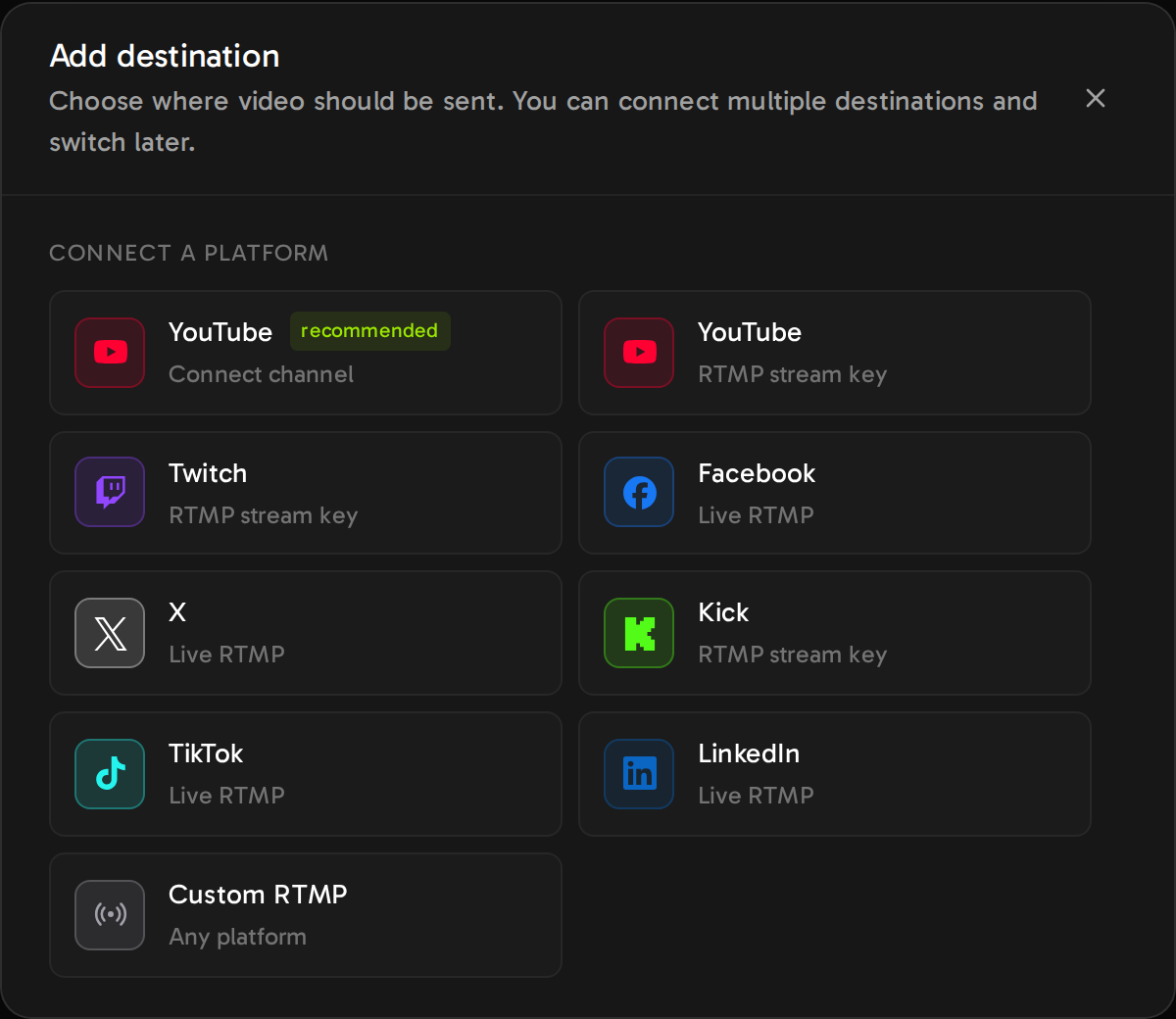
- Paste your persistent stream key into Stream key. Streamloop fills in the server URL.
- Select Save destination, then start the loop. Streamloop refuses a loop above 1080p for Facebook.
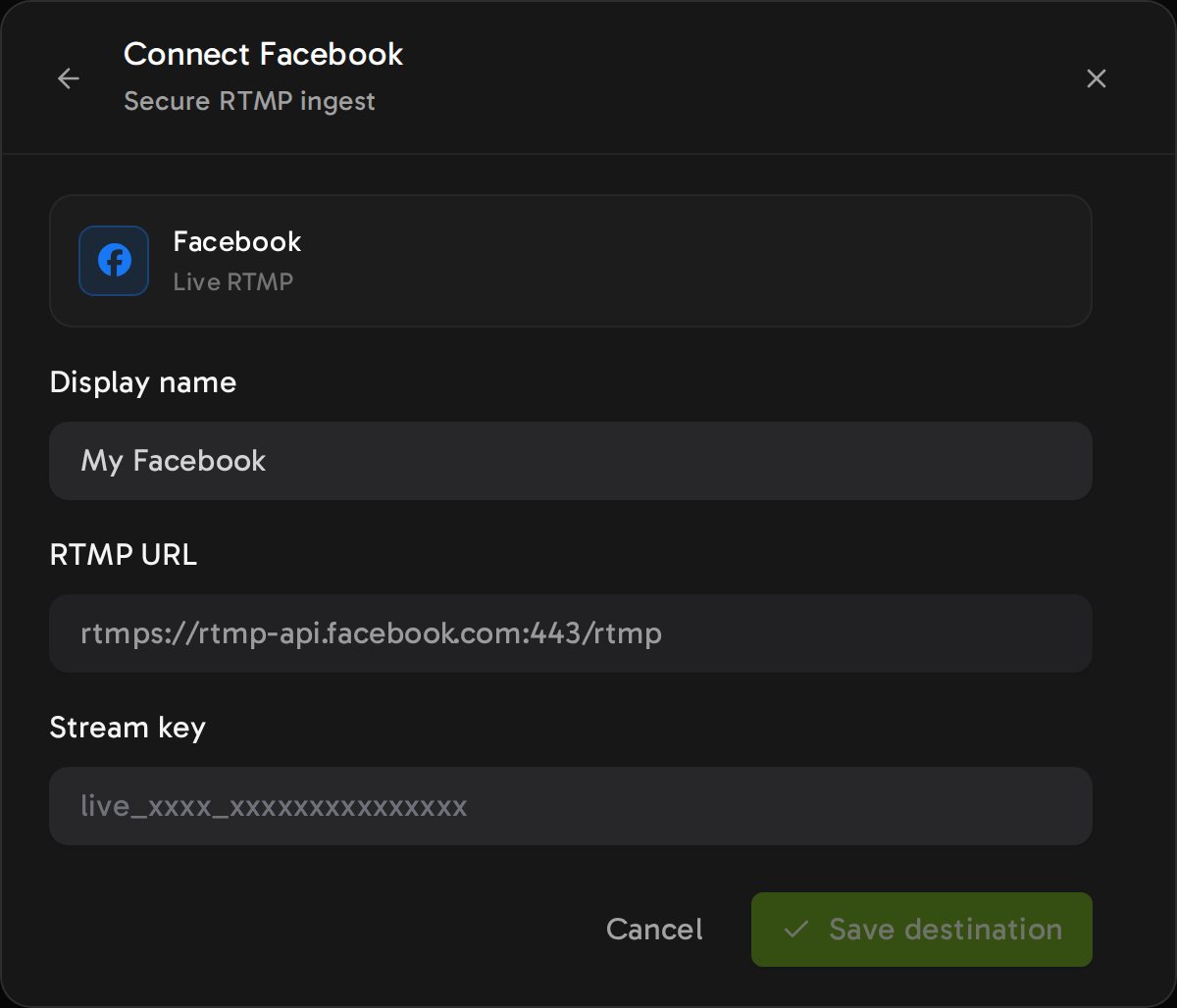
Streamloop fills in rtmps://rtmp-api.facebook.com:443/rtmp.
Facebook ends a live video after 8 hours. So about every 7 hours 45 minutes, Streamloop stops for about 4 minutes and reconnects with the persistent key. Facebook closes the live video, and the reconnect opens a new one, a new post. Streamloop does not check that it went live, so check Live Producer after the first reconnect.
Meta's Facebook Live Policies say Live "should not be used to broadcast looping videos, static images or poll-only videos". Live also "must not be used to mislead users to think that specific footage is occurring in real time when it is not".
So use a long, varied playlist, not one short clip. Meta says prerecorded content "must be clearly marked as pre-recorded", so say so in the title in Live Producer. Streamloop does not make a loop allowed, and Meta decides how its rules apply. More in our 24/7 Facebook live stream guide.
Run the 24/7 loop from this guide
To run this loop, pay $1 by card for a 7 day trial at any quality. On day 7, your card is charged for the plan of that quality, then every 30 days ($8 to $15 at 1080p). Cancel before day 7 to pay nothing more.
What happens when you reset your Facebook stream key?
Select Reset in the streaming software setup, then paste the new key into every tool.
In Streamloop, stop the loop, add Facebook with the new key, remove the old destination, and start the loop. With the old destination, the loop says: "The destination rejected the stream key."
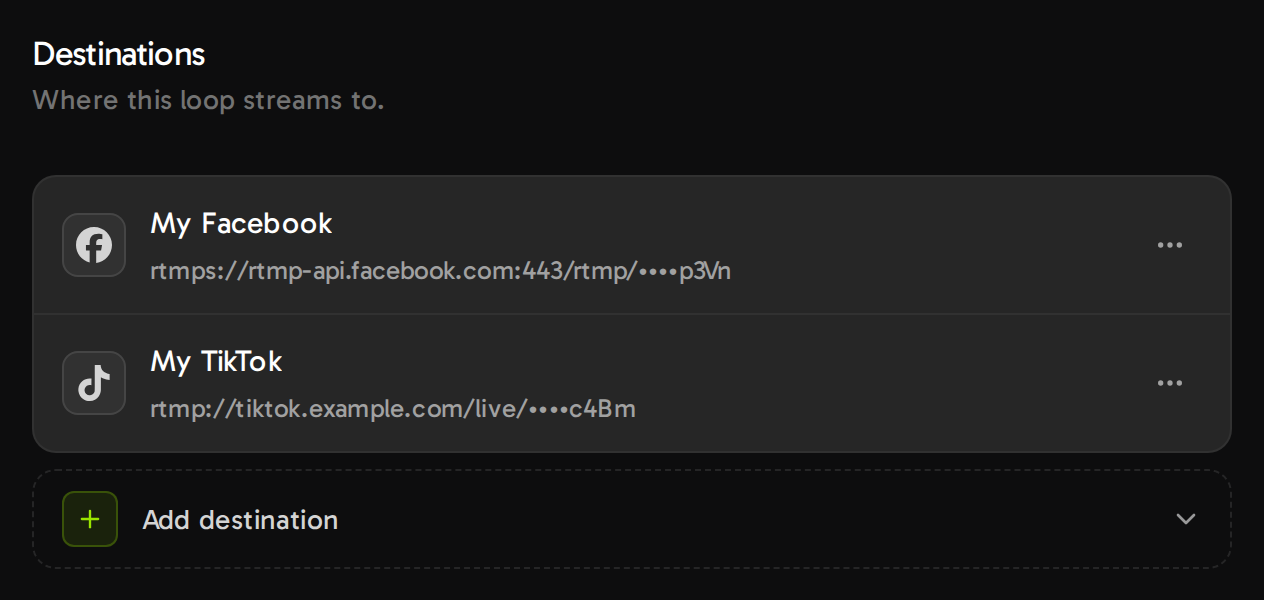
Streamloop shows only the last four characters of a key.
Frequently asked questions
Is it safe to share my Facebook stream key?
No. Meta says: "Never share your Stream Key or Persistent Stream Key. Anyone with these details can stream to your post."
How many Facebook live videos can I run at once?
Meta says a Page can have five active broadcasts at a time, and a profile can have two. A persistent key carries one live video at a time.
Can I schedule a Facebook live video?
Yes. Meta says that in Live Producer you can go live now or schedule a live broadcast up to 24 hours in advance.
Can a streaming tool get a stream key for me?
No. Facebook gives the key only to an account that meets its live requirements. Streamloop and other tools only use the key that you paste.
Can I stream to Facebook and YouTube at the same time?
Yes, with a multistream tool. OBS can do it with a free multiple output plugin, and relays such as Restream do the same. Streamloop sends a prerecorded loop to up to 5 destinations. For a live OBS or camera feed, use Live Scenes, with access within 24 hours.
Where does this information come from?
Sources
Meta Help Centre: Go live on Facebook using streaming software.
Meta Business Help Centre: How to go live on Facebook with streaming software, About advanced Facebook live stream settings, Requirements for Facebook Live videos, and About Facebook Live Producer.
Meta for Developers: Live Video API, Getting Started.
Facebook: Facebook Live Policies (English).
Checked on October 14, 2026 against Meta Help and the Streamloop dashboard. A correction? Contact us
Changes
October 14, 2026: first version.