
How to Schedule a YouTube Live Stream
To schedule a live stream on YouTube, open YouTube Studio and click Create, then Go live. Open the Manage tab and click Schedule Stream.
The stream does not start by itself at that time. You must send video and click Go live, or turn on auto-start.
This guide is for creators who go live from a webcam, OBS or a phone. It also helps channels that need a pre-recorded show to start on its own.
- You will go live yourself later
- You schedule from your phone
- Your video is pre-recorded and must start on its own
A stream that starts, stops and repeats with nobody at the computer.
On this page
How do you schedule a live stream in YouTube Studio?
You need a verified channel. If you have never streamed before, live streaming can take up to 24 hours to turn on (YouTube Help).
- Go to YouTube Studio and click Create, then Go live. Live Control Room opens.
- Select Manage on the left, then click Schedule Stream.
- Click Create new, or click Reuse settings to copy the details, settings and stream key of a past stream.
- On Details, enter a title and a description. You can also upload a thumbnail.
- For OBS or another encoder, keep the broadcast type Streaming software.
- Under Audience, answer the required made for kids question.
- On Customization, set the live chat options.
- On Visibility, choose Private, Unlisted or Public. Under Schedule, set the date and time.
- Click Done to create the scheduled stream.
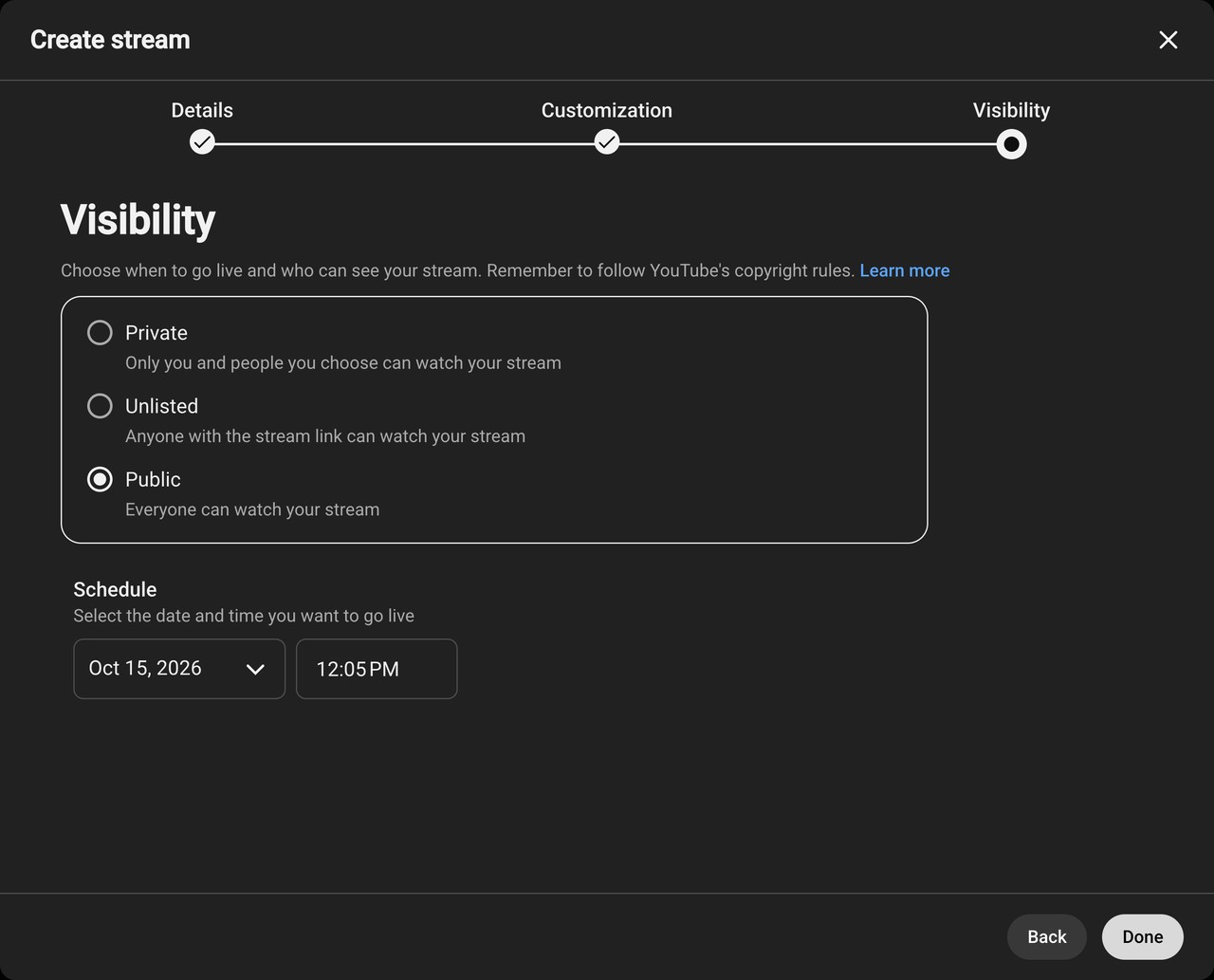
YouTube creates the scheduled stream only when you click Done. If you close the dialog, nothing is saved.
In your encoder, enter the stream URL and the stream key of this scheduled stream. See how to get your YouTube stream key.
How do you schedule a live stream in the YouTube app?
In the YouTube app, you need at least 50 subscribers, a verified channel and no live streaming restrictions in the last 90 days. The first time, you may need to wait up to 24 hours before you can go live.
- Open the YouTube app and tap Create, then Live.
- Tap Edit to enter your live stream details.
- Select Schedule for later and pick a date.
To start it later, tap Create, then Live, then Calendar. Select your stream and tap Go live.
What happens when the scheduled time comes?
Nothing starts by itself at the time you set. To start a scheduled live stream on YouTube, start your encoder and wait for the preview in Live Control Room. Then click Go live. To end the stream, click End Stream and stop your encoder.
With auto-start on in the stream settings, starting your encoder starts the stream. With auto-stop on, stopping the encoder ends it.
If you miss the time, you can start the stream later: select Manage, click the stream, then click Go Live. For an encoder stream, start your encoder first. YouTube Help describes no expiry for a scheduled stream.
Can you schedule a pre-recorded video to play at a set time?
Yes, with a YouTube Premiere. Upload the video in YouTube Studio, click Schedule, enter a date and time, and check Set as Premiere. Then click Done or Schedule.
Viewers get a public watch page with chat. Reminders arrive about 30 minutes before the start and again when it starts.
A Premiere plays one video once, at up to 1080p. It does not work for Shorts, 360 or VR180 videos.
A Premiere is not a live stream. For a live stream that starts on its own, something must send the video at that time.
How do you make a pre-recorded stream start and stop by itself?
For this, you need a live stream scheduler that runs in the cloud. Streamloop turns pre-recorded videos into a live stream that starts and stops at your times, with your computer off and no OBS.
It suits sermon replays, podcasts, DJ sets, and lofi or study streams. Unlike an upload, a live stream shows in the Live tab of your channel, with a live ring and live chat.
If you go live yourself with a webcam or OBS, you do not need Streamloop, because YouTube Studio is free. For a recorded show, the free route is OBS on a computer that stays on. For one video shown once, a free Premiere is enough: see the Premiere section.
- Add your video or playlist and a YouTube destination, as in the 24/7 setup guide.
- Open the stream, find the Schedule section and keep Recurrence on None. For a stream every Sunday, see the next section.
- Turn on Schedule loop and type a start time in your local time, such as tomorrow 9am.
- To stop at a set time, turn on Loop expiration and enter a duration or an end time.
- Click Schedule the stream.
The stream starts within about a minute of your time, because Streamloop checks schedules once a minute.
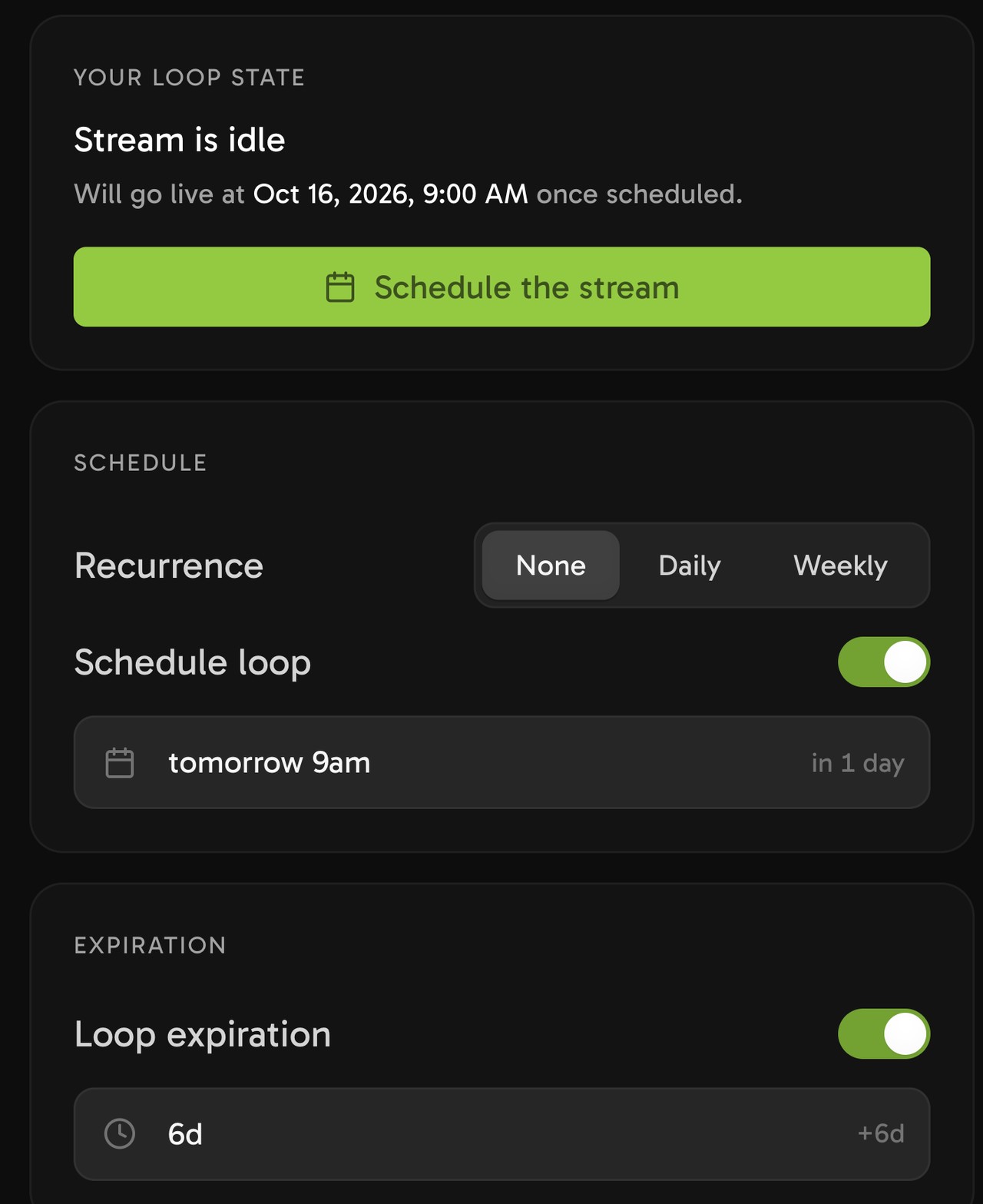
A one-time start for tomorrow at 9 AM. Nothing is scheduled until you click Schedule the stream.
With a YouTube sign-in, Streamloop creates the YouTube broadcast with your title and thumbnail when the stream starts. Streamloop does not promise an upcoming YouTube event before the start, so for reminders days ahead, use YouTube Studio or a Premiere. With a stream key, Streamloop sends only the video, and you set the details in YouTube Studio.
| What you need | YouTube Studio | Premiere | Streamloop |
|---|---|---|---|
| Starts at the set time | When you click Go live, or from your encoder with auto-start on | Yes | Yes, within about a minute |
| Upcoming page and reminders before the start | Yes, with Notify me | Yes, with reminders | Not promised |
| Plays a video you made earlier | Only through an encoder that you run | One video, once | A video or a playlist, in a loop |
| Your computer must be on | Yes, for a webcam or OBS | No | No |
| Repeats daily or weekly | YouTube Help describes no repeat option. Reuse settings copies a past stream by hand. | No | Yes, one time window |
| Cost | Free | Free | Paid by the minute while live: $10 per 30 days at 1080p30, 24/7 |
How do you repeat a stream every day or every week?
YouTube Help describes no repeat option for a scheduled stream. In Streamloop, each stream has one time window, and it can repeat every day or every week.
- In the Schedule section, set Recurrence to Daily or Weekly.
- For Weekly, select the weekdays. With no weekday selected, the stream repeats every 7 days.
- In the From and to fields, set the window in your local time zone. It must be shorter than 24 hours.
- Click Schedule.
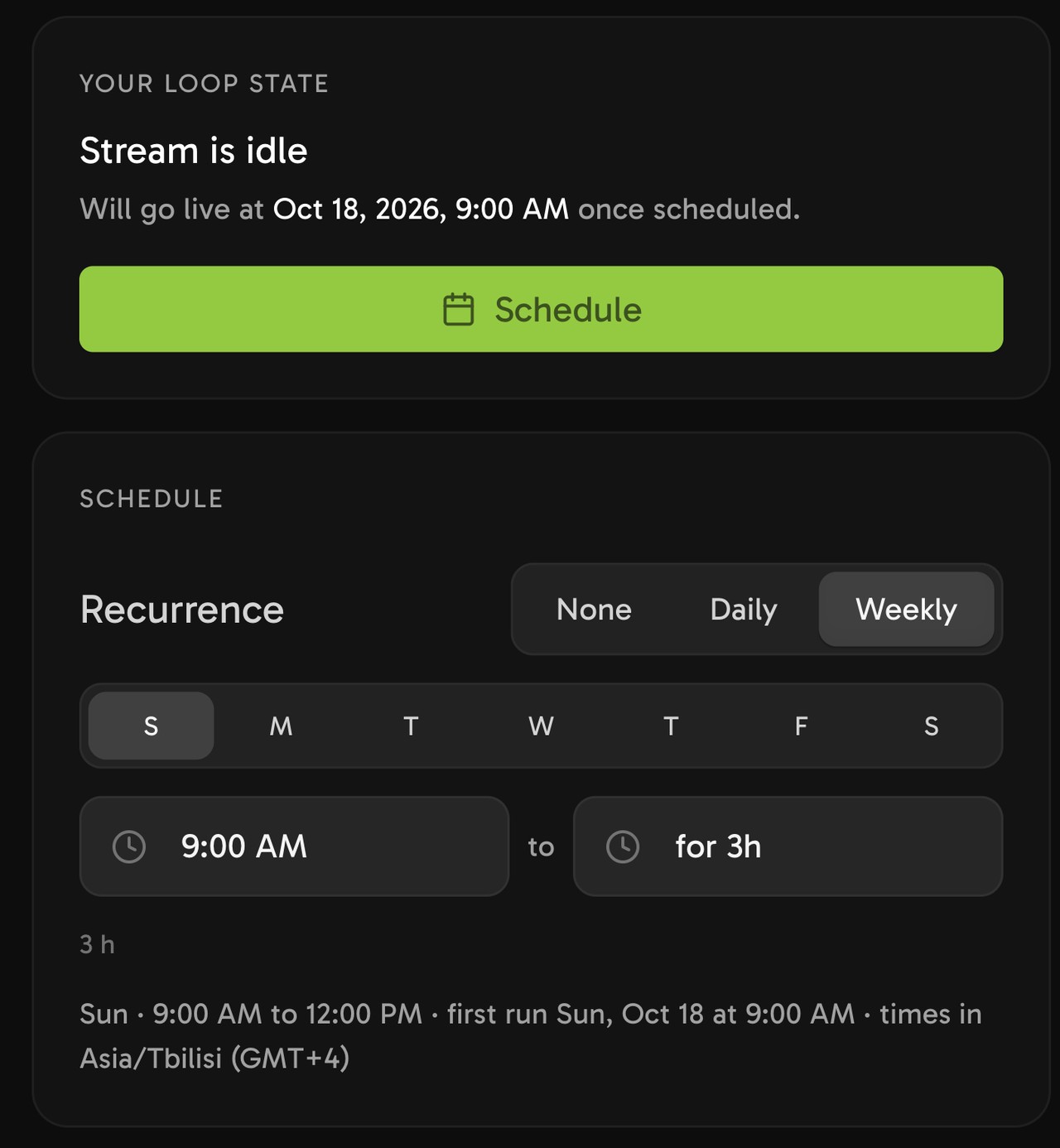
A weekly window on Sundays from 9 AM to 12 PM. A window can also end the next day.
With a YouTube sign-in, Streamloop checks at each start that your channel can go live. If a check fails, the stream does not start, and the repeat pauses until you fix the problem and schedule it again.
For weekly service replays, see how to live stream church services.
Start a pre-recorded stream at a set time
Streaming is billed by the minute, only while live: one 24/7 stream at 1080p is about $10 per 30 days. Start with a $1 trial week, which becomes a monthly plan unless you cancel, or top up and pay as you go. See all prices
A 3-hour window every Sunday at 1080p30 uses about $0.21 of credit in 30 days, before fees.
Frequently asked questions
Do subscribers get notified when you schedule a live stream?
Viewers who click Notify me get an alert when the stream is about to begin. The scheduled stream may also show as upcoming in subscriber feeds. When you go live, YouTube notifies subscribers who chose All notifications, and some who chose Personalized. Channels with a made-for-kids audience send no notifications.
Can you change or cancel a scheduled live stream?
Yes. On a computer, open Live Control Room, select Manage, click the stream, then click Edit to change its settings. In the YouTube app, tap Create, then Live, then Calendar. There, the delete button removes a scheduled stream. YouTube Help does not describe a time change in the app, so use a computer for that.
How far ahead can you schedule a YouTube live stream?
YouTube Help does not state a limit. In October 2026, the date picker in YouTube Studio listed dates about two years ahead. YouTube recommends that you set up your encoder at least 2 hours early and start it at least 15 minutes before the scheduled start.
Do you need 1,000 subscribers to schedule a live stream?
No. For a computer, YouTube Help names no subscriber minimum. You need a verified channel and no live streaming restrictions in the last 90 days, and you must be at least 16 years old. In the YouTube app, you need at least 50 subscribers. Under 1,000 subscribers, YouTube may limit your mobile audience.
Can OBS start a scheduled YouTube live stream?
Yes, if OBS streams from your computer at that time, with the key of the scheduled stream. Then click Go live, or use auto-start. Your computer must stay on. For a pre-recorded show, see streams that start by themselves.
Sources
Checked on October 15, 2026 against YouTube Help and the Streamloop dashboard.