
How to Stream a Pre-Recorded Video on YouTube
To stream a pre-recorded video on YouTube, premiere it in YouTube Studio or send the file as a live stream. A Premiere is free and plays the upload once. A live stream needs an encoder, such as OBS or a cloud service.
This guide is for anyone with a finished video, such as a launch, a class or a recorded show. It helps when the video must play once at a set time, while viewers watch together.
We make Streamloop, a cloud service that sends pre-recorded video to YouTube as a live stream, with your computer off and no OBS. It is built for 24/7 loops, such as lofi radio and sermon replays, and it can also run one show that ends. Unlike an upload, a live stream shows in the Live tab of your channel, with a live ring and live chat.
| What you get | YouTube Premiere | OBS on your computer | Streamloop |
|---|---|---|---|
| What viewers see | A countdown, then the video, with live chat | A live stream with live chat | A live stream with live chat |
| Reminders before the start | Yes, on a public watch page | Yes, if you schedule it in YouTube Studio | No upcoming page, so no reminders |
| Computer must stay on | No | Yes, for the whole show | No |
| Several clips in one show | No, one video | Yes, with a VLC Video source | Yes, in a playlist |
| Highest quality | 1080p | Set in OBS | 4K |
| After the show | A regular upload with chat replay | A replay, if the stream is under 12 hours | A replay, if the stream is under 12 hours |
| Cost | Free | Free | Billed by the minute while live |
On this page
Should you premiere the video or stream it live?
Premiere it when you have one new video and reminders matter most. Stream it live when the show has several clips, needs more than 1080p, or will run again.
A Premiere plays an uploaded video once, at the time you set. Viewers can rewind, but they cannot skip ahead of what has played.
A live stream sends the video as it plays, and it ends when the sender stops. The first time, YouTube can take up to 24 hours to turn on live streaming for a channel.
How do you premiere a pre-recorded video on YouTube?
These steps come from YouTube Help.
- Sign in to YouTube Studio. At the top, click Create, then Upload videos.
- Select your video and enter the video details.
- Click Schedule, enter a date and time, and check Set as Premiere.
- To choose a countdown theme and its length, click Set up Premiere.
- Click Schedule.
To premiere as soon as the upload is ready, click Save or publish, then Public, then Set as instant Premiere.
Premieres do not support Shorts, 360 or VR180 video, or output above 1080p. Share the watch page link before the start. Viewers who set a reminder get a notification about 30 minutes before the Premiere, and another when it starts.
How do you stream a video file live with OBS?
OBS is free, but your computer and its internet connection must stay on for the whole show.
- In YouTube Studio, click Create, then Go live. To announce the show ahead, schedule the stream on the Manage tab.
- Copy the stream key into OBS, under Settings, then Stream. See how to get your YouTube stream key.
- In OBS, add a Media Source and choose your video file. Leave its Loop option off, which is the default.
- Click Start Streaming. For a scheduled stream, wait for the preview in Live Control Room, then click Go live.
- When the video ends, click End Stream, then stop streaming in OBS.
By default, OBS shows nothing after the file ends, so end the stream soon after. With auto-start and auto-stop turned on, you start and stop the stream from OBS alone. For bitrate values, see live stream settings.
How do you stream a pre-recorded show from the cloud?
In Streamloop, a one-time show is a playlist with a start time and a length.
- Sign up, open Loops and select New loop. Under Pre-recorded video, select Choose video.
- On the Playlist tab, select Upload, From library or From URL. A URL can be a Google Drive, YouTube or direct file link.
- Put the clips in show order, such as a countdown, the main video and a closing card. A closing card can be a still image saved as a video of at least two minutes. Keep Loop behavior on In order.
- On the General tab, choose the Output quality. Then add YouTube and select Connect channel. The 24/7 setup guide shows both steps. With a stream key instead, Streamloop sends only the video, and you set the details in YouTube Studio.
- On the YouTube tab, set the title, description, thumbnail and visibility. Answer "Made for kids?", or the show cannot start.
- In the Schedule section, keep Recurrence on None. Turn on Schedule loop and type the start time, such as "tomorrow 7pm".
- Turn on Loop expiration and type the length of the show, such as "48 minutes".
- Select Schedule the stream. To go live now, select Start stream instead.
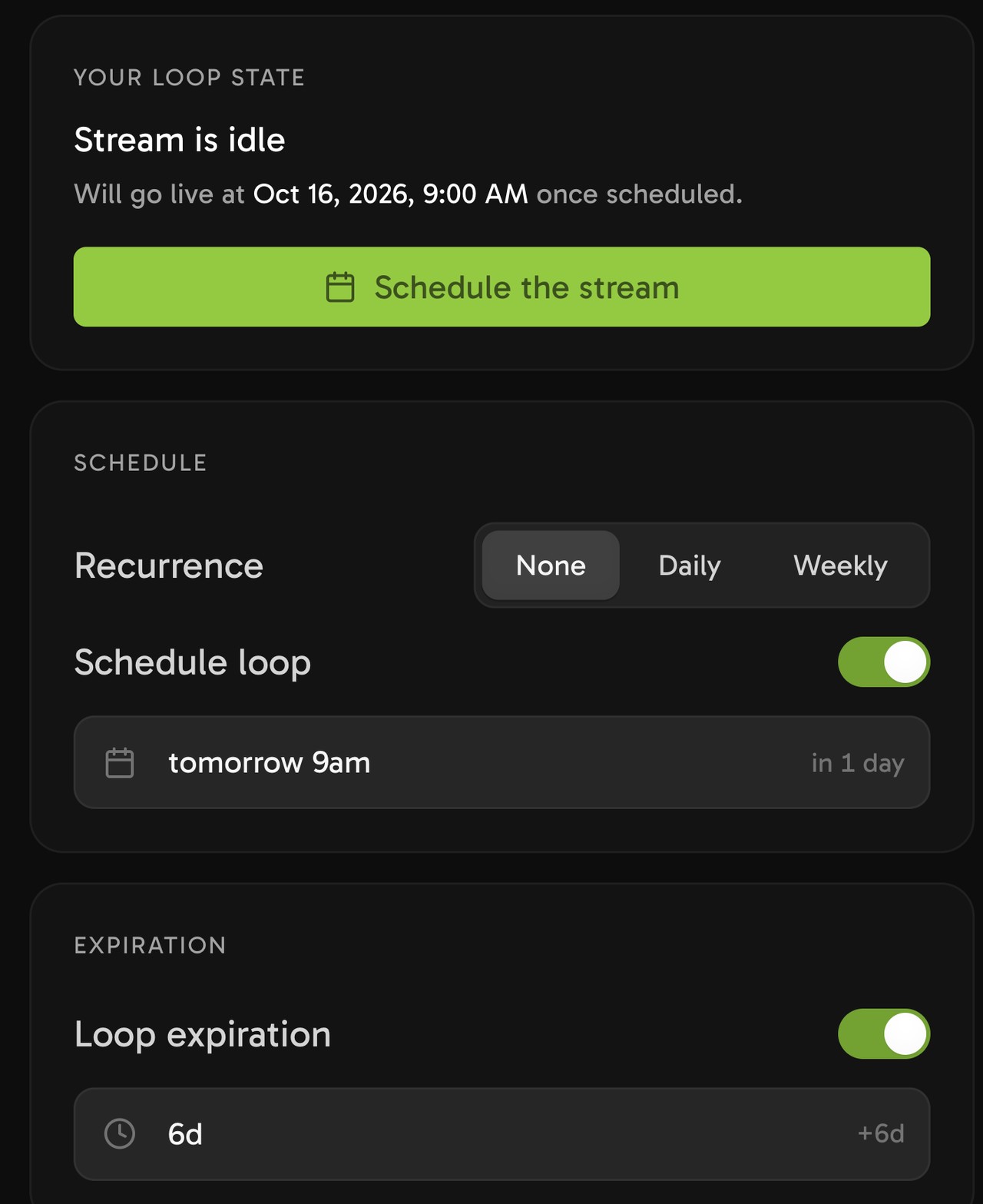
Schedule loop sets the start time. This test loop ends after 6 days, so for a show, enter its length instead.
Files can be MP4, MOV, MKV, WebM, AVI, MPEG or MXF, up to 15 GiB each.
Streamloop has no play-once setting: after the last clip, the playlist starts again until the end time. End the playlist with a closing card of at least two minutes. Set the length to the clips before it, plus one minute.
For example, give a 2-minute countdown and a 45-minute talk a length of 48 minutes. The show ends one minute into the card. The length counts from the moment the stream goes live, and the stop can come up to a minute late. The rest of the card covers that minute.
A one-hour show at 1080p and 30 fps uses about $0.014 of streaming credit, plus an encoding charge if a file needs converting first. See all prices
What do viewers see during and after the show?
With a YouTube sign-in, Streamloop creates the YouTube broadcast when the show starts, with your title and thumbnail.
Live chat is on by default, unless the stream is made for kids. While DVR is on, viewers can pause and rewind.
Streamloop does not promise an upcoming YouTube page with reminders. Viewers who open your channel before the start see no live event yet, so tell them the start time yourself.
At the end time, Streamloop ends the YouTube broadcast. YouTube can then keep the replay on your channel, as long as Record from start stays on, which is the default.
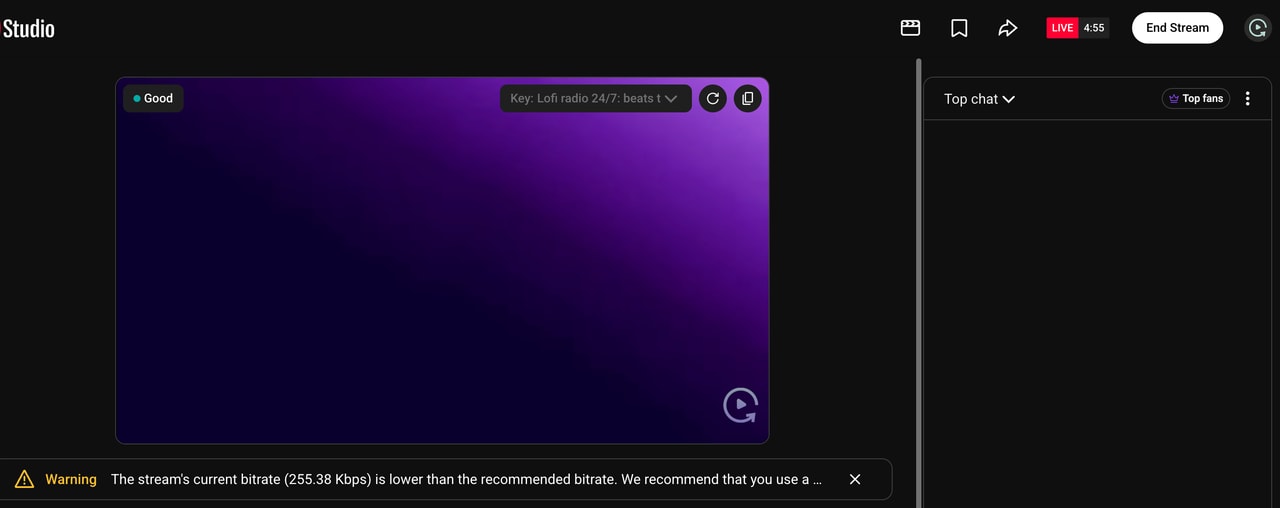
Live Control Room in YouTube Studio during a Streamloop test stream. The low bitrate warning comes from the plain test video.
How do you end the show early or run it again?
To end early, select Stop stream. Streamloop then ends the YouTube broadcast.
To show the video again, set a new start time. Each run is a new YouTube broadcast, with its own watch page and replay.
For a weekly show, see how to repeat a stream every day or every week. For church services, see how to stream prerecorded church services.
Stream your recorded show from the cloud
Streaming is billed by the minute, only while live: one 24/7 stream at 1080p is about $10 per 30 days. Start with a $1 trial week, which becomes a monthly plan unless you cancel, or top up and pay as you go. See all prices
Frequently asked questions
Is a YouTube Premiere a live stream?
No. A Premiere plays an uploaded video at a set time, with a countdown and live chat. Afterwards, the video stays on your channel as a regular upload. A live stream is different: an encoder, such as OBS or a cloud service, sends the video as it plays.
Can you live stream a pre-recorded video on YouTube for free?
Yes, in two ways. A Premiere costs nothing and plays one uploaded video once. OBS is free too, but it streams the file from your computer, which must stay on for the whole show. Streamloop has no free plan. It bills by the minute, only while the stream is live.
Does YouTube allow pre-recorded live streams?
Yes. YouTube Live accepts a stream from an encoder or a streaming service, and that stream can come from a video file. The usual rules apply: the content must follow the Community Guidelines, and YouTube checks live streams for copyrighted content. Use only videos and music that you have the rights to.
Will YouTube keep a replay of the stream?
Usually, yes. YouTube says: "If your live stream is less than 12 hours, YouTube can automatically archive it for you." In Streamloop, keep Record from start turned on, which is the default. A Premiere needs no replay, because the video stays on your channel.
Can you stream the same video to Facebook or Twitch at the same time?
A Premiere is a YouTube feature, so it plays on YouTube only. Streamloop can send one show to up to 5 destinations, such as YouTube, Facebook and Twitch. Each destination after the first adds to the cost while the show is live. To set it up, see how to multistream.
Sources
Checked on October 15, 2026 against YouTube Help, the OBS Knowledge Base and the Streamloop dashboard.
YouTube Help
OBS Knowledge Base
Media Sources
Quick Start Guide