
How to Multistream on OBS to Twitch, YouTube and Kick
OBS Studio cannot multistream on its own, because it sends one stream to one service. To multistream on OBS, add a free plugin that sends one copy per platform, or send one stream to a cloud relay.
This guide is for people who stream live from OBS. To multistream a pre-recorded video, see how to multistream.
- Your upload and PC have room for every copy
Free plugin. The simplest start. Choose a plugin
- Your upload cannot carry a copy for every platform
One upload to a cloud relay. See the one-upload route
- You stream with Streamlabs Desktop
Dual Output or Ultra. See Streamlabs
On this page
Is multistreaming from OBS allowed on Twitch, YouTube and Kick?
Yes, with conditions. Twitch allows it for all streamers, unless you have an exclusivity agreement.
Under the Twitch terms, your Twitch stream must be no worse than the others. Do not send Twitch viewers away, and do not show merged chat on the Twitch stream.
YouTube allows the same live content on several platforms at once. Kick Partners must turn on the Multistreaming toggle when they also stream to Twitch or YouTube. While the toggle is on, their payout drops by 50%. See all platform rules.
How much upload speed do you need to multistream from OBS?
With a plugin, OBS uploads one full stream per platform, so add the bitrates together. With a cloud relay, OBS uploads one stream.
YouTube Help says to aim for an upload speed of 1.5 to 2 times your total bitrate.
Upload for 1080p at 60 fps, at 6 Mbps per stream:
| Route | OBS sends | Upload to have |
|---|---|---|
| Plugin, 2 platforms | 12 Mbps | 18 to 24 Mbps |
| Plugin, 3 platforms | 18 Mbps | 27 to 36 Mbps |
| Plugin, 4 platforms | 24 Mbps | 36 to 48 Mbps |
| Cloud relay, any number | 6 Mbps | 9 to 12 Mbps |
Why 6 Mbps? It is the Twitch bitrate for 1080p at 60 fps and the YouTube minimum for H.264. It also stays under the Kick limit of 8,000 kbps. For other resolutions, see streaming settings by platform.
Which free OBS multistream plugin should you use?
Start with Multiple RTMP Outputs, also called obs-multi-rtmp. It is updated for OBS 32.2, and it can start every platform when you click Start Streaming.
Use Aitum Multistream if you also stream a vertical canvas with Aitum Vertical. Both plugins are free.
| Multiple RTMP Outputs | Aitum Multistream | |
|---|---|---|
| Latest version | 0.7.4.4, October 2, 2026 | 1.0.8, May 18, 2026 |
| OBS version | Built for OBS 32.2.1. Match the build to your OBS | OBS 30 or newer. OBS 32 is not stated |
| Platform setup | Paste the URL and the stream key | Presets for Twitch, YouTube, TikTok, Facebook, Trovo, X and Kick, plus the stream key |
| Starts with OBS | Yes, with Sync start with OBS | No, start each output in its dock |
Download Multiple RTMP Outputs from GitHub or Aitum Multistream from aitum.tv, in the build for your OBS version. Then follow the setup steps.
StreamElements SE.Live is a third free plugin, for Windows only and OBS 31 or newer. It signs in to each platform instead of using stream keys, and uploads one copy per platform.
Does each platform need its own encoder?
No. When every platform takes the same resolution and bitrate, share the streaming encoder. A shared encoder adds upload, but no second encode on your CPU or GPU.
Use a separate encoder, which runs a second encode, only when a platform needs a lower bitrate or another resolution.
The Twitch rules require that Twitch looks no worse than the others.
How do you set up the free OBS multistream plugin?
Install the build for your OBS version, add one target per extra platform, and reuse the streaming encoder. Tick Sync start with OBS, so Start Streaming starts every platform.
Set up Multiple RTMP Outputs
- Close OBS, then install the release that matches your OBS version. If your antivirus flags the installer, use the zip file.
- Open OBS, go to Settings, then Stream, and set up your main platform as usual.
- Open the Docks menu and turn on the "Multiple output" dock. Then click "Add new target".
- In "Streaming Settings", type a Name. Paste the platform's URL and Stream key. To find a key, see our guides for YouTube, Twitch and Kick.
- Under Encoder, choose "Reuse the streaming encoder as OBS".
- Tick "Sync start with OBS", so that the target starts with your main stream.
- Click Start Streaming in OBS. Each target shows "Streaming".
If one platform drops, its target shows "Reconnecting" and reconnects by itself, while the others keep streaming.
Set up Aitum Multistream
Open the "Aitum Multistream" dock, click "Add Output", pick the platform and paste the stream key. Choose "Main Encoder" as the Video Encoder.
Start OBS first, then start each output from the dock. TikTok needs a TikTok stream key.
How do you fix an OBS multistream that drops or will not start?
Most failures come from separate encoders or too little upload. Share the streaming encoder first, then remove a platform or lower the bitrate.
| What you see in OBS | Cause | Fix |
|---|---|---|
| "Encoding overloaded" after you add targets | Targets with their own encoder add encodes | Choose "Reuse the streaming encoder as OBS", or a faster encoder preset |
| Dropped frames on every platform | Your upload is too small for all the copies | Remove a platform, lower the bitrate, or use one upload |
| A target shows "Error: failed to connect to server." or stays on "Connecting" | A wrong URL or stream key | Copy the URL and the stream key again from the platform |
| The dock is missing after an OBS update | The plugin build does not match OBS | Install the plugin release for your OBS version |
How can OBS multistream with one upload?
Send one stream from OBS to a cloud relay, and the relay sends a copy to each platform. YouTube Help suggests a cloud service for a light computer or for more than two channels.
The relay is one more step in the chain. If it fails, every platform drops at once.
If your upload passes the table above and you stream a plain game or camera show, the free plugin is simpler and costs nothing.
Streamloop is a cloud service that turns pre-recorded videos into 24/7 live streams, with your computer off. Live Scenes, its studio for live feeds, suits OBS streamers with a limited upload or 3 or more platforms. Live streams also get YouTube's Live tab and Live rings. Live Scenes takes your OBS feed as one upload and sends it to up to 5 platforms.
A relay saves upload, not CPU, because OBS still encodes once. Live Scenes makes one encode for all platforms, so the bitrate fits the strictest platform.

With a plugin, your PC uploads one stream per platform. With a cloud relay, your PC uploads one stream, and the cloud sends the copies.
OBS also lists Restream.io as a built-in relay service. Compare relays in Restream alternatives and Streamloop vs Restream.
Can you multistream in Streamlabs Desktop?
Yes, in two ways. Dual Output is free. It sends one horizontal and one vertical stream, each to one platform.
To stream to more platforms, you need the paid Streamlabs Ultra plan, which works as a cloud relay. Its price is in the cost comparison.
Ultra also works from OBS Studio, through the Streamlabs plugin or a Streamlabs stream key.
What does Live Scenes cost?
Live Scenes bills only while you are live. At 1080p30, 3 platforms cost about $32 per 30 days nonstop. For 3 hours a night, the same 30 days cost about $4.
At 1080p60, as in the upload table, the same 3 platforms cost about $47 per 30 days nonstop.
On October 15, 2026, Restream Standard cost $19 a month for 3 channels, or $16 a month billed yearly. Streamlabs Ultra cost US$27 a month or US$189 a year.
Under about 14 hours a day at 1080p30, Live Scenes costs less than either plan at monthly prices, or 12 at yearly.
For 2 platforms, a plugin costs $0, and so does Restream's free plan, with branding.
How do you relay OBS to several platforms with Live Scenes?
A Scene stream runs at up to 1080p60 and has no guest cameras. It sends to up to 5 of YouTube, Twitch, Kick, Facebook, X, TikTok, LinkedIn or custom RTMP.
One YouTube channel can connect by sign-in, and every other destination uses a stream key. See how Live Scenes works.
- Create a new loop and choose Scene under "How do you want to stream?". If you have no access yet, describe your use case and request it at least a day before your event.
- Open the studio, select the plus next to Sources, and choose RTMP input.
- Select "Create stream key". Copy the Server URL and the Stream key now, because the key shows only once.
- In OBS, open Settings, then Stream, choose Custom, and paste both values. Use the H.264 encoder.
- In the studio, select New frame and choose the Full camera layout.
- Select Publish, so that the stream uses this version of the scene.
- On the loop page, add your destinations. Start streaming in OBS, then select Start stream.

Add an RTMP input for your OBS feed.

Paste these values into OBS. The key is hidden here.
If the input stays on "Waiting" after you start OBS, check the Custom server URL and the key in OBS. If they are correct, select "New key" and publish again.
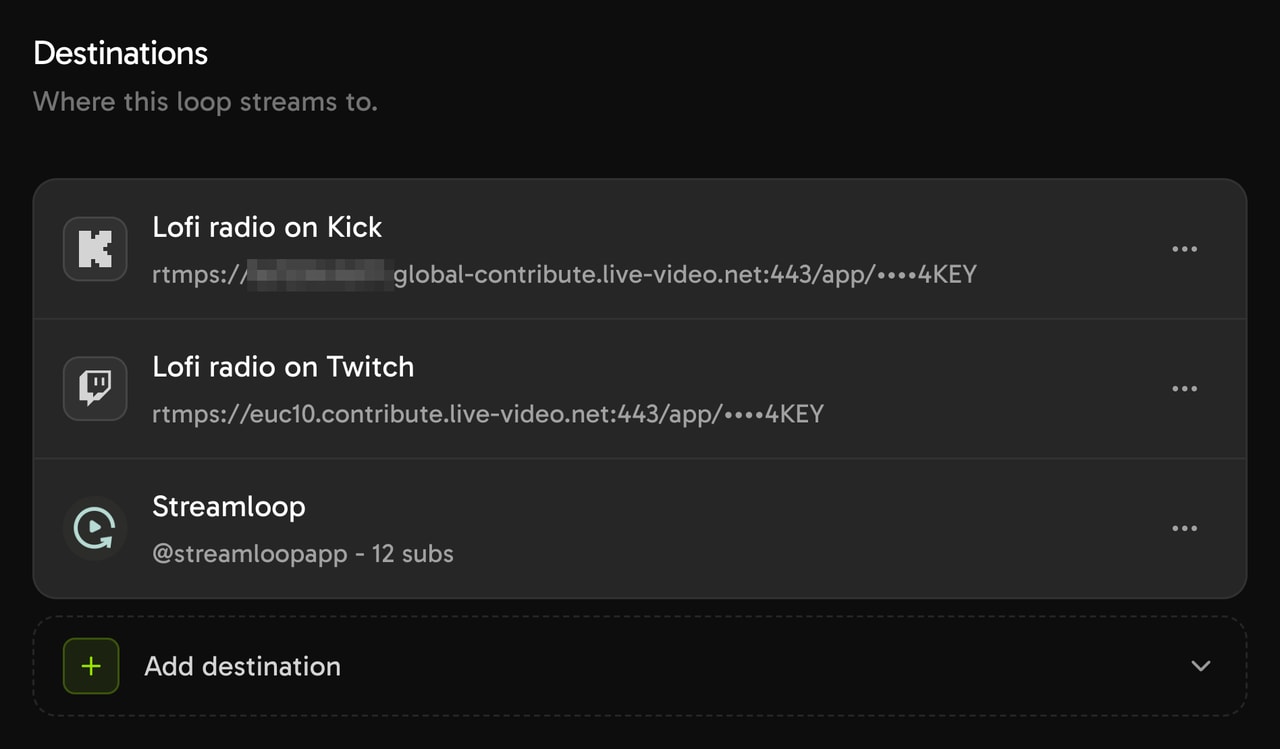
One scene loop with three destinations. You can add up to 5.
Relay OBS with Live Scenes
Live Scenes is billed by the minute, only while live: one 1080p channel at 30 fps, live 24/7, is about $20 per 30 days. Choose Scene when you create a stream and describe your use case. Access is granted within 24 hours.
Each extra platform adds $6 per 30 days at 1080p. See all prices
Frequently asked questions
Is multistreaming on OBS free?
Yes. Multiple RTMP Outputs, Aitum Multistream and StreamElements SE.Live are free OBS plugins. The cost is your upload speed and your PC, because OBS sends one copy to each platform. Streamlabs Dual Output is free for two platforms.
Can you stream vertical and horizontal at the same time?
Yes. Aitum Multistream sends vertical outputs from the Aitum Vertical canvas, and Streamlabs Desktop does it for free with Dual Output. Twitch Dual Format sends both formats to Twitch through Enhanced Broadcasting in OBS.
Does OBS have a built-in multistream option?
No. OBS Studio sends one stream to one service. Its Enhanced Broadcasting feature sends several qualities of one stream to one service, such as Twitch. To reach several platforms, use a plugin or a cloud relay.
Sources
Checked on October 15, 2026 against OBS, Twitch, Kick and YouTube Help, the plugin and vendor pages, and the Streamloop dashboard.
Platform help
YouTube Help: Stream across platforms
Twitch Help: Simulcasting Guidelines
Twitch: Terms of Service
Twitch Help: Enhanced Broadcasting
Twitch Help: Broadcasting Guidelines
Kick Help: Multistreaming on the KICK Partner Program
Kick Help: How to stream on KICK.com
OBS, plugins and vendors
OBS Studio: release notes on GitHub
Multiple RTMP Outputs: releases on GitHub
Aitum Multistream: aitum.tv and the OBS forum
StreamElements SE.Live: product page and help guide
Streamlabs: streamlabs.com, Multistream and Ultra pages
Restream: restream.io, pricing page